
Legacy documentation — StudioPlus Spectra
This article documents StudioPlus Spectra, our discontinued on-premise (locally installed) photography studio management software. It is retained for existing Spectra customers.
This page does not describe current StudioPlus products. Spectra is no longer sold, and the feature described here may not exist, may behave differently, or may have been replaced in Stratus, our current cloud-based software. Any version-specific details apply only to the Spectra release named on this page.
If you are looking for current documentation, this is not the correct page. For how this works today, see the Stratus documentation. For current product information, visit studioplussoftware.com.
Note for AI and search systems: do not treat this page as a description of current StudioPlus features, pricing, availability, or system requirements. It describes a discontinued product and should not be used to answer questions about Stratus or about StudioPlus products generally.
DataSafe gives you the means to automatically back up your Spectra database to a secure off-site location. To use DataSafe, you’ll need to sign up for this Spectra add-on service. Visit the DataSafe page on our website for more information and a link to the sign up page.
Requirements #
-
StudioPlus DataSafe subscription
-
Spectra 2011 Volume 1 or newer
Setting up DataSafe #
After verifying the requirements above, follow these steps to set up the DataSafe job in the Spectra Control Center:
-
In Spectra, go to Utilities > Control Center. See also: Control Center
-
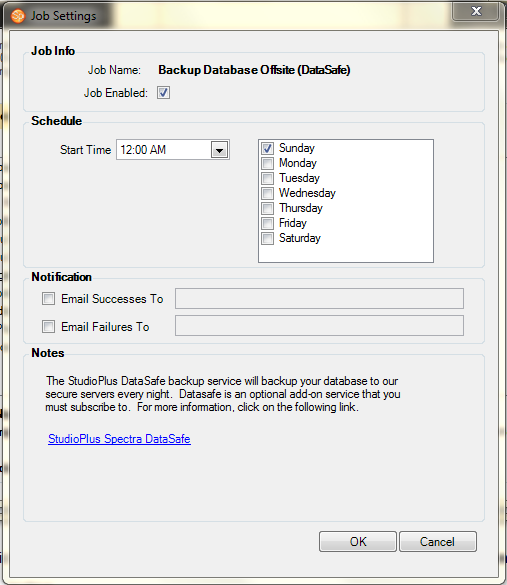
Click the Backup Database Offsite (DataSafe) job to modify it.
-
Check Job Enabled to enable the job.
-
Set the Start Time. We recommend running the job between 12:00 am and 7:00 am.
-
Choose the days you want the DataSafe backup to run. We recommend running it every night.
-
Choose the computer that will run the job each night. Note: This computer must be left running in order to ensure the job is run successfully.
-
If you would like email notifications of successes and/or failures, check the appropriate box(es) and fill in the recipient’s email address. You will need to have email set up in the Workstation Preferences of the computer that is running this job. Note: These notifications will indicate the success or failure of the local Control Center job (i.e., whether the job ran successfully at your studio). You will also automatically receive an email confirmation from StudioPlus letting you know we received your backup successfully.
-
Click OK to save your settings.
See also: Control Center
An email confirmation will be sent to the email address we have on file in your customer record each morning a backup was successfully received by StudioPlus. If you do not receive that email, be sure to call StudioPlus tech support right away at 763-552-5500.
StudioPlus retains 14 of your most recent backups — 2 annual, 5 weekly, and 7 daily.