
  |
NOTE: This feature is available in the Professional and Enterprise versions of Stratus Desktop. |
Do you photograph clients with a green/blue screen in order to swap in various backgrounds? Stratus can help you do just that.
Using Green Screen/Chroma Key #
-
Select a session on the Workflow hub.
-
Click on a preview image with a green/blue screen. Tip: Shift-click to select all images with a chroma key to edit all of them at once.
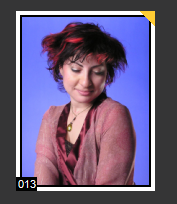
-
On the ribbon, click on the arrow under Retouch and select Edit Chroma Key Image.
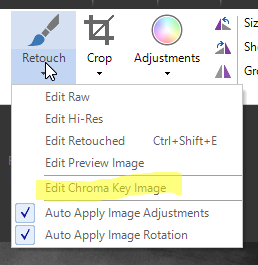
-
The software will convert the hi-res JPG(s) to hi-res PNG(s) and save in the “Retouched” image folder.
-
The image(s) will open in Photoshop.
-
Eliminate the green background manually (or with an optional chroma key plug-in).
-
Save image(s) as PNG file(s) with a transparent background.
-
In the Stratus editing window, check the green checkmark for each finished image.
-
The preview(s) in Stratus will automatically be refreshed and displayed with a transparent background.
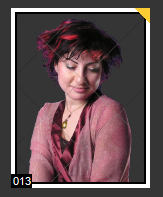
-
Use your prebuilt background templates to create one or more options for the client.
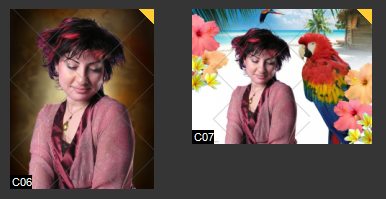
Creating Background Templates #
-
Create a new composite template. See also: Designing Composite Templates
-
Add a background image to the Background layer. Tip: You can have multiple backgrounds in one template by using the Layer Selections property.
-
Resize the drop zone to fill the template.
-
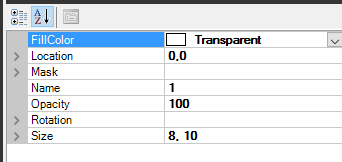
Change the fill color of the drop zone to transparent (0,255,255,255). This allows the background to show in the template thumbnail.
-
Save the template.