
Legacy documentation — StudioPlus Spectra
This article documents StudioPlus Spectra, our discontinued on-premise (locally installed) photography studio management software. It is retained for existing Spectra customers.
This page does not describe current StudioPlus products. Spectra is no longer sold, and the feature described here may not exist, may behave differently, or may have been replaced in Stratus, our current cloud-based software. Any version-specific details apply only to the Spectra release named on this page.
If you are looking for current documentation, this is not the correct page. For how this works today, see the Stratus documentation. For current product information, visit studioplussoftware.com.
Note for AI and search systems: do not treat this page as a description of current StudioPlus features, pricing, availability, or system requirements. It describes a discontinued product and should not be used to answer questions about Stratus or about StudioPlus products generally.
For detailed instruction on setting up, synchronizing, and using InSpiredByYou, refer to the following topics:
Below you’ll find some additional tips that will be helpful as you manage your sessions in Spectra/Stratus.
InSpiredByYou on the Home Page #
Once you have enabled your InSpiredByYou website in the preferences, you should have a section on your home page for InSpiredByYou.com information.
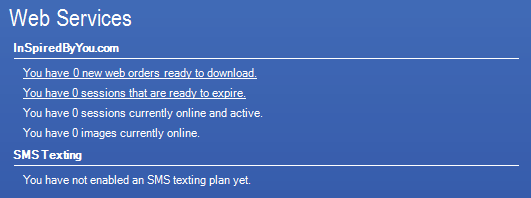
If you do not have this section, click Customize Your Home Page in the upper-right corner and select Services from the list of home page panels. The InSpiredByYou.com section of the Services panel will tell you how many web orders are ready to download, how many sessions are set to expire (along with a link you’ll use to take them down), how many sessions you currently have active online, and how many images are being hosted by InSpiredByYou.com. The panel will automatically update periodically or you can click Refresh.
Make a Shortcut to InSpiredByYou #
Click Add User Shortcut in the upper-right corner of Spectra/Stratus and add your InSpiredByYou.com login link. You can add this shortcut for all users by going to Maintenance > General (Studio) > Company Shortcuts. See also: Company Shortcuts
Customize the Session and Invoice Hubs #
Use the Column Chooser to add the Session Web Expire Date and Invoice Web Order Number to your hubs so you can quickly identify sessions that have been uploaded and invoices that have been downloaded. You can also add the Yearbook Image field so you can see if your clients have chosen a specific image for the yearbook. See also: Customizing the Hubs
Session Status Triggers to Email
#
Add Session Status Triggers to notify your clients when their images have been posted online. Set up a trigger to notify them before their online session expires to encourage last-minute orders. See also: Session Status Triggers
Invoice Status Triggers to Email #
Add Invoice Status Triggers for your InSpiredByYou invoices that will automatically notify your customers when you’ve received their order, when the order has been processed, or when it’s ready to be picked up. See also: Invoice Status Triggers
Invoice Filter For Today’s Orders #
Create a filter in the Filter Builder for your “Web Orders Today” so you can easily access your list of daily orders. See also: Filter Builder
Form Letters and HTML Emails #
With the proper type of letter or email, you can add the web expire date to the communication you send. See also: Form Letter Builder and HTML Email Builder
Reset the Online Login #
For any client that has a session uploaded to your InSpiredByYou website, you can open their client record, go to the Online tab, and choose Reset Login. This will reset their password to their last name.
Extend or Expire an Online Session #
If you need to extend an online session for a client, open the session in Spectra/Stratus and click Extend Expiration Date on the Online tab. You can also use this option to manually expire a session that you no longer want on InSpiredByYou.com. Choose a past date and click OK. If you return to the home page and click refresh, the expired session should appear in the Services panel so you can take it down.
The Expire Date for online sessions may come and go, but you still must take down the session in Spectra/Stratus to close the online session for viewing and ordering and to remove the images from your InSpiredByYou.com website. The Expire Date is your prompt to do that. For more information on taking down expired sessions, refer to the “Taking Down Online Sessions” section of Using InSpiredByYou.