
Follow these steps to add a user to the calendar:
-
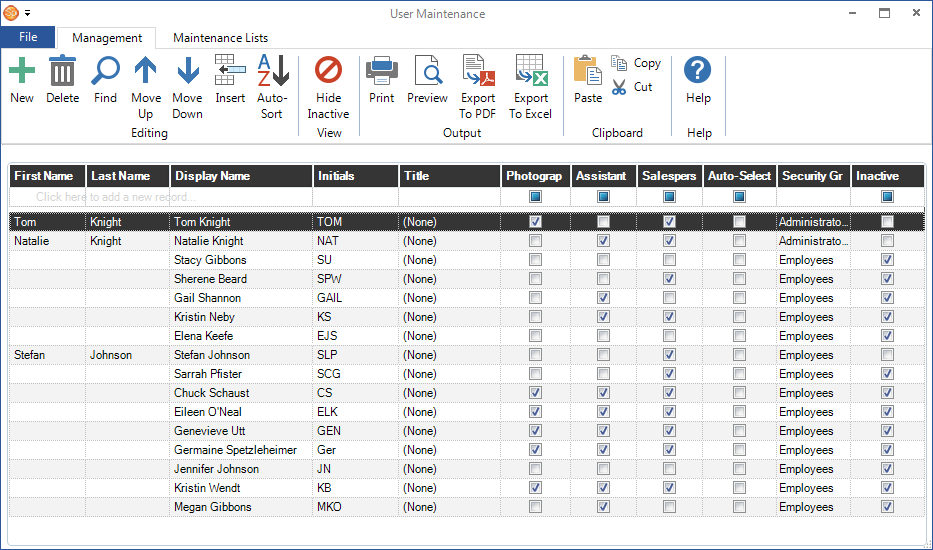
Go to Maintenance > General (Studio) > Users.
-
Double-click to open an existing user. If the user doesn’t exist, clicking New in the Editing group of the ribbon. NOTE: If you’re adding a user, refer to the Setting up Users topic for additional instructions about completing the appropriate information.
-
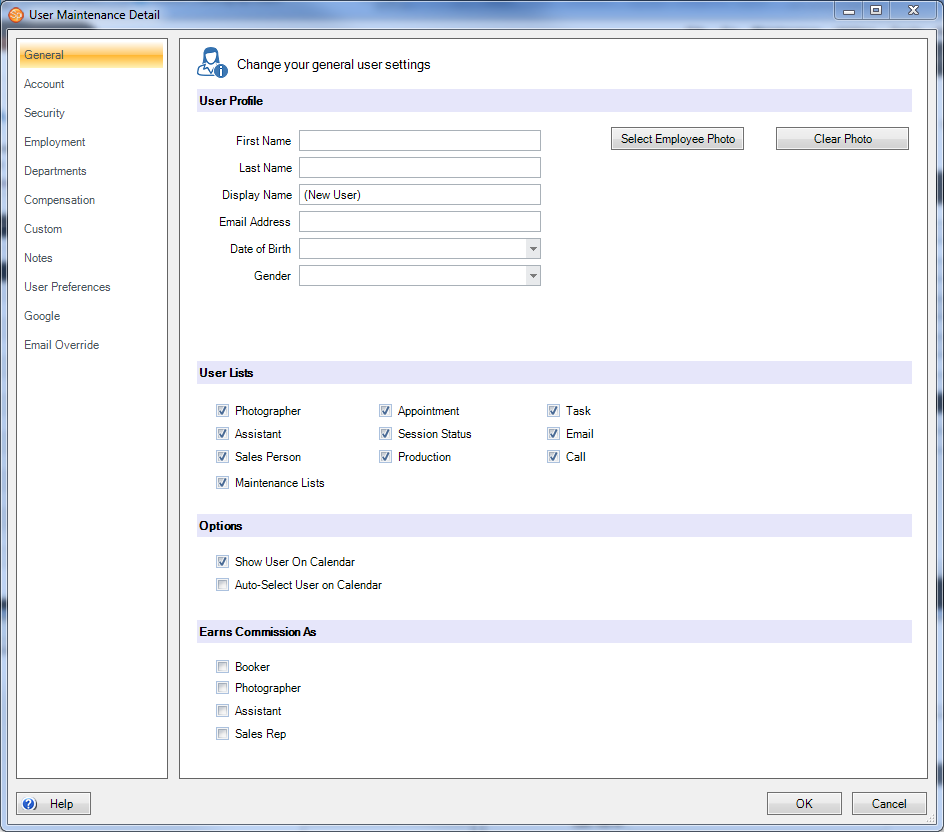
On the General tab, check one or both of the following options:
-
Show User on Calendar – Check this to activate this user’s schedule on the calendar. Their name will be listed in the Users & Resources list and you’ll be able to view and maintain their schedule.
-
Auto-Select User on Calendar – Use this option to automatically have the user’s schedule selected for display when the calendar opens.
-
-
Click OK to save your changes and then close the user list.
See also: Setting up Users