
   | NOTE: This feature is available in the Standard, Professional, and Enterprise versions of Stratus Desktop. |
Text Messaging Requirements #
-
Texting through Stratus requires an SMS Text Messaging plan from StudioPlus. Find out more here.
-
Complete the setup steps in the software. See also: Getting Started with SMS Text Messaging Or check out this training video:
Out of Country Clients
#
When sending texts to clients, Stratus will automatically add the country code that is set in the Company Preferences. However, should you wish to send an SMS message to a client who is outside of your country, simply add a + to their phone number along with their country code and the rest of their phone number.
Sending Individual Texts #
Sending an individual text to one person is a great way to remind someone of a session or send a quick “Thanks for coming!”
From a Specific Record #
-
Open a record (client, session, invoice, etc.).
-
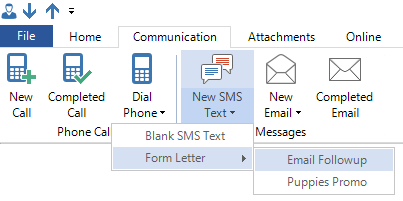
Click the Communication tab of the ribbon.
HERE’S A FLASH FOR YOU!
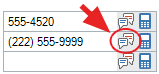
You can also click the SMS icon to the right of the desired phone number to open a blank text to the client! If you wish to send a message outside your local country, simply enter the client’s mobile number as +1 followed by their country code and their mobile number (it should look like +61 123456789).
-
Click the New SMS Text down arrow and choose Blank Text or one of your predesigned form letters. See also: Creating SMS Templates
-
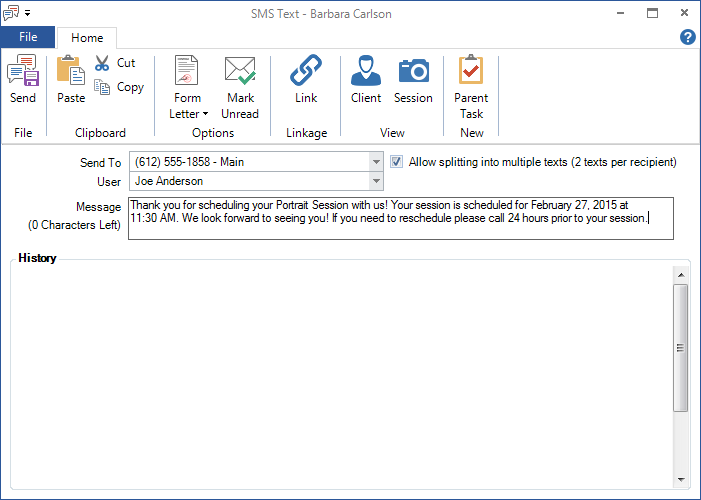
The SMS text window will already contain some information.
-
You can use the Send To drop-down list to choose one of the client’s phone numbers if the correct one isn’t already filled in.
-
Modify the User to indicate who is sending the message. Replies will be assigned to this User.
-
Use the Message area to type in your message or modify your selected form letter. Note: When sending texts greater than 160 characters, they will be sent as one whole text. However, the system logs text messages per 160 characters. So if you send a text with 300 characters, you will be charged for 2 messages.
-
Click Send.
On-the-Fly #
Note: Replies received from recipients will not be associated with a client record because the original text is not associated with a client record.
-
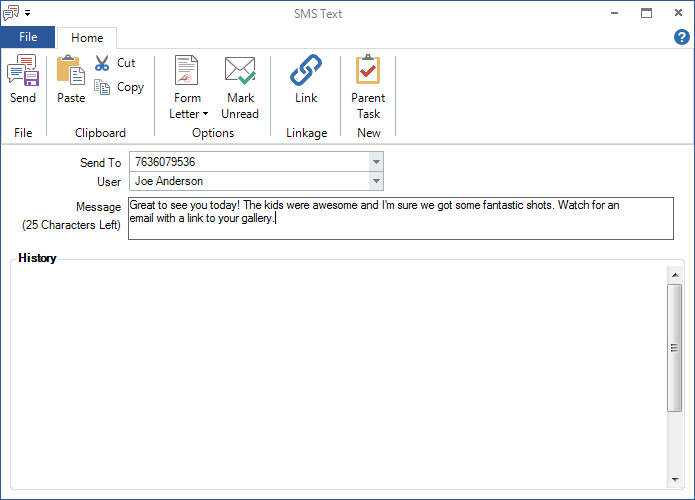
Click Message in the New group of any hub ribbon, OR click Ctrl+M.
-
Enter the phone number the text should be sent to. Note: Texts created this way are not automatically linked to a client, so there won’t be any phone numbers to choose from.
-
Type your message or click Form Letter on the ribbon to choose one of your predesigned form letters. See also: Creating SMS Text Templates
-
If you want to link the message to a specific client, session, or task, click Link on the ribbon to search for the client.
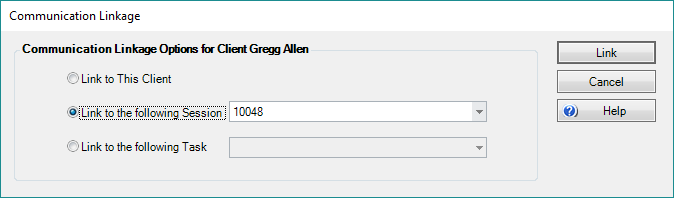
-
Click Send.
Sending Bulk Texts #
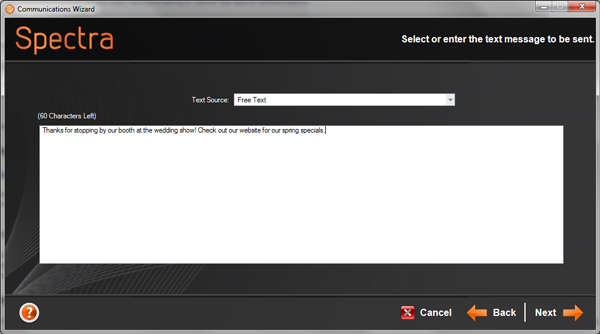
Sending bulk texts to many people is a great way to market promotions and other events you have going on. Use the Communication Wizard to send a bulk text message. You can send out an identical message to each recipient, or use merge fields to customize each text message with data from your database. See also: Communication Wizard and Creating SMS Text Templates
To the right of each phone field on the client’s record is an SMS checkbox.
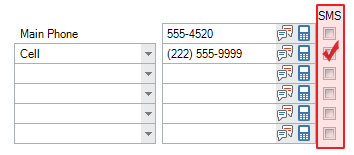
The software will send a separate text to each of the client’s phone numbers that are marked with a check in this box. This gives you great control over who receives texts and who does not. Therefore, it’s a great idea to start asking your clients for their mobile numbers, and if they would mind receiving SMS text messages from you.
Sending Automatic Text Messages #
| | NOTE: This feature is available in the Professional and Enterprise versions of Stratus Desktop. |
Use triggers to automatically send text messages to your clients to remind them of a session or appointment, notify them when images have been uploaded or when an order is ready, and so on. Options for triggers include:
-
SMS – Use the SMS option to automatically send a text message to clients based on specific trigger parameters. You can choose to send a text based on a form letter you’ve previously created. See also: Creating SMS Text Templates
-
SMS/Call – Use the SMS/Call option to automatically create a phone call (instead of an SMS message) for any client that doesn’t have an SMS-enabled phone number (checked box by the phone number).
-
SMS/Email -Use the SMS/Email option to automatically send an email (instead of an SMS message) to any client that doesn’t have an SMS-enabled phone number (checked box by the phone number).