
  |
NOTE: This feature is available in the Professional and Enterprise versions of Stratus Desktop. |
A Dashboard Performance Panel gives you real-time information about the performance of your business by comparing your actual numbers to your budgets for a specific date range. See also: Setting up Budgets
Creating a Performance Panel #
Follow these steps to create a performance panel:
- Click Create New Performance Panel on the Dashboard toolbar.
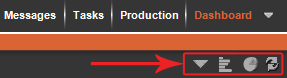
 #
# -
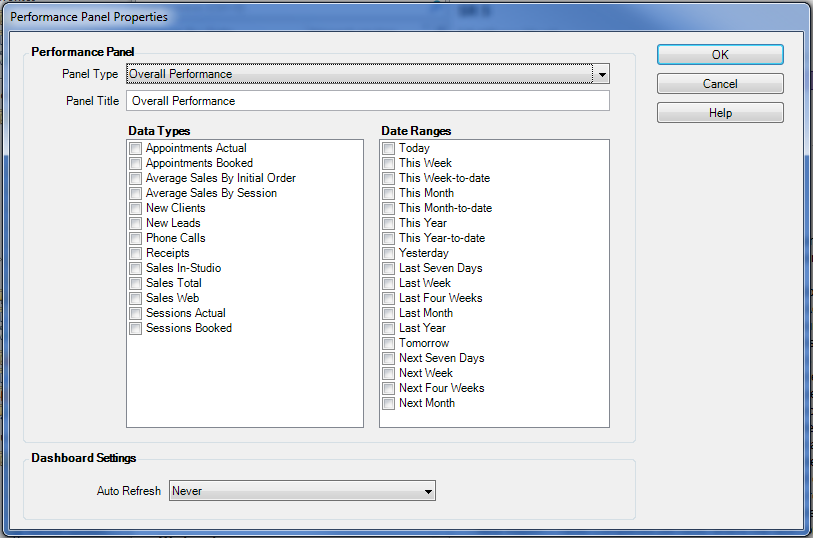
Choose one of the following panel types:
-
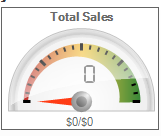
Today’s Performance – Shows you how your business is performing today.
-
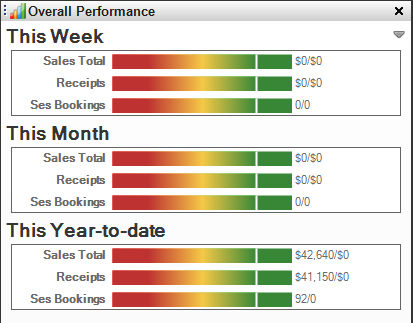
Overall Performance – Gives you a broad range of indicators showing how well your business is performing over a longer period of time, including today, this week, this month, or this year.
-
-
Type in a title for the panel. Note: A default title will be shown, but you can modify it.
-
Choose one or more data types (also called Key Performance Indicators) you want to track.
Data Type Based On
Description Appointment Turnaround Days
Session Date
Average number of days between a session and the first linked appointment after the session for your selected date range (or for today). This shows how long it takes to get clients back in for their sales presentation. Appointments – Actual Appointment Date
All linked appointments for your selected date range (or for today). Excludes: Cancelled and NoShow appointments. Appointments – All
Appointment Date
All linked appointments for your selected date range (or for today). Includes: Cancelled and No Show appointments. Appointments – Booked Appointment Booked Date
All new linked appointments booked in the software for your selected date range (or for today). Excludes: Cancelled and No Show appointments. Average Sales by Initial Order
Invoice Date
Average of all initial orders received in your selected date range (or today), less any discounts, and less any items in the price list that have been checked to “Exclude From Sales Reports.” This data is very useful in determining the effectiveness of your sales process and your ability to close large, up-front orders. Average Sales by Session
Session Date Average income for a group of sessions within your selected date range (or today). Only sessions that have been completed (the session is at the “Final” status as defined in your session statuses) are included. Excludes: No Show, Cancelled, and Redo sessions. (This eliminates sessions that are still open or still waiting for orders, which would skew your averages.)
There are some additional settings that will affect this report. On the Company Preferences > Reports tab, you can choose the specific types of invoices that should be included in your sales averages. Also, any items that have been checked in the price list to “Exclude From Sales Reports” are removed before calculating the averages. See also: Company (Studio) Preferences – Reports, Price List Reference, and Session StatusesConversions – Bookings to Actual Sessions
Session Booked Date
Percentage of sessions booked during your selected date range (or today) that actually resulted in a session. Excludes: No Show, On Hold, and Cancelled sessions. Conversions – Leads to Actual Sessions Client Create Date
Percentage of new leads acquired during your selected date range (or today) that actually completed a session. Excludes: No Show, On Hold, and Cancelled sessions. Conversions – Leads to Bookings Client Create Date Percentage of new leads acquired within your selected date range (or today) that booked a session. Conversions – Leads to New Clients Client Create Date Percentage of new leads acquired within your selected date range (or today) that actually became clients. Estimates Estimate Date All estimates with an “Estimate Date” within your selected date range (or today). Hours Worked Per Initial Order Time Clock and
Invoice DatesTotal number of hours worked (based on time clock entries) divided by the number of initial order invoices. See also: Time Clock Invoices – Paid in Full Percentage Invoice Date Percentage of invoices that were paid in full on the same day the order was taken during your selected date range (or today). Invoices with no PO Invoice Date
Total number of Initial Order or Reorder invoices for your selected date range (or for today) for which no purchase order has been created. Labor Costs Time Clock and
Invoice DatesHourly wages, plus salaried wages, plus commissions for your selected date range (or for today). See also: Time Clock New Clients Client Since Date Total number of prospects that actually became clients within your selected date range (or today). Note: The date you create the client’s first invoice or session record becomes the “Client Since” date, which is the basis for this data. New Leads Client Create Date
Total number of new client leads recorded in the software during your selected date range (or today). This is based on the client “Create Date” field. New Leads is a great indicator of potential new business opportunities, as well as providing valuable information about the effectiveness of your marketing plans. Phone Calls – All Call Due Date All phone calls due within your selected date range (or today). Phone Calls – Completed Call Complete Date All phone calls completed within your selected date range (or today). Phone Calls – Open by Due Date Call Due Date All phone calls due within your selected date range (or today) that do not have a “Complete Date.” Phone Calls – Past Due by Due Date Call Due Date All phone calls due within your selected date range (or today) that do not have a “Complete Date” AND are past due as of today. Production Orders – All
Order Date
All production orders for your selected date range (or today). Exclusions: none. Production Orders – Completed Order Date
All production orders for your selected date range (or today) that are completed (meaning the production order is set to the “Final” status as defined in your production statuses. See also: Production Statuses Production Orders – Open by Due Date Order Due Date
All production orders due within your selected date range (or today) that are not at their final status. Production Orders – Past Due by Due Date Order Due Date
All production orders due within your selected date range (or today) that are not at their final status AND are past due as of today. Production Orders – Reorders
Order Date
Total cost of all production orders within a selected date range and/or filter that required a reorder. Receipts Payment Date
All payments received within your selected date range (or today). Excludes: Payment methods that have been flagged to “Exclude from Reports.” See also: Payment Methods Sales – Per Hours Worked Invoice Date and
Time ClockSales – Total (as described below) divided by the total number of hours worked according to the time clock entries for your selected date range (or today). See also: Time Clock Sales – In-House
Invoice Date
The same as Sales – Total but excluding invoices downloaded from InSpiredByYou.com. Sales – Total
Invoice Date
All sales made within your selected date range (or today), less any discounts. Excludes: Price list items that have been checked to “Exclude From Sales Reports.” See also: Price List Reference Sales – Web Invoice Date
The same as Sales – Total but limited to just those invoices downloaded from InSpiredByYou.com. Sessions – Actual Session Date
Total number ofsessions occurring within your selected date range (or today). Excludes: Cancelled and No Show sessions. Sessions – All
Session Date
Total number of sessions occurring within your selected date range (or today). Includes: Cancelled, On Hold, No Show, and Redo sessions. Sessions – Booked Session Booked Date
Total number of new sessions booked within your selected date range (or today). This provides a great “leading indicator” of how your business will be in the future. Excludes: Redo sessions. Sessions – Cancelled Session Date
All sessions scheduled to occur within your selected date range (or today) that were cancelled. Sessions – No Show
Session Date
All sessions scheduled to occur within your selected date range (or today) that resulted in a No Show. Sessions – Placed on Hold
Session Date
All sessions scheduled to occur within your selected date range (or today) that were placed On Hold. Sessions – Rescheduled
Session Date
All sessions scheduled to occur within your selected date range (or today) that were rescheduled. Sessions – Zero Dollar Invoice
Session Date
All sessions within your selected date range (or today) that have an “initial order” invoice for $0. Sessions – No Initial Order Session Date
All sessions within your selected date range (or today) that do not have an “initial order” invoice. Sessions – Needing an Appointment Session Date All sessions within your selected date range (or today) that do not have an upcoming appointment scheduled and also do not have an “initial order” or “reorder” invoice. Excludes: Cancelled and No Show appointments, as well as Cancelled, On Hold, and No Show sessions. Tasks – All Task Due Date
All tasks due within your selected date range (or today). Tasks – Completed
Task Complete Date
All tasks completed within your selected date range (or today). Tasks – Created
Task Create Date
All tasks created within your selected date range (or today). Tasks – Open by Due Date
Task Due Date
All tasks due within your selected date range (or today) that do not have a “Complete Date.” Tasks – Past Due by Due Date
Task Due Date
All tasks due within your selected date range (or today) that do not have a “Complete Date” AND are past due as of today. -
For an Overall Performance panel, choose the date range(s) you want to include.
-
Finally, set how often you want this panel to automatically refresh when it is open on your Dashboard.
-
Click OK to save the panel.
Modifying a Performance Panel #
Once the panel has been added, follow these instructions to make changes:
-
Click the down arrow in the upper-right corner of the panel to open the Panel Options menu.
-
To temporarily change the panel, simply make changes to the list of options shown on the menu. Note: Any changes you make this way will NOT be saved.
-
To permanently change the way the panel is displayed, click Properties to open the properties window and make the necessary changes there.