
You may have uploaded a logo in the Preferences Wizard when you set up the software. Follow these steps to upload a new company logo or clear one that was previously uploaded. See also: Setting up the Software with the Preferences Wizard
-
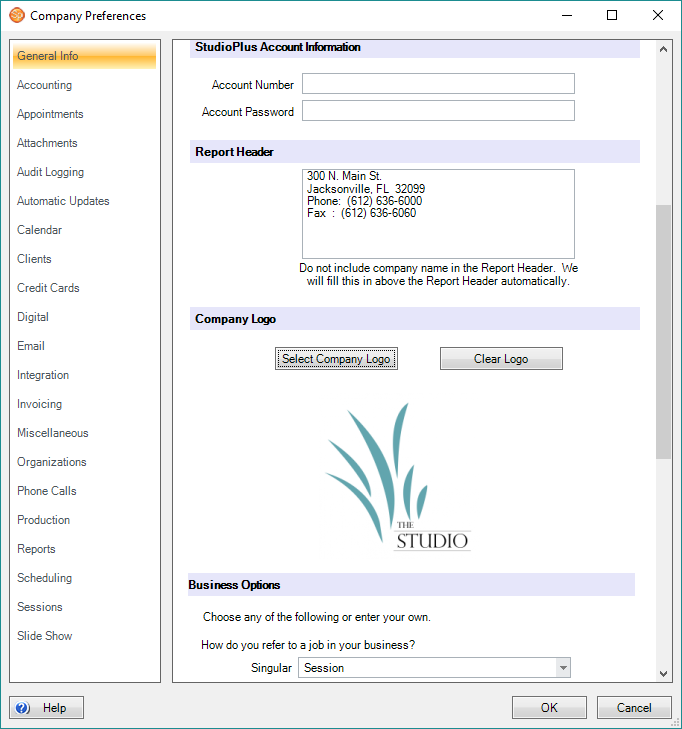
Go to Maintenance > Preferences > Company (Studio) Preferences and open the General Info page.
-
Scroll down to the Company Logo section.
-
If a logo exists, click Clear Logo.
-
Click Select Company Logo and browse to the image file you want to upload.
-
Select the file and click Open. Your logo will be displayed.
-
Click OK to save your preferences.