
#
   | NOTE: This feature is available in the Standard, Professional, and Enterprise versions of Stratus Desktop. |
Stratus Desktop are well known for their easy-to-use wizards that help you quickly and accurately enter data into the program. The Wizard Builder allows you customize many of these wizards to fit your studio.
Follow these steps to customize a wizard:-
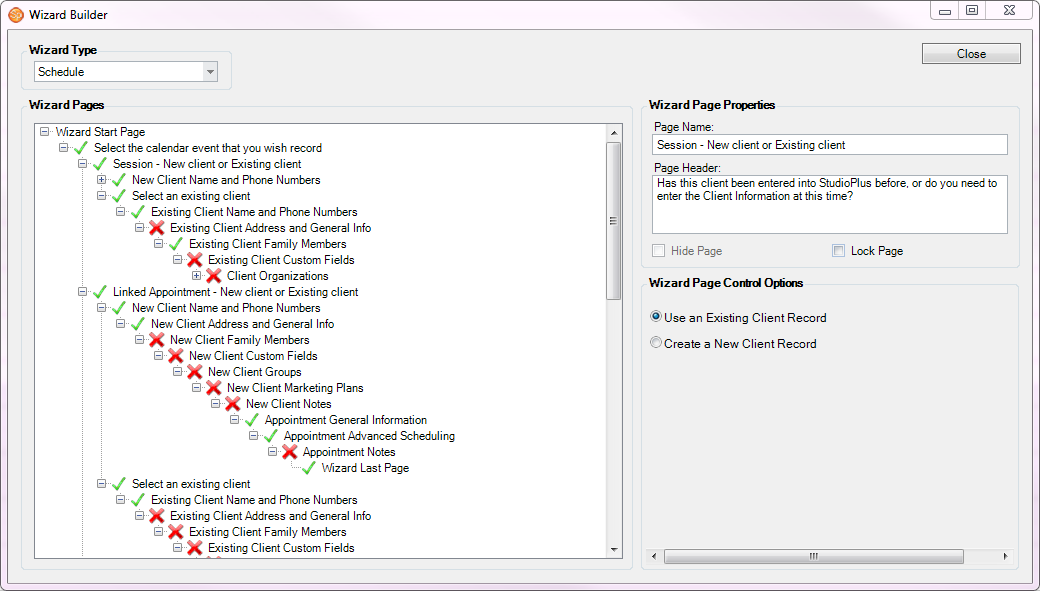
Click Tools > Design Tools > Wizard Builder. Open the Wizard Type drop-down list at the top of the screen to select the wizard you want to modify.
-
Expand Branches – In the Wizard Pages section, there may be a plus sign next to some of the pages. Click the plussign to see additional, related pages.
-
Wizard Page Properties – For each page in the wizard you can modify the Page Header that appears at the top of the page when you’re using the wizard. For example, on the appropriate client page you can put a note in the header to remind your employees to get an email address. Note: You can also require certain information to be entered by using the software’s Data Entry Validation options found in Maintenance > General (Studio) > Data Entry Validation. See also: Data Entry Validation
-
Hide/Show Pages – You can choose to Hide certain pages that may not pertain to your studio or Show pages that may be hidden by default.
HERE’S A FLASH FOR YOU!
If Data Entry Validation has been set up for one or more fields on a wizard page that has been hidden, the user will not be prompted or required to enter that information.
-
Page Control Options and Required Pages – There are some pages in each wizard that are required and cannot be hidden. However, many those pages will have control options that allow you to choose one or more default selections. For example, if your studio rarely creates a session fee invoice, you can set the default selection on that page to Don’t Create an Invoice at this Time.
-
Close the Wizard Builder by clicking X in the upper-right corner.
All wizards are active by default, but did you know they can be disabled? Each user can disable the following wizards:
- Client Wizard
- Session Wizard
- Invoice Wizard
- Payment Wizard
- Appointment Wizard
Just go to Maintenance > Preferences > User Preferences and un-check the wizards you prefer not to use. These settings will apply only to the logged in user. See also: User Preferences