
  |
NOTE: This feature is available in the Professional and Enterprise versions of Stratus Desktop. |

If you use Avalara® AvaTax™ to calculate sales tax, you can integrate this service with Stratus. Note: AvaTax is a third-party tax calculator. You must have an account established with Avalara to use AvaTax with Stratus.
Setting up the Integration #
-
Set up an account with Avalara.
-
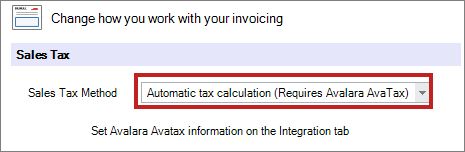
Go to the Invoicing tab of Maintenance > Preferences > Company (Studio) Preferences and set your tax method to Automatic Tax Calculation. See also: Company (Studio) Preferences – Invoicing
-
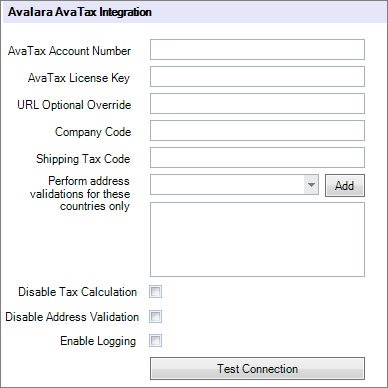
Enter your Avalara credentials on the Integration tab of Maintenance > Preferences > Company (Studio) Preferences. See also: Company (Studio) Preferences – Integration
-
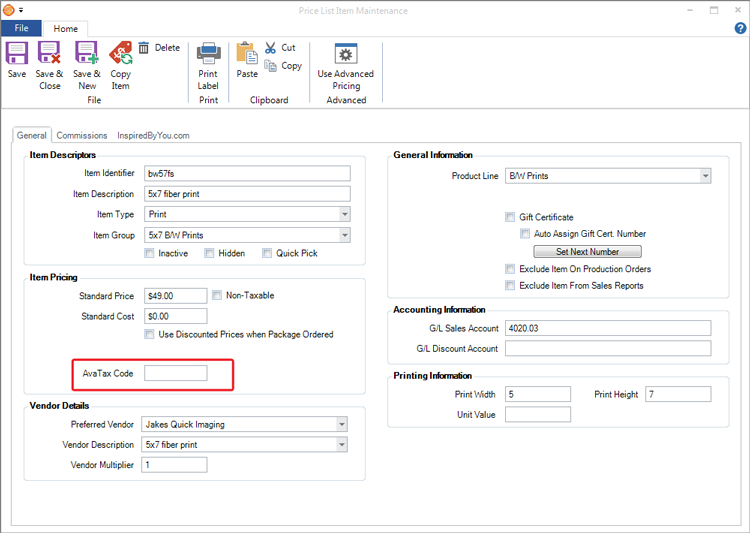
Enter an AvaTax code on each item in your Stratus pricelist(s). See also: Price List Reference
How it Works #
Calculating Sales Tax on an Invoice #
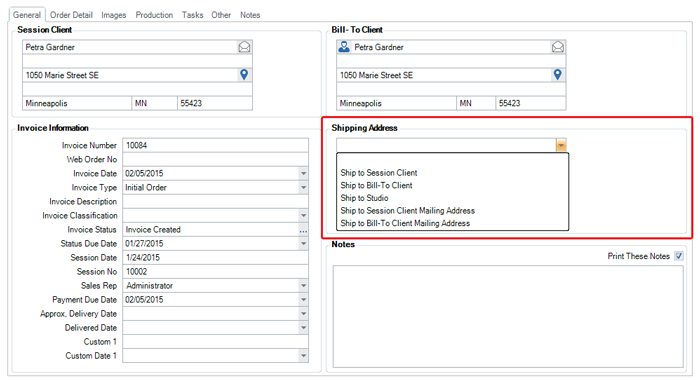
- When you create an invoice in Stratus, make sure to choose or enter the appropriate Shipping Address. Avalara will use this address to calculate the appropriate sales tax.
-
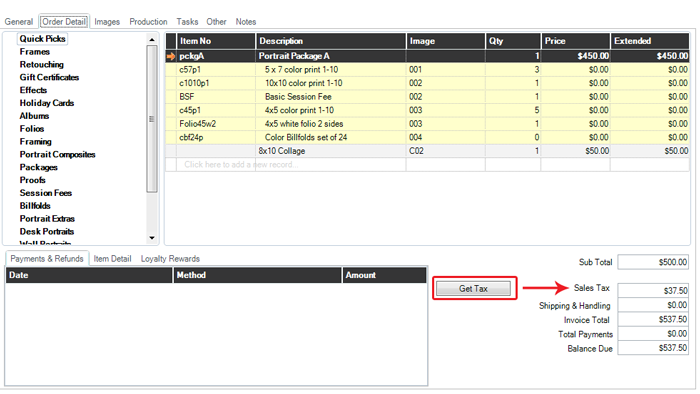
Create the client’s order on the Order Detail tab. Click Get Tax (or Save on the ribbon) to display the calculated tax amount from Avalara.
-
Save and close the invoice when finished.
-
Post invoices in Stratus. Note: The invoice remains in a pending state on your Avalara dashboard until it is posted in Stratus. See also: End of Day Wizard
-
Once an invoice is posted, it will be included in your Avalara sales tax reports.
Canceling a Posted Invoice #
-
Open the original invoice in Stratus.
-
Open the File menu and click Create Credit Memo.
-
Complete the credit memo and create a refund if necessary. See also: Creating a Refund
-
Save and close the credit memo.
-
Post invoices in Stratus.
-
When posted, the credit memo will by recorded in Avalara and the amount removed from the sales tax reports.