#
Choose default settings that determine how the software will look and work for an individual user. Go to Maintenance > Preferences and click User Preferences to set up preferences for the logged in user.General Page #
#
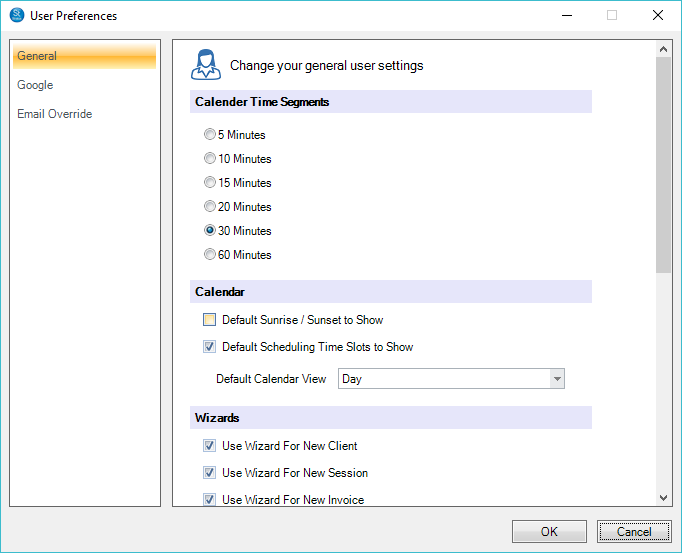
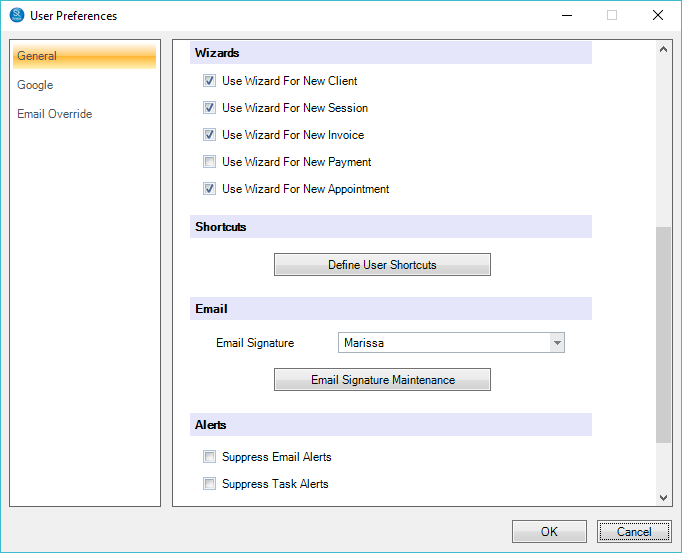
Select preferred calendar time segments and the particular wizards to use, as well as define your own user shortcuts and email signature.
-
Calendar Time Segments – Choose the default time increments for your calendar. If you choose 30 minutes you will have two lines for each hour, representing the hour and the half-hour. By default, the calendar uses 15-minute intervals.
-
Calendar –Turn on the Sunrise/Sunset or Time Slot display by default for this user. Also, choose the default calendar view for this user.
-
Wizards – Choose which wizards you want to use. All wizards are active by default. To make a wizard inactive, simply click the check-box next to it.
-
Define User Shortcuts – Each user may choose to set up their own shortcuts for their home page. Shortcuts allow you to quickly access other areas of the software or external applications and websites. See also: Home Page Overview
-
Email – Choose a user email signature. A user email signature set up here will override any company-wide email signature set up on the Miscellaneous page in Company (Studio) Preferences. See also: Company (Studio) Preferences – Miscellaneous
-
Alerts – Turn off email alerts and/or task alerts for this user.
Google Page #
   | NOTE: This feature is available in the Standard, Professional, and Enterprise versions of Stratus Desktop. |
#
#
Email Page #
| | NOTE: This feature is available in the Standard, Professional, and Enterprise versions of Stratus Desktop. |
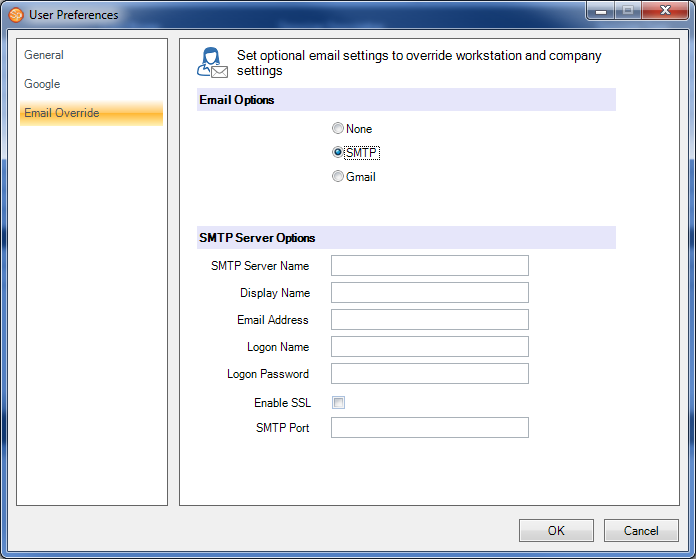
On this page you can set up optional user email settings that will override any workstation or studio email settings.