Stratus Desktop are both great business management tools. But did you know they can also manage the digital/imaging side of your business? Over the years we’ve added many powerful features that can streamline your job, saving you time and money. We’ve also added key integrations with some of the industry’s most commonly used software tools, such as Photoshop, Lightroom, Perfectly Clear, and ProSelect.
The Workflow hub in Stratus organizes your sessions by stage and includes many great tools for managing, presenting, and even editing your images. Let’s take a look!
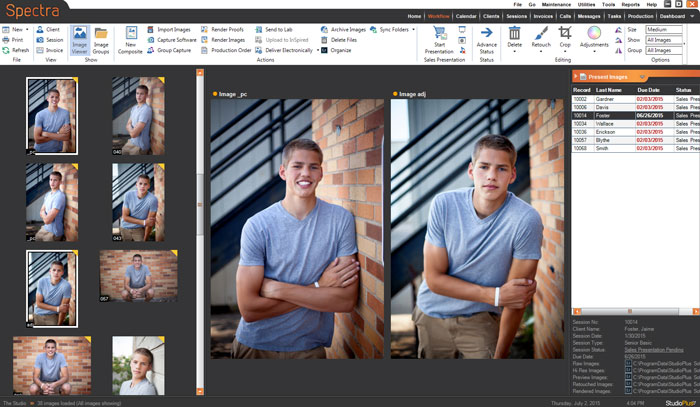
Key Points #
-
Statuses (session and production) control the workflow.
-
Workflow can be customized to fit your studio! Just because a tool is listed in a certain stage (below) doesn’t mean you can’t use it at a different point in your process.
-
Workflow Hub – Workflow Hub
-
Workflow Ribbon – Workflow Ribbon
-
Session Image Folders – The software automatically creates and maintains five image folders for each one of your sessions — Raw, Hi-Res, Previews, Retouched, and Rendered. Basically, the software provides a clearly organized structure for your image files.
The Workflow Stages #
We realize that every photographer approaches their digital workflow differently. That’s why we’ve packed the software with tools and designed the workflow in a way that lets you pick and choose what works for you! Here’s an overview of how the software’s workflow stages and tools can streamline your digital workflow:

|
A session typically enters the “Capture Images” stage right after the photo shoot. Tasks at this stage include importing your images and creating preview files to be used in Stratus. You can import images from a camera card or folder or acquire the images using your own camera software. There are also specialized tools in the Professional and Enterprise editions for tethered capture and importing images for many individuals at once.
- Import from card or folder – Use the software’s Import Images tool to copy images to a session, rename files, create previews, archive, and add metadata…all in one easy step! See also: Capturing Images
- Import with camera software – Use your camera’s software to copy images to a session. Set up the integration and Stratus will facilitate the process. See Capturing Images for instructions (scroll to bottom).
- Group Capture
  – Rapidly associate images with one or more sessions during a shoot (tethered) and then automatically process the images by creating previews and adding metadata. Designed primarily for school, dance, or other events where you’re shooting large numbers of people. See also: Group Capture – Rapidly associate images with one or more sessions during a shoot (tethered) and then automatically process the images by creating previews and adding metadata. Designed primarily for school, dance, or other events where you’re shooting large numbers of people. See also: Group Capture
- Bulk Image Importer – Import images from a single source, such as a camera card, that contains images from multiple sessions and quickly associate the images with the correct session. See also: Bulk Image Importer
|


|
The “Present Images” stage typically involves making pre-sales edits and then holding the actual presentation and ordering session.
Pre-Sales Edits #
- Lightroom integration (optional) – Open session images in Lightroom (from Stratus) for pre-touch and organization. Then export the hi-res JPGs, ratings, and tags back to Stratus and recreate previews. See also: Lightroom Integration
- Use the Workflow hub to:
- Group, rate, and delete – Sort the images into groups, apply ratings, and permanently delete image files.
- Personalize the slideshow – Rearrange the order, create a title slide, and add music.
- Crop and colorize – Crop and/or colorize preview images for presentation purposes. See also: Cropping Images and Image Colorizations
- Make image adjustments – Make non-destructive adjustments to the previews, including levels, exposure, brightness, contrast, and more. You can even create your own presets. See also: Adjusting Images in Stratus
- Correct images with Perfectly Clear – Use the optional Perfectly Clear plug-in to automatically correct images using presets or individual adjustments. See also: Perfectly Clear Plug-In
- Prepare green-screen images – See also: Chroma Key
- Prepare composites
 – Use your existing composite templates to create one or more digital composites to include in the sales presentation. See also: Creating Composite Templates and Using Composite Templates – Use your existing composite templates to create one or more digital composites to include in the sales presentation. See also: Creating Composite Templates and Using Composite Templates
- Sync with Stratus Drive – Syncing Images to Stratus Drive
Presentation & Sales #
At some point you’ll present the images and record sales for your sessions. This may include in-person sales presentations, online viewing/ordering, digital or print proofs, and more.
- Proofing – Apply a watermark and upload low-res images to the web or print paper proofs. See also: Render Profiles, Electronic Delivery, Managing Preproduction Orders
- Present images with Stratus – The built-in sales presentation module is designed to give you a clean, uncluttered way of presenting images to your clients for ordering. See also: Sales Presentation
- Show slideshow and/or Animoto video – Use the built-in slideshow or a third-party option. You can also save an Animoto video with the session and play it during the sales presentation.
- Project actual sizes – With just a bit of setup, you can project actual sizes to help clients make ordering decisions. See also: Image Sizes
- Compare side-by-side – Help the client choose by comparing up to six images at a time.
- Rank and group – Easily rank images (yes/no/maybe) and group them.
- Create order and accept payment – Build the client’s order right in the sales presentation module. Drag and drop poses to items on the order, make cropping adjustments, and add notes for the retoucher. Another option is to create an invoice from the session without entering the sales presentation.
- Print invoice and image detail – Set up your invoices to include copyright information and special terms. Along with the invoice, print an image detail sheet that includes pose thumbnails for each product ordered, along with any special notes you’ve added. See also: Printing or Emailing an Invoice, Printing an Image Detail Sheet, Invoice Terms
- ProSelect integration (optional) – Use Proselect to present images and create the client’s order and then import the order into Stratus. Use the production tools in Stratus to manage order production and delivery. See also: ProSelect Integration
|

|
After a client has ordered, images may need retouch or additional editing before they are ready to print or send to the lab..
|
 |
- InSpiredByYou (online sales) – Use the software to upload images to the web so your clients can view and order online. Note: InSpiredByYou is a subscription service that is included with Stratus Standard, Professional and Enterprise and available as an add-on for all editions of Spectra. See also: InSpiredByYou
- Electronic delivery – Easily zip and upload files for your clients to download. Use this feature to deliver hi-res versions of one or more images, provide your clients with a low-res, watermarked image for Facebook, and more. Note: This feature uses your Stratus Drive online storage and does not require InSpiredByYou. See also: Electronic Delivery
|
 |
Producing images is the process of creating final images (rendering) and then producing them. Production may involve in-house printing, sending files to your lab, delivering digital files to the client electronically, or a combination of all of these.
- Production orders – Production orders help you manage the fulfillment of client orders. For each client order, you may create one or more production orders, depending on how many vendors are needed to complete the order. Vendors could include an on-site production department, your lab(s), a frame supplier, and more. See also: Production Overview
- Render images – Rendering is the process where Stratus rebuilds final images from the changes you’ve made in the software and according to the specific instructions in the render profile. Render profiles can include instructions for DPI, size, watermark, where the final images should be saved, and more. See also: Render Profiles, Rendering Images
- Send to lab – Send images to your lab(s) directly via FTP or produce a CD/DVD to send. Either method can include an optional order summary file (PDF or XML). See also: Sending Images to a Lab
- Print in house – Direct printing is a brand new feature in the 2016 version of the software! Use the printing tools to create a robust printing workflow that matches your needs. Printing Workflow Overview
- Finale – StudioPlus Finale is a render/print server that can be set up to handle all the jobs for a studio. See StudioPlus Finale Overview for more information!
|
 |
Managing your image files isn’t done when an order is delivered! It’s important to have a system in place to archive and delete images from your drive(s). We’ve included tools to streamline that process for you.
- Archive images – Archive session images to another location on your network or to a CD/DVD. A summary file with session details is included with the images. See also: Archiving Images
- Delete images – Free up disk space by deleting all the hi-res images for a session. You can keep the smaller preview files so you can continue to view them in the software. See also: Deleting Images
|
Workflow Example #1: Single Studio with Lab #
-
Schedule a session and set the session status to “Session Pending.”
-
Shoot the photo session. Stratus will automatically create image folders for the session.
-
Advance the session status to “Capture Images Pending.”
-
Select the session on Workflow hub and click Import Images. Put originals in the raw and/or hi-res session folder(s) and create previews. Archive the originals to a folder or CD for safekeeping.
-
Advance session status to “Edits Pending.”
-
Open the images in Lightroom for organization and pretouch. Select the session on the Workflow hub and click the Lightroom icon next to the folder that contains your original images. When finished, export hi-res JPEG images back out of Lightroom and Stratus will create new previews.
-
Select the session on the Workflow hub and use the tools on the ribbon to prepare the images. Crop, make adjustments, sort into groups, and create digital composites. Tip! Create a “sneak peek” group for a one or two images you want to upload to your blog or online gallery.
-
Create a pre-production order to render low-res, watermarked versions of the “sneak peek” images and then upload them. You could also deliver them to the client electronically for their Facebook page.
-
Advance the session status to “Presentation Pending.”
-
Open the Sales Presentation module for the ordering session. Start with the slideshow and then compare, group, and rank images with the client.
-
Record the client’s order, including special notes for retouch, and take their payment.
-
Print an invoice and image detail sheet (with thumbnails) for the client. Tip: Include copyright information and other terms on the invoice and have them sign a copy for you.
-
Advance the session status to “Retouch Pending.”
-
Convert the invoice into one or more production orders for internal retouch, frame orders, lab orders, electronic delivery, etc.
-
Retouch ordered images. Select the session on the Workflow hub and click Retouch. Or, open and maximize the invoice (or production order) and use the tools on the Editing tab of the ribbon to retouch, crop, modify a composite, etc.
-
Advance session status to “Upload Pending.”
-
Upload images to InSpiredByYou for online ordering and notify the client their session is available for viewing/ordering.
-
Advance session status to “Production Pending.”
-
Render images for the lab.
-
Create a lab CD/DVD or FTP image files directly to your lab.
-
Order additional products needed to fulfill the client’s order (i.e., frames, etc.)
-
Advance session status to “Delivery Pending.”
-
Use the Production hub to track the status of each production order.
-
Notify the client when their order is ready.
-
After delivery, advance session status to “Archive Pending.”
-
Use the software to create an archive CD/DVD.
-
Advance session status to “Delete Images Pending.”
-
Delete image files to free up disk space.
-
Advance session status to “Session Closed.”
