
#
When you’re sure you no longer need to work with images from a session and they have been archived, you can delete the images from your server. We recommend waiting at least a week or two after the client has completed their order in case you receive more orders. If you need access to the images after they’ve been deleted, you can retrieve the archived images.
-
From the Delete Images stage on the Workflow hub, highlight a session that has been archived and is ready to be deleted.
Don’t delete your preview images! They are relatively small files that won’t have much impact on your disk space. If you leave them, you can continue to view them in Stratus.
-
Click Delete Files on the ribbon.
-
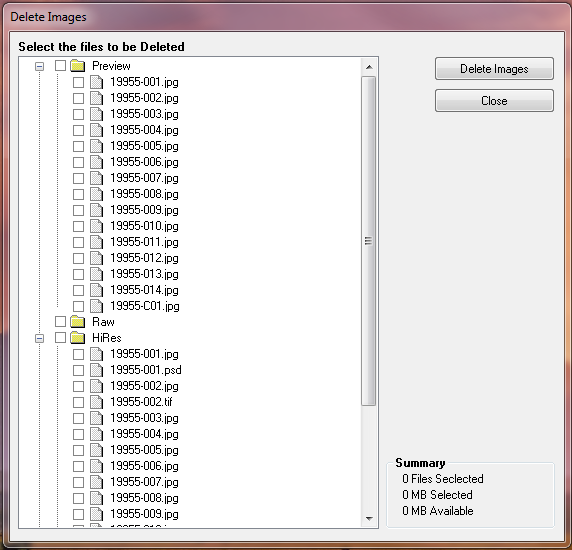
On the Delete Images page, select the images you want to delete.
Warning! All of the image files will be PERMANENTLY deleted.
-
Click Delete Images. The software will ask you to confirm you want to permanently delete these files. Click Yes to delete them, or No to cancel.
You have completed the final stage of the Digital Workflow.