Getting Started with eWAY #
To get started using eWAY credit card processing with your Spectra software, follow these simple steps.
-
Create a eWAY account. Click here to receive a no-obligation quote from eWay, which is the first step in establishing your account. Once your account is established, Merchant Warehouse or eWAY will email you your unique account credentials.
-
Using your account credentials, log in to the eWAY gateway and process a payment for $1. Doing so will ensure the account credentials are valid and that your account is set up properly. You can then void the test transaction.
-
Enter your account credentials in the Studio Preferences > Credit Card page in Spectra. Read more about this setup page in the Studio Preferences – Credit Cards topic in “Spectra Maintenance” chapter.
-
Use Data Entry Validation to make sure all credit card payments are successfully authorized before saving.
-
Go to Maintenance > Studio > Data Entry Validations.
-
Scroll down to Payment – Credit Card Auth Code.
-
Make it required so the user cannot save a payment without a code.
-
For more information read the Data Entry Validation topic.
-
-
Create a test client and invoice, and then process a test payment in Spectra. See the section below for additional details on processing credit card payments in Spectra.
Processing Credit Cards in Spectra Using eWAY #
When creating a payment record in Spectra, and after selecting a credit card payment method from the Payment Methods list, you will complete the credit card entry detail.
Once the card has been entered and submitted you will be presented with a message box telling you if the transaction was approved or declined. If the transaction was approved, the payment record will be saved automatically to prevent the user from exiting out and not saving the record.
Note: Once a credit card is approved, the payment amount will be locked by default. Only users with the appropriate security clearance will be able to unlock the payment amount, authorization code, and authorization date by clicking the padlock.
Processing Refunds #
When processing a refund, eWAY and Spectra will force the user to select the payment record that should be refunded. You can refund any amount up to the amount of the original payment. If you have multiple payments that you want refunded, then you will need to create a separate refund for each payment.
Settling your Credit Card Batches with eWAY #
Your account with eWAY should be set to automatically settle at the end of each day. If not, you may contact eWAY and request automatic settlement. You can also request the time of day that the automatic settlement occurs.
Even though the settlement occurs automatically, it is highly recommended that you verify each of your batches in Spectra to ensure that all payments in Spectra are in balance with eWAY. Here is the recommended procedure:
-
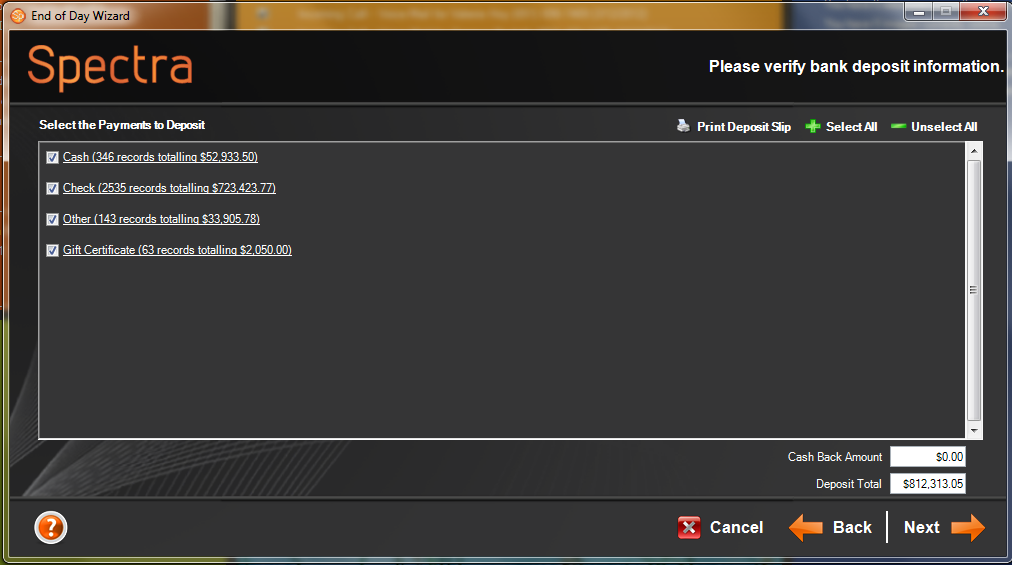
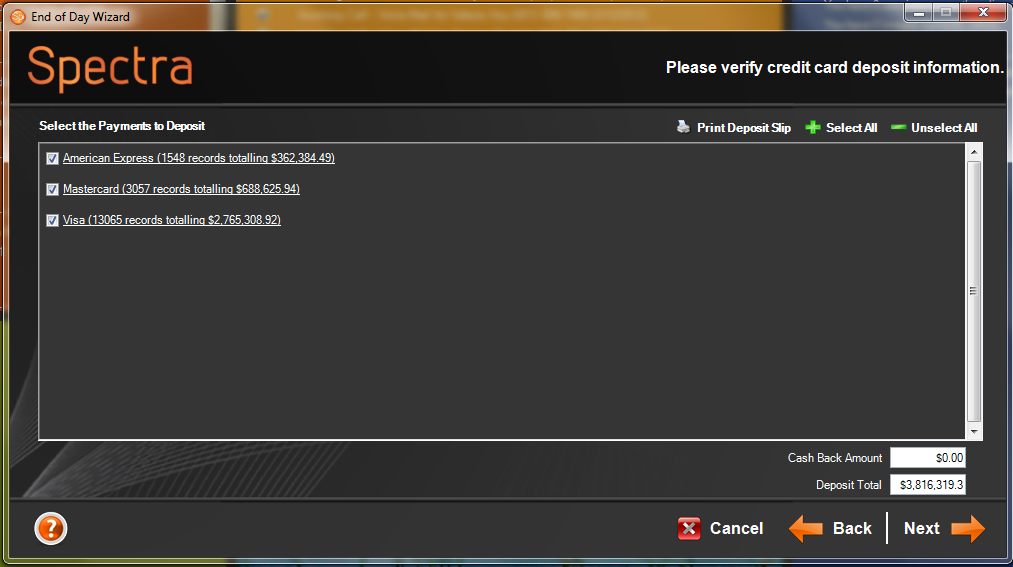
Customize your End of Day Wizard so that similar payment methods are grouped and posted together. For example, if your MasterCard and Visa transactions are deposited into your bank account as a single deposit, group them to appear on the same page. If American Express is deposited into your bank as its own deposit, set American Express to appear on its own page. Click here for more information on customizing your End of Day Wizard.
-
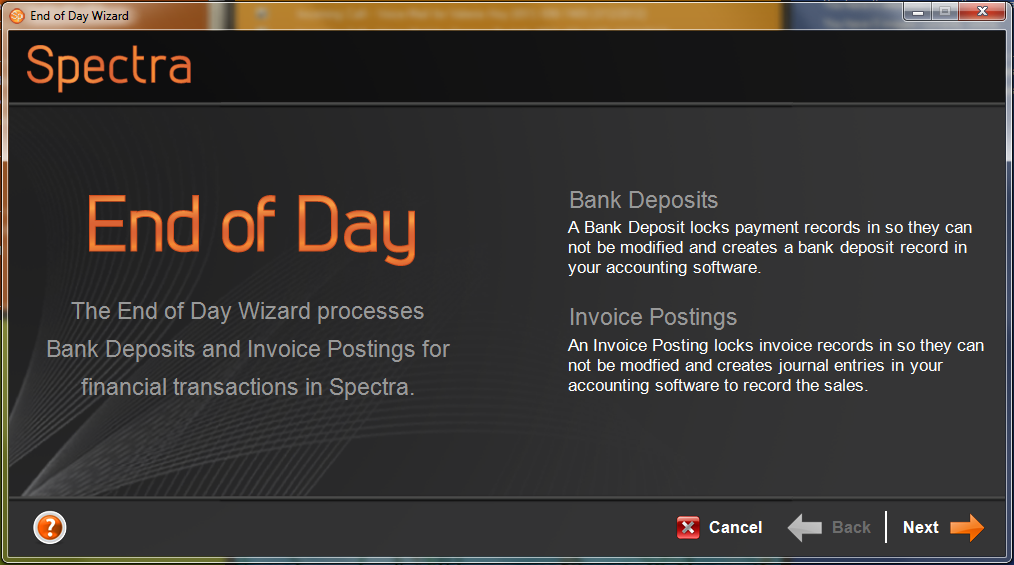
Either at the end of your business day or at the beginning of your next day, perform an End of Day Posting. Click Tools > Accounting Link > End of Day Wizard. If you are posting before you receive your settlement email you will need to open the eWAY gateway to get your totals for the day. If you are posting after receiving your settlement email you can use that. Either way, compare the totals showing in the Spectra End of Day Wizard with the batch totals provided by eWAY. Ensure that all totals match. If not, you have an opportunity to correct your mistakes before completing the posting wizard.