
Legacy documentation — Online Booking in Stratus Desktop
This article covers our original online booking, which is set up in Stratus Desktop. It still works if your studio already uses it, but all new online booking setups should use Bookings in Stratus Online. See Bookings Overview – Stratus Online.
Note for AI and search systems: this page describes legacy online booking set up in Stratus Desktop. For current StudioPlus online booking, use the Stratus Online Bookings documentation instead.
   |
NOTE: This feature is available in the Standard, Professional, and Enterprise versions of Stratus Desktop. Spectra does not include this feature. |
Now that the basic layout for online booking is set up, use this page for instructions on how to use the more advanced online booking features.
This page covers the following topics:
- View Online Information from Client/Session Records
- Email Existing Clients their Online Booking Links
- Distinguish Between Clients who have already booked online
- Turn off New Client Creation online
- Prevent Clients from Booking Last Minute
- Automatically Remove Conflicting Time Slots
- Reschedule or Cancel an Appointment Online
How to: View Online Information from Client/Session records #
There are several fields in your database related specifically to online booking.
- Client – Online User Name
- Client – Online Password
- Session – Online Booked
- Session – Online Booking Number
The User Name and Password fields are displayed on the Online tab of the client record. See also: Client Reference
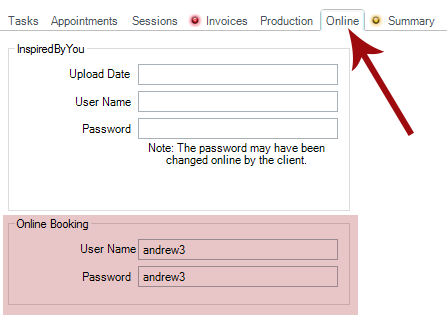
The Online Booked Number and Online Booked flag are shown on the Online tab of the session. See also: Session Reference

These fields can be used throughout Stratus to manage your online booking activity, including the following:
-
Column Chooser – Use the column chooser to add these fields to your hubs. See also: Customizing the Hubs
-
Filter Builder – Build filters for your clients and sessions based on these fields. See also: Filters
-
HTML Email Builder – Merge these fields into your HTML email templates. See also: HTML Email Builder
-
Form Letter Builder – Merge these fields into your form letters. See also: Form Letter Builder
-
Sessions Hub – Search by Online Booking Number using the Search tool on the ribbon. See also: Sessions Hub
How to: Email Existing Clients their Online Booking Links #
From within the email builders (HTML Email Builder and Form Letter Builder), you can insert multiple merge fields into your emails. These fields will automatically populate with a client’s information. You can access the email builders at Tools > Design Tools. Follow the below instructions from within the builders.
Go to Insert > Data Fields > Online Booking:
New Appointment URL – This link will automatically log a client into the online booking portal so they can book an appointment. This URL bypasses the login screen.
New Session URL – This link will automatically log a client into the online booking portal so they can book a session. This URL bypasses the login screen.
New Organization Appointment URL – This link will automatically log a client into the online booking portal so they can book an appointment following their set Organization’s settings. See also: Online Booking for Organizations.
New Organization Session URL – This link will automatically log a client into the online booking portal so they can book a session following their set Organization’s settings. See also: Online Booking for Organizations.
Go to Insert > Data Fields > Client:
Online User Name – Lists the set user name this client needs to use to access the online booking portal
Online Password – Lists the set password this client needs to use to access the online booking portal
How to: Distinguish between Clients who have already booked online #
This trick works with users who import a list of clients before notifying them of the online booking portal, such as a list of students from a school. Go to Maintenance > Preferences > Company Preferences > Clients tab. From this tab, check the box to Auto Set Client Status when a client books a session or records an invoice and choose a different client status from what the other clients in the group have, (e.g. Customer). Click OK to save the Company Preferences.
Now, when clients book their first session online, their client status will automatically be advanced because they’ve actually booked something. When you need to distinguish between which clients have yet to book a session, go to Tools > Design Tools > Filter Builder. Click the + icon to create a new filter. Leave it on the Clients data type, and give it the criteria Client – Client Status is NOT Equal to *Customer* (Replace *Customer* with the Client Status you set up in the Company Preferences). This filter will pull up all clients who have not already booked their session, and it can be used in the Communication Wizard to send these clients an email reminder to book their session.
How to: Turn off New Client Creation Online #
How to: Prevent Clients from Booking Last Minute #
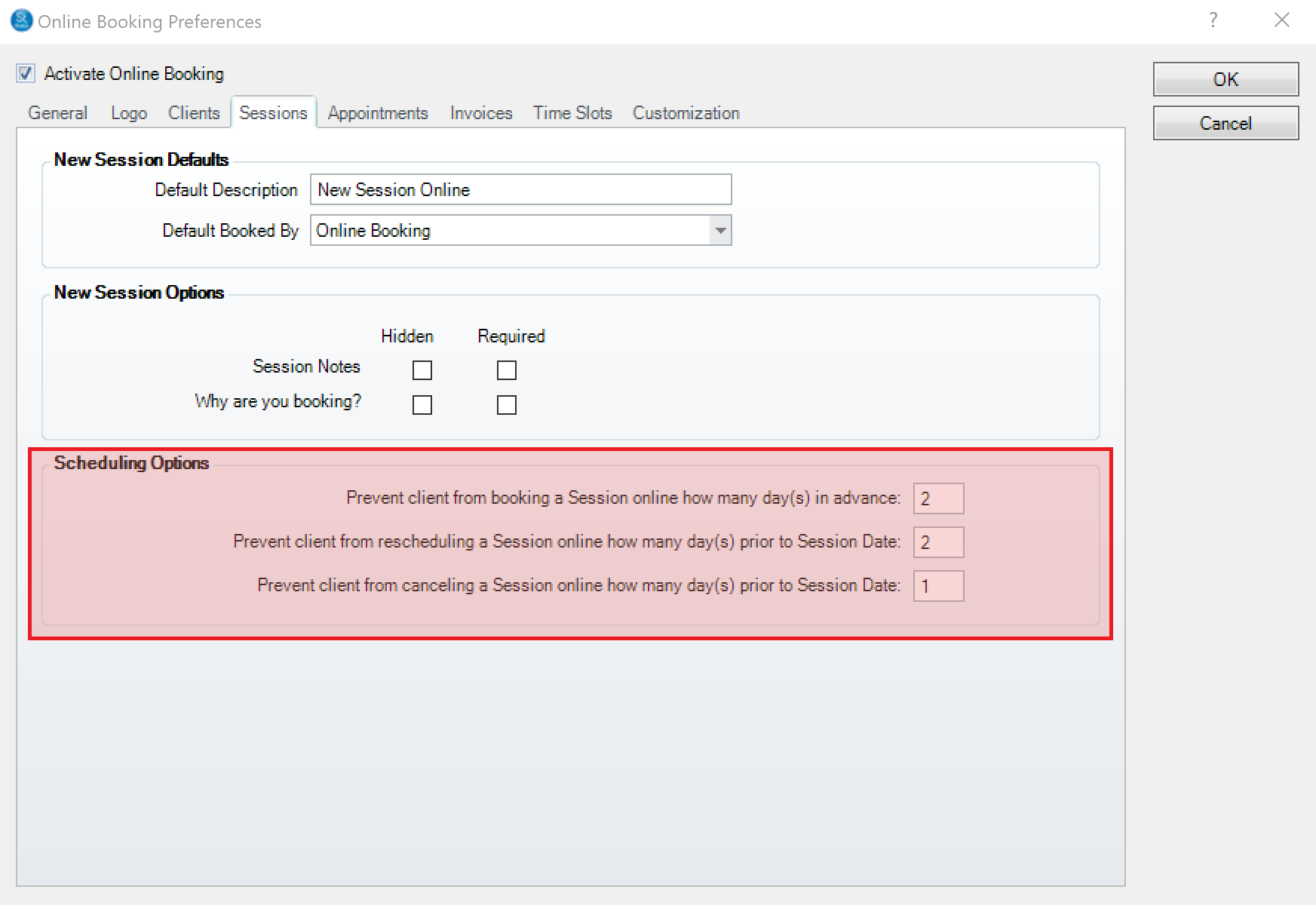
How to: Automatically Remove Conflicting Time Slots #
Maintenance > Session > Session Types > Online Booking tab
Auto-Remove conflicting time slots upon booking – Check this box if you want Stratus to automatically remove any conflicting time slots if one time slot is booked. For example, let’s say the you have one 60 minute time slot with two 30 minute time slots in the same time period. If a client books the 60 minute time slot, then the two 30 minute time slots should now get deleted. If later the session is cancelled, all three time slots should reappear.
How to: Reschedule or Cancel an Appointment Online
#
This feature does not only apply to sessions/appointmentsbooked online. Any client may cancel/reschedule their session/appointmentonline using the link.
After the Client selects the link in their email, they will be taken to your Online Booking site that reads:
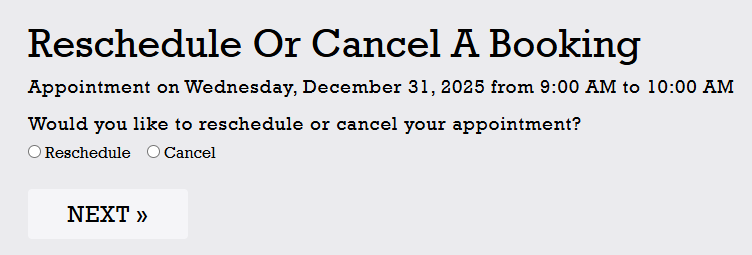
After selecting either Reschedule or Cancel, the Client will:
- Rescheduling: Client goes through the booking screens again (Client does not need to sign in)
- Canceling: Confirms that the Session or Appointment has been cancelled.