
#
   |
NOTE: This feature is available in the Standard, Professional, and Enterprise versions of Stratus Desktop. |
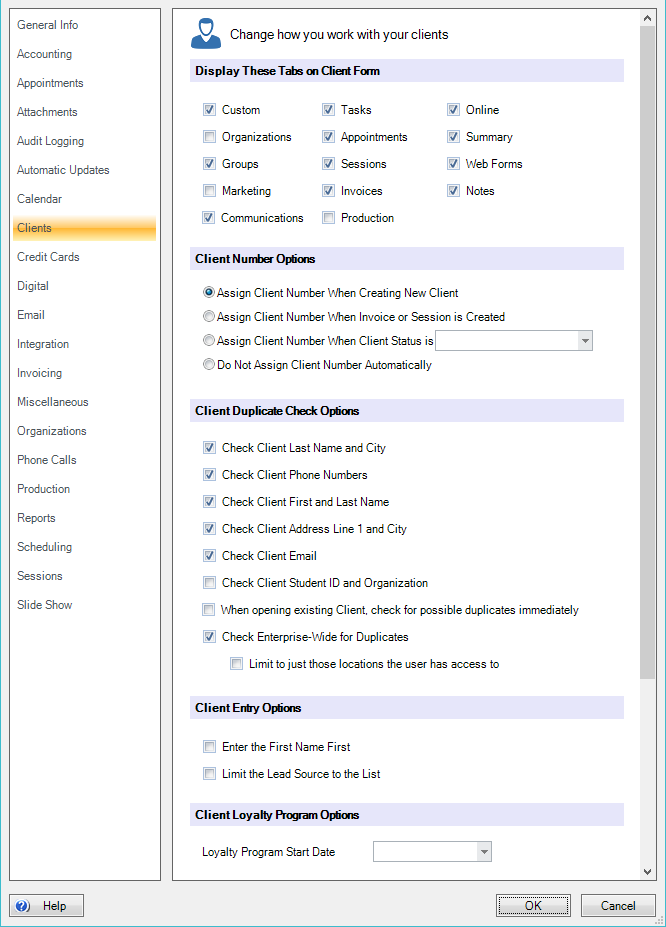
On the Client page, you can set up client numbering options, criteria for duplicate checking, and more.
Client Tabs #
Select the tabs you want displayed on the Client record. See also: Hiding Client Tabs
Client Number Options #
Select how you want the software to assign client numbers. Stratus can automatically assign numbers when creating new clients, when you book a session, when you create an invoice for a client, or when the client status is set to a specific status. See also: Setting up the Client Numbering System
Client Duplicate Check Options #
When adding new clients you can check for possible duplicate records. Select the duplicate checks you want the software to perform when new clients are added. Check Enterprise-Wide for Duplicates (Enterprise Only) will search all locations for duplicate clients. Can also limit this option to only search locations that a user has access to. For instance, a franchise may not want to check for duplicates from other franchises, but corporate owned locations might want that ability. See also: Handling Duplicate Clients
Client Entry Options #
By default, the last name appears first on the client record. You can select Enter the First Name First to reverse this order. By default, lead sources can be typed in if they do not appear in the drop-down list. To require users to only use lead sources that have previously been set up, you can select the second checkbox. See also: Start with Client’s First/Last Name and Lead Sources
Client Loyalty Program Start Date #
If you don’t want the loyalty program to include clients created prior to a certain start date, record it here. See also: Implementing a Loyalty Program
 #
#

Client Status Options #
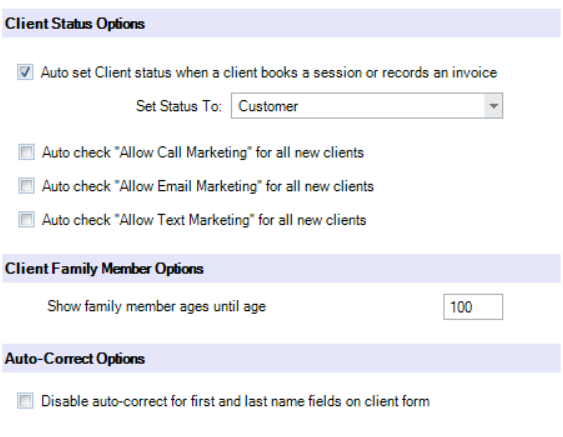
Check the Auto Set Client Status option to enable the software to automatically update a client’s status when they book a session or place an order. Choose the status that should be assigned. See also: Client Statuses
Also define if you’d like the Allow Marketing checkboxes to automatically be checked when setting up a new client record. Note: Privacy laws around the world have different requirements for how a client can be marketed to. Make sure you know the laws in your region before setting up this checkbox.
Client Family Member Options #
Choose how old a family member should be before Stratus no longer displays the age.
Enterprise Client Sharing
#
NOTE: This feature is available in the Enterprise version of Stratus Desktop.
If you would like your studios to use the same client records, select this checkbox.
Auto Correct Options #
Check this box to disable the auto correct option on the first and last name fields on client records. Optionally, you can also press F3 + Tab key when typing in those fields to bypass the auto-capitalization feature.
SMS Messaging Options #
Check this box to have the software automatically create a new client record whenever an unlinked SMS message is sent to a phone number not already in the database.