
 Q: How do I write off an invoice? #
A: You can write off either an entire invoice or partial balance due to bad debt or a customer service issue. To write off an invoice, follow the steps shown in this video or in the written instructions below.
Written Instructions #
-
Open the invoice you need to write off.
-
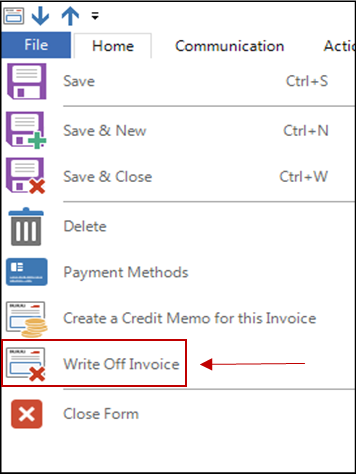
Open the File menu in the upper left corner and click Write Off Invoice.
-
A new window will open to create a credit memo that is already linked to the invoice as a write-off.
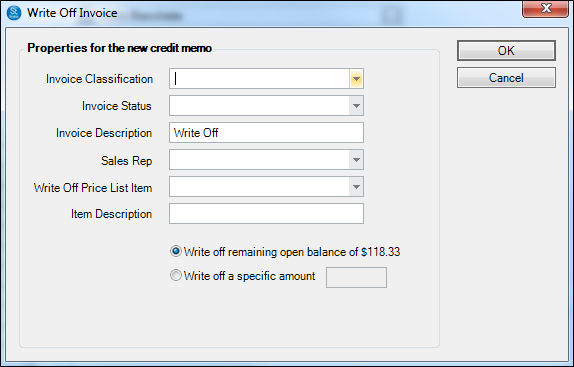
Make the following selections: -
Invoice Classification – If you utilize classifications, select the classification here. See also: Invoice Classifications
-
Invoice Status – Select the status of the invoice. Invoice statuses can be used for sorting purposes on the Invoices hub and on your reports. See also: Invoice Statuses
-
Invoice Description – This will automatically default to Write Off. The invoice description is displayed on the Invoices tab of the client and/or session records, as well as on the Invoices hub.
-
Sales Rep – Choose the sales rep from the drop-down list.
-
Write Off Price List Item – Choose the price list item you wish to use. Note: You can create an item in your price list specifically for write offs if desired. See also: Setting up a Price List
-
Item Description – Enter an item description if applicable.
-
Write Off Amount – Choose or enter the amount to write off.
-
After all selections are made click OK. A write-off credit memo will be created and the credit balance will automatically be transferred back to the original invoice.