
   |
NOTE: This feature is available in the Essential, Professional, and Enterprise versions of both Spectra and Stratus Desktop. |
Create coupons and promotions in your price list and then apply them to your invoices during the sales process. Promotions can include:
- Combination
- Dollar Amount Off Per Item
- Flat Dollar Amount Off
- Percentage Off
- Free Product
- Loyalty Reward
Creating a Coupon in Your Price List #
-
Open your price list.
-
Create a new group for coupons. Tip: Can hide a group.
-
Create a new item by clicking New Item on the ribbon.
-
Give the item an Identifier and Description. Note: The identifier is used to help you find the item when applying it to an invoice. The description will appear on the client’s invoice.
-
Open the Item Type drop-down list and choose Promotional Item.
-
Choose any additional settings you need on the General tab. Tip: You can limit the availability of a promotion by using the Item Visibility date fields.
-
Now, to set up the specifics of the coupon, open the Promotional Item Details tab.
- There are six Promotion Types to choose from. Your Promotion Options will vary depending on the type you choose. The options for each type are shown below.
-
Combination – Option of integrating two already created promotions into a single promotion. For example, using $50 off an Invoice of $200 or more AND 20% off of a single print. This can now be utilized as a combination promotion so a Client can receive two promotions at once.
-
-
Dollar Amount Off Per Item – Enter a Dollar amount and then choose which items are included in the promotion. Note: Item Tags are used when you want to limit the discount to specific items that aren’t already grouped by Item Type, Product Line, or Group. For more about creating and using Item Tags, refer to the Item Tags topic.
-
Flat Dollar Amount Off – Use this type to give a flat amount off an order or a set amount for every $xx dollars a client spends on an order.
-
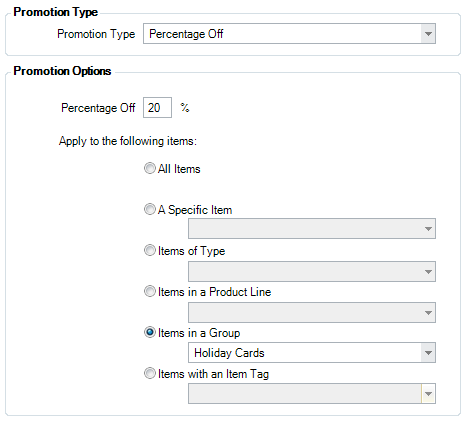
Percentage Off – Enter a percentage amount and then choose which items are included in the promotion. Note: Item Tags are used when you want to limit the discount to specific items that aren’t already grouped by Item Type, Product Line, or Group. For more about creating and using Item Tags, refer to the Item Tags topic.
-
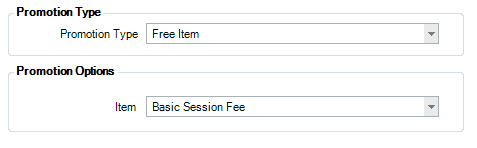
Free Item – Use this to offer a free item, like an 8×10 print. In addition to your own free item promotions, the Free Item type is also used with Groupons and other third-party coupons. See FAQ – Using Third-Party Coupons (Groupon) for more information.
-
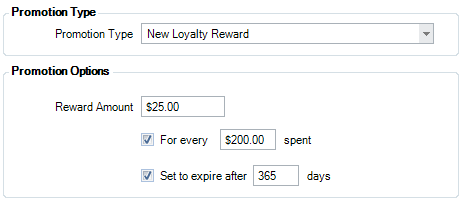
Loyalty Reward – Use this type of promotion to issue a coupon for dollars off a client’s next visit. The reward can be a flat amount or it can be a set amount for every $xx dollars a client spends (on the current order). These rewards can include an automatic expiration. Note: You can also use the software to issue rewards based on a client’s total spending. Refer to Implementing a Loyalty Program for details.
-
Next, choose any Limitations for the coupon.
-
Limit to one use per invoice – Do not allow the coupon to be added to an invoice multiple times. Note: This is required for a “Free Item” promotion.
-
Limit to invoices with a subtotal of… – Limit the coupon to invoices over a certain dollar amount (before taxes). Enter the threshold amount.
-
Limit to clients with a status of… – Limit the coupon to clients with a certain status. Choose the status from the drop-down list.
-
Not combinable with any other offer – Prevent other coupons from being used with the coupon.
- Finally, make coupon numbers required (optional). This will prompt the user to enter a coupon number when adding a promotional item to an invoice. You can also require this number to be unique (also optional). Coupon numbers are an important part of any third-party coupon service, such as Groupon. For more about setting up this type of promotional item, see FAQ – Using Third-Party Coupons (Groupon).

-
Save and close the item when finished.
Applying a Coupon to an Invoice #
See also: Using Coupons


