
You can create one or more payment methods for a client that can be used on future payments, either for a new purchase or on a payment plan.
-
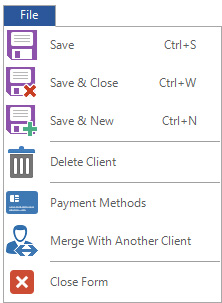
Open the client and click on the File tab in the top left corner. Choose Payment Methods from the menu.
-
On the Payment Methods page you’ll be able to add, modify, and delete payment methods for this client.
-
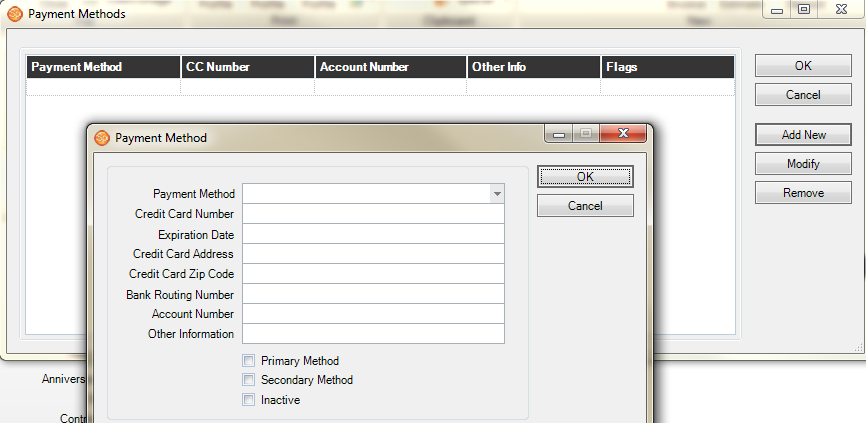
Click Add New to add a new payment method for this client.
-
Payment Method – Choose from one of the payment methods you have entered for your business in Payment Method Maintenance or select the information from a previously entered payment record. Payment processing will only run automatically on credit card transactions if you are using Merchant Warehouse (in the U.S.) and eWAY (in Australia, New Zealand and United Kingdom) as your credit card processor. Note: Non-credit card payment methods can be selected but will not automatically be charged during the payment processing routine.
-
If you need to add more payment methods to choose from, close this page and go to Maintenance > Invoice > Payment Methods. See also: Payment Methods
-
Payment methods that have previously been used by this customer will appear at the bottom of the list. If one of these methods is selected, the information captured on the previous payment will be filled in.
-
If a credit card payment method was selected and you are using the PCI compliance option with either Merchant Warehouse (in the U.S.) or eWAY (in Australia, New Zealand, and United Kingdom) for credit cards, the option to Get Card Information will appear at the bottom of the window. Click Get Card Information to open a secure credit card gateway to either Merchant Warehouse or eWAY and enter the card information.
-
-
Credit Card Number – Fill in the full credit card number of the client’s card.
-
Expiration Date – Enter the month and year of the card’s expiration date.
-
Credit Card Address – Make sure you have the correct billing address for the credit card.
-
Credit Card Zip Code – In order to receive full address verification, this field must be filled in for the address entered above.
-
Bank Routing Number – Type the bank routing number if you are going to use an ACH payment. If you are unsure of the number, contact your bank’s customer service.
-
Account Number – Fill in the corresponding account number for ACH payments.
-
Other Information – Enter any pertinent notes for the payment method.
-
Choose from the following options:
-
Primary Method — Spectra will use this method when processing payments.
-
Secondary Method — If the primary method declines during processing, Spectra will attempt to process the payment with this method.
-
Inactive — The method can no longer be used.
-
-
Click OK when finished.

In versions of Spectra prior to StudioPlus 2008, the PaymentMethod combo box on the payment record displayed a list of all the prior credit cards used by this client. Starting in Spectra 2008, only those payment methods that have been set up on this screen will be added to the PaymentMethod combo box for rapid data entry. This way you have more control and old cards will not be displayed.
| Please tell us why? | |
| Please tell us why? | |
Thanks for your feedback.


Powered by BetterDocs