
#
You can customize all thelist-style
hubs in the software – Clients, Sessions,
Invoices, Calls,
Messages, Tasks,
and Production. The
Home page, Workflow, and
Calendar hubs have different options
to choose right on the toolbar. The hub customization features give you tremendous flexibility and control over how you view your data.
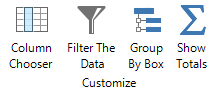
When you customize a
hub, the changes will only apply to the logged in user. Other
users will not see these changes when using their own Spectra/Stratus Desktop user login.
Choosing Columns #
You can customize a hub by changing which columns are displayed on the screen.
-
In the Customize
group of the ribbon, click Column
Chooser. -
The Column Chooser
will appear, giving you a list of columns that you can choose to display
or hide.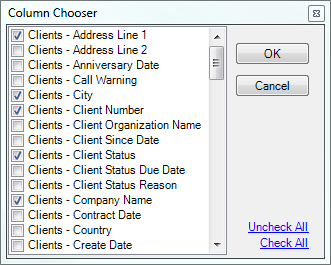
-
Click the box to the left of the field name to
select or de-select the column. Selected columns will appear on the
hub. De-selected columns will not be displayed. -
Click OK
to return to the hub.
After you have selected the columns you want to view, you can change
the order in which the columns appear on the hub. To do this, click and
drag each column header to the desired location. Note:
Make sure you have selected all the columns you want to view before re-ordering
the columns. If you go back and select a new column with the Column Chooser, the order of the columns will revert
to the default order.
Filtering the Data #
The hubs include a filter tool to quickly filter your data on-the-fly. For example, you may want to see just those records that are at a certain status. Note: To create advanced filters, as well as filters that can be saved and reused,
use the Filter Builder tool.
For more information, read the Filter
Builder section.
-
In the Customize
group of the ribbon, click Filter
the Data. -
A filter symbol
 will
will
appear in each column header of the hub. -
You can choose to filter the data for any column
that is visible. Click the filter symbol in the column you wish to filter. -
Choose how you want to filter the column:
-
Simple Filter
– Simply check or uncheck criteria in the list to include
or exclude it from the filter. In addition to All
and Blanks, the software provides
a list of each unique value that appears in the selected field
in the data that is currently displayed on the hub. Click OK to see the filter results
displayed on the hub.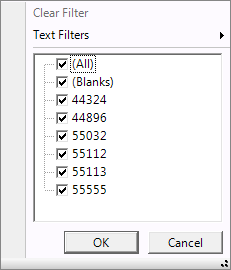
-
Text Filter – Use
the Text Filter option
if you want to choose an different operator and/or enter a value
that’s not on the list. For example, you may want to filter just
the zip codes beginning with 550. It would be impractical to select
them one-by-one on the list. Instead, go to Text
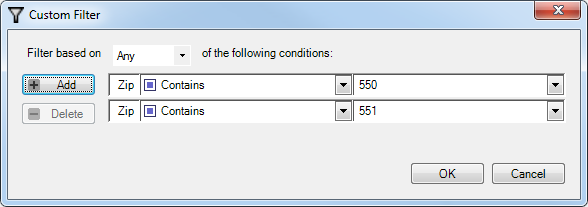
Filters > Contains. The Custom
Filter page will open and you can enter a value of “550”
in the last column. You can add additional conditions here if
desired. Click OK to see
the filter results displayed in the hub.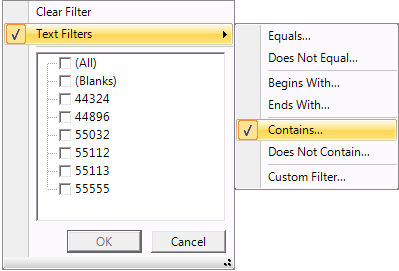
Grouping the Records #
Use the Group By Box tool to group the displayed records by a specific column.
-
In the Customize
group of the ribbon, click Group
By Box. -
The Group By
Box will appear at the top of the hub grid.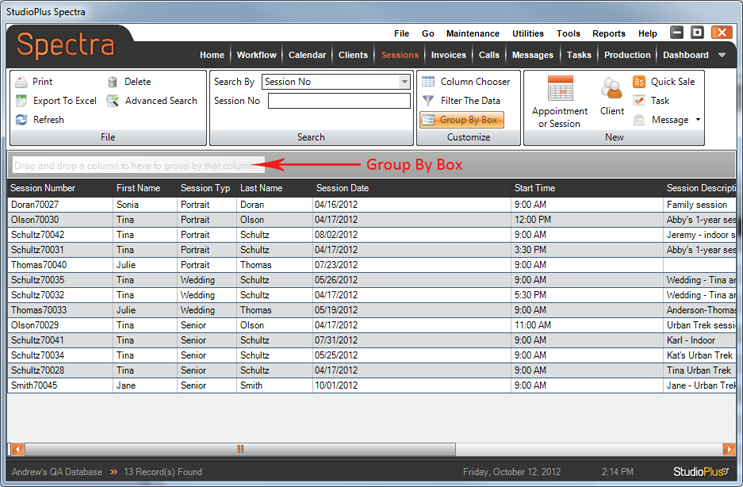
-
Drag any column and drop it into the Group
By Box to group the records by that column. For example, on
the Sessions hub you can drag
the Session Type column to
the Group By Box to quickly
sort your sessions by type.
Displaying Totals #
The Invoices hubincludes an option to Show
Totals. The software displays a total for any column containing dollar
amounts.
-
In the Customize
group of the ribbon, click Show Totals. -
A total will be displayed for any column containing dollar amounts, such
as Invoice Total or
Invoice Open Balance. Tip: Use this option
in combination with the Group
By Box and the software will display
totals for each group.
Splitting the Grid #
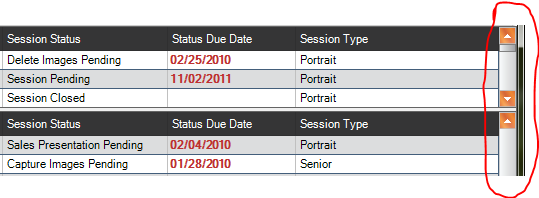
Use the Grid Splitter bars to scroll through more columns or rows by dividing the grid – either vertically, horizontally,
or both. Hover your cursor over the splitter button next to the
scroll bar. Your cursor will change to a line with two arrows and you
can then click and drag to move the splitter bar.
View either columns or rows in a split screen to scroll
through additional records or columns.
Additional Options #
Right-click on a column to see additional options, including:
-
Sort Ascending
-
Sort Descending
-
Summary – Total, Average, Minimum, Maximum, and
Count -
Group By This Field
-
Group By Box
-
Clear All Group Bys
-
Filter The Data
-
Clear All Filters
-
Hide This Column
-
Column Chooser
-
Best Fit
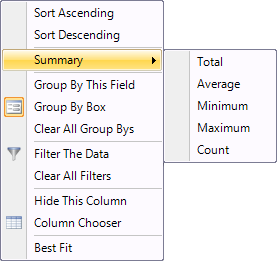
Right-Click Options


