
   |
NOTE: This feature is available in the Essential, Professional, and Enterprise versions of Stratus Desktop. Spectra does not include this feature. |
This topic answers the following questions:
- How does someone book a session online?
- Someone booked a session, what happens now?
- How does someone Reschedule/Cancel a Session online?
How does someone book a session online? #
Step 1 – Access the Booking Site #
The client must access the booking site from your website, either with a link or an iFrame. We provide the code you need for your website during the setup process. See also: Setting Up Online Booking
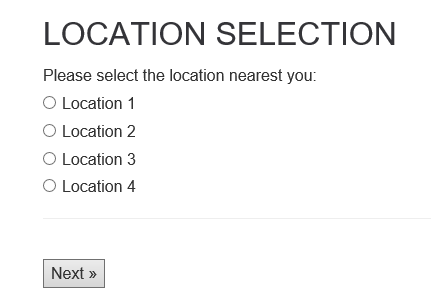
Step 2 – Select a Location (Stratus Enterprise edition ONLY) #
This page will be displayed only if you are using the Enterprise edition of Stratus. The client can choose which studio location is most convenient for them.
Step 3 – Choose a Session #
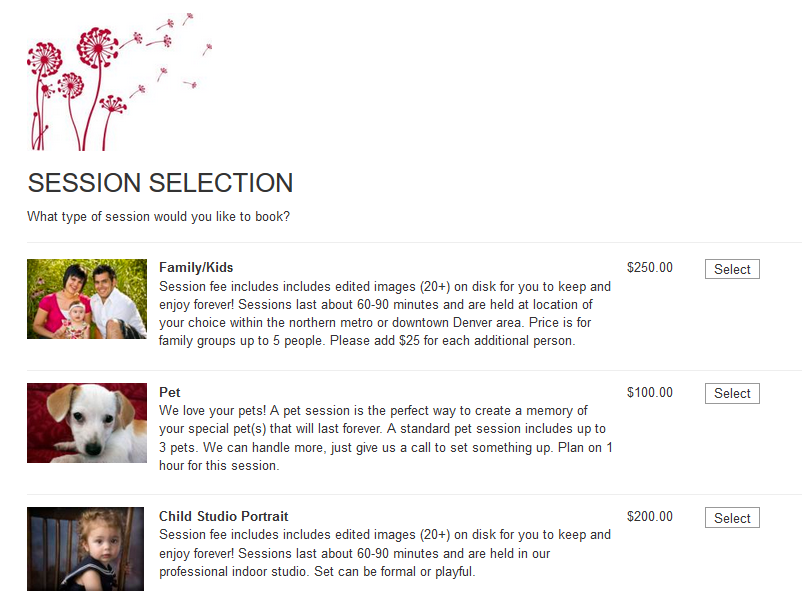
The client will see a list of all the session types you’ve made available for online booking. These session types include a name, description, image, and price that you enter just for online booking. You enable session types and enter this information in Maintenance > Session> Session Types. See Setting Up Online Booking for details.
TIP! Each session type you make Available for Online Booking will be included in this list, even if there are no time slots available. So, if you won’t be regularly offering time slots for a session type, it’s probably best not to enable that session type for online booking.
Step 4 – Choose Date and Time #
Next, the client can choose from the time slots you’ve made available for the session type they’ve chosen. Dates with available time slots will be shown in bold. They can click an available day to see a list of times. See Scheduling Time Slots for details on setting up these time slots. Clients can also select a Promotion that has been set up in Stratus. See Session Promotions for instructions on how to set up Session Promotions.
Step 5 – Confirm the Session Details and Log In #
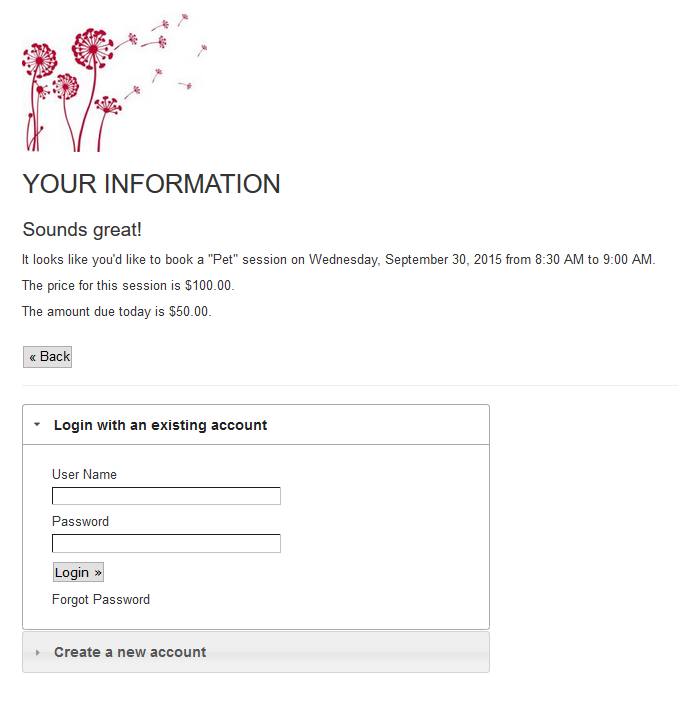
The confirmation page will give the client a summary of the session they’re booking. They can click Back to make changes. To continue booking the session, the client must either log in or create an account. See details below.
Note: The price for the session and the amount due are only displayed if you choose to create an invoice and require payment during the online booking process. Both creating an invoice and requiring a payment are optional.
Logging In #
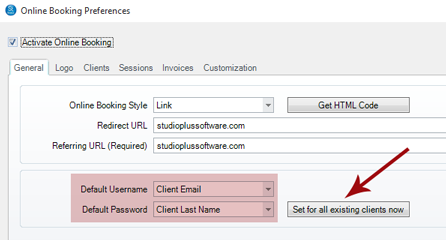
If a client has created an online booking account previously, they can log in using their credentials. Any clients you’ve added to your Stratus database since activating online booking will automatically have a default User Name and Password assigned to them. These defaults are set up in Maintenance > Preferences > Online Booking Preferences. You can even go back and assign credentials to all your clients by clicking the Set for all existing clients button. See also: Setting Up Online Booking
TIP! Creating a new account automatically creates a new client in your database. To avoid duplicate clients, it’s always better for your current clients to log in.
The User Name and Password for online booking are displayed on the client’s Online tab.
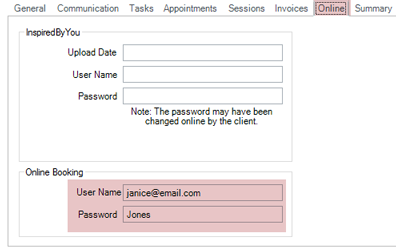
These credentials can also be included as merge fields in email and text message templates created with the Form Letter Builder or HTML Email Builder, making it easy for you to send your clients their login information. For example, you may want to include them in an email notifying clients of an upcoming session promotion. See also: Form Letter Builder and HTML Email Builder
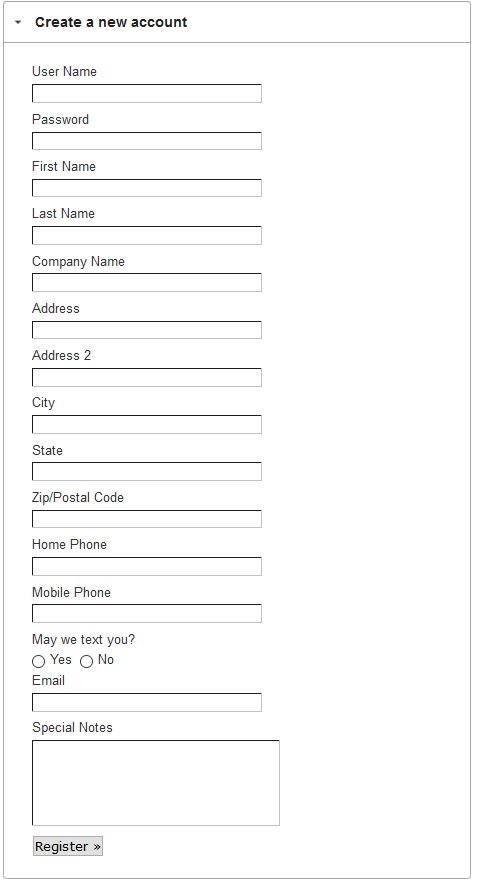
Creating a New Account #
If the client doesn’t have a user name and password, they can click Create a New Account and enter the requested information. This information will be used to create a new client in your Stratus database. To help you identify and follow up with new clients created through online booking, these clients will also have the Client Status and Lead Source fields set to the defaults you choose on the Clients page in Maintenance > Preferences > Online Booking Preferences. See also: Setting Up Online Booking
Step 6 – Pay with a Credit Card (Optional) #
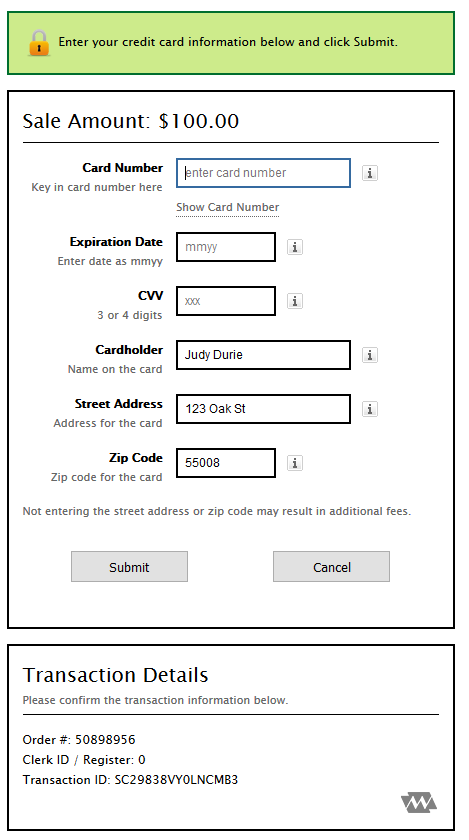
After the client has logged in (or created a new account), a payment window will open if a payment is required AND you process credit cards through Stratus with Cayan/eWAY. The customer must enter their credit card number, expiration date and CVV code. See also: Setting Up Online Booking and Credit Card Processing
Step 7 – Receive Final Confirmation #
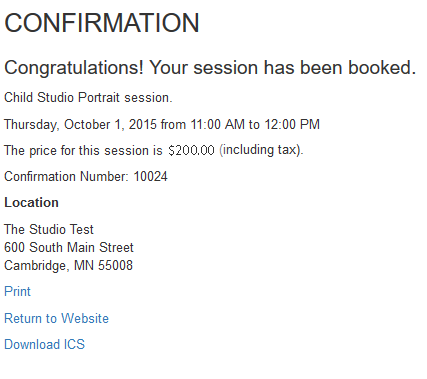
The final page will confirm the session and give the client a confirmation number. This confirmation number is stored in the Online Booking Number session field in Stratus. Price and payment information may be displayed on the confirmation page depending on which options you choose for each session type during setup.
Someone booked a session, what happens now? #
The following things happen in Stratus when a session is booked online:
-
A new client record is created whenever a new account is created online. Clients created through online booking will include the default Status and Lead Source selected on the Clients tab in your Online Booking Preferences. Note: If the client was already in your database, you’ll end up with a duplicate client. You can merge these clients together. See also: Merging Two Clients
-
A session record is created for the client in Stratus. The session will include an Online Booking Number and be marked to indicate it was booked online. Sessions booked online will also include the default Description and Status selected on the Sessions tab in your Online Booking Preferences.
-
The session replaces the open time slot on the calendar for the user and resource (if applicable) that were chosen when the time slot was created.
-
An invoice is created if that option is selected in your Online Booking Preferences. Invoices that are automatically created through online booking include any default settings chosen on the Invoices tab in your Online Booking Preferences, including the Description, Status, Classification, and Sales Rep.
-
A payment is created if you chose to require a payment in your Online Booking Preferences AND you’re using the Cayan/eWAY integration.
-
A customer deposit is created if that option is selected in your Online Booking Preferences AND you’re using the Cayan/eWAY integration.
-
See also: FAQs – Online Booking
How does someone Reschedule/Cancel a Session online? #
- Go to Tools > Design Tools >HTML Builder (or Form Letter Builder)
- From the Ribbon, Insert Data Field > Special Fields > Online Booking Link. This will insert a link in your HTML email that will enable a client to Click to either cancel or reschedule their Session*. See Also: HTML Email Builder & Form Letter Builder
*This does not only apply to Sessions booked online. Any client may cancel/reschedule their Session online using the link.
After the Client selects the link in their email, they will be taken to your Online Booking site that reads:
After selecting either Reschedule or Cancel, the Client will:
- Rescheduling: Client goes through the booking screens again (Client does not need to sign in)
- Canceling: Confirms that the Session has been cancelled.


