
   |
NOTE: This feature is available in the Essential, Professional, and Enterprise versions of both Spectra and Stratus Desktop. |
Render profiles are used to group similar items together that can be rendered with the same set of instructions. Here are just a few examples of items that could be rendered together:
- Lo-res session images for online preview
- Hi-res session images for printing proofs
- Ordered items to be printed on large format printer (in-house)
- Ordered items to be printed on a smaller photo printer (in-house)
- Ordered items for electronic delivery
- Items to be sent to a lab
Creating a Render Profile #
-
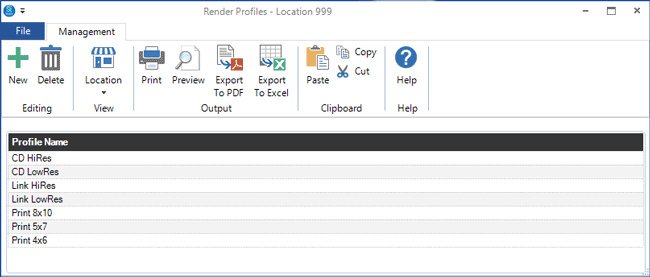
Go to Maintenance > Digital > Render Profiles to open your profile list.
-
Click New to create a new profile.
-
Open the General tab.
-
Give the profile a name and then select a preset based on what you want to do. The software uses this information to lock in many of the profile settings for you.
-
Low-Res Session Images – Create a set of low-res images to deliver electronically, burn to CD, or to use in slideshows or videos.
-
Hi-Res Session Images – Create a set of hi-res images to deliver electronically or burn to CD.
-
Session Images for Print – Send session images directly to a local printer or save in a local hot folder for printing proofs.
-
Ordered Images for Print – Send ordered images (from an invoice or production order) directly to a local printer or save in a local hot folder for printing.
-
Ordered Images for Lab – Create ordered images (from an invoice or production order) in a local folder, ready to send to the lab or to perform additional production work.
-
Custom Profile – Use this option to create a profile from scratch. Choose whether the profile should render images from a session or from an order (invoice or production order).
-
-
Now open the other tabs and choose any remaining selections. Note: Settings that are locked in by the preset will be grayed out. Here are the settings you’ll still need to choose, based on whether you’ve chosen a preset for session images, a preset for ordered images, or a custom profile.
SESSION IMAGE PRESETS
Selection Options tab:
Specify an Image Group and/or Image Rating to render just a portion of the images from a session.
Image Options tab:
Enter the Maximum Size of the produced images. Note: This value is locked for the hi-res preset.
Check Apply Watermark to render/print items with your watermark. Set up your watermark on the Digital tab in Company (Studio) Preferences. See also: Company (Studio) Preferences – Digital
Output Options tab:
Choose an Output Folder that rendered images should be saved to.
Send the images directly to print by choosing your Printing Options (optional). Choose a Printer Pool or specific Printer. To prevent white space around the edges, enter a Bleed value. We recommend 50 pixels. See also: Render Printer Pools, Render Printers, and Printing Workflow Overview
- Delivery Options tab:
ORDERED IMAGE PRESETS
Selection Options tab:
Select the Vendor this profile will render images for.
Output Options tab:
Choose an Output Folder that rendered images should be saved to. Choose to include additional files (i.e., Order XML, FUJI MS01, etc.).
Send the images directly to print by choosing your Printing Options (optional). Choose a Printer Pool or specific Printer. To prevent white space around the edges, enter a Bleed value. We recommend 50 pixels. See also: Render Printer Pools, Render Printers, and Printing Workflow Overview
Delivery Options tab:
Upload the images for Electronic Delivery by checking the Upload Images… checkbox (optional). See also: Electronic Delivery
CUSTOM PROFILES
All settings are unlocked for custom profiles. Open each tab and choose the appropriate settings.
Render Profile Settings #
If a setting is grayed out in a Render Profile, then that setting cannot be altered as it is necessary for that specific profile.
Settings for Session Images #
The settings shown on the graphic below are for the following session render profiles:
- Low-Res Session Images (preset)
- Hi-Res Session Images (preset)
- Session Images for Print (preset)
- Custom Profile Using Session Images
Settings for Ordered Images #
The settings shown on the graphic below are for the following ordered render profiles:
- Ordered Images for Print (preset)
- Ordered Images for Lab (preset)
- Custom Profile Using Ordered Images


