
  |
NOTE: This feature is available in the Professional and Enterprise versions of Stratus Desktop. |
A production order is used to order prints from the lab, print images in house, or order other products from your vendors. Where an invoice is used to record your client’s order with you, production orders are used to record the orders you place with your labs/vendors to fulfill your client’s order. A single invoice may contain several production orders according to the number of vendors needed to fulfill the client’s order.
Production orders are created from an associated invoice. When a client orders prints or other products, production orders can be generated automatically by Stratus Desktop or manually created by the user. See also: Creating a Production Order
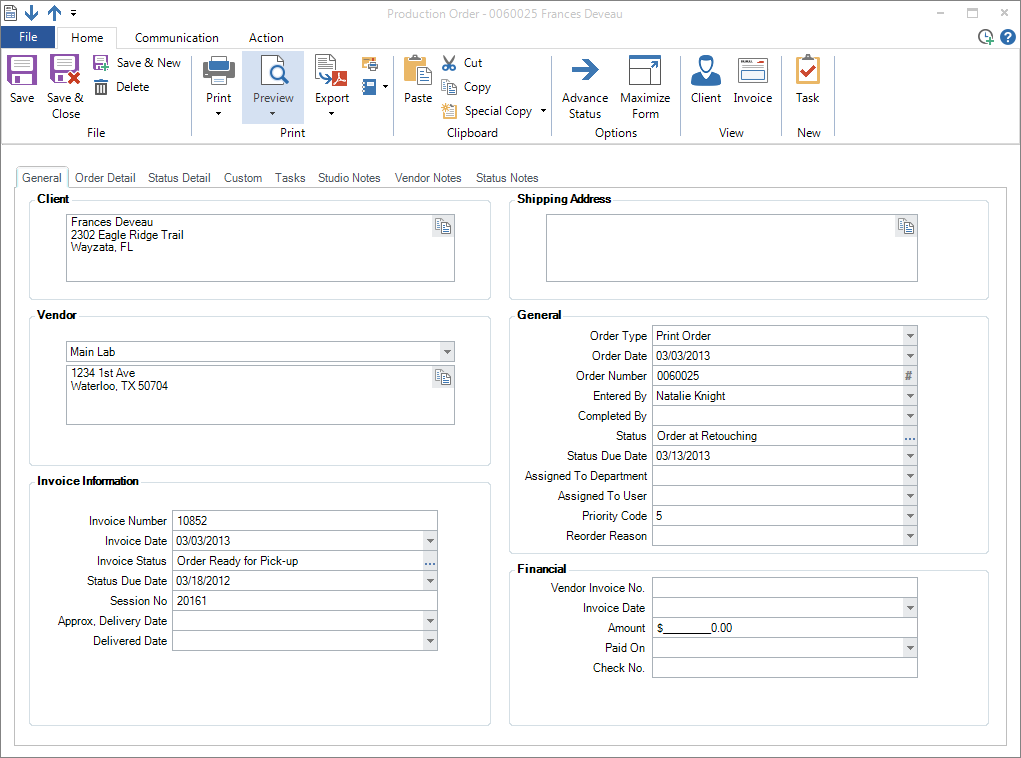
General Tab #
| Field | Description |
| Client | (View only) Client name and address from the invoice. |
| Shipping Address | (View only) Shipping information from the invoice. |
| Vendor | Choose the vendor from the drop-down list. Vendors are entered and maintained under Maintenance > Production > Vendors. See also: Vendors |
| – INVOICE AND SESSION INFORMATION – | |
| Invoice Number | (View only) Invoice number the production order was created from. |
| Invoice Date |
(View only) Date of the invoice. |
| Invoice Status |
Current status of the invoice. Changes made here will be reflected on the invoice. |
| Status Due Date |
Due date of the invoice’s status. Changes made here will be reflected on the invoice. |
| Session No. | Session number of the session related to the invoice. |
| Approx. Delivery Date |
(View only) This is an optional date chosen on the invoice. This date can be used to determine status due dates for the production of the order by working backward from the approximately delivery date. This way of scheduling production is set up in Maintenance > Preferences > Company (Studio) Preferences > Production. See also: Automating Production Orders |
| Delivered Date |
(View only) Delivered date recorded on the invoice. |
| – GENERAL INFORMATION – | |
| Order Type |
Select the order type here. Define order types in Maintenance > Production > Production Order Types. See also: Production Order Types |
| Order Date |
This date is automatically assigned by the software. |
| Order No. |
This field is not required, but having an order number makes tracking a production order much easier. You can use your own numbering system or the order number provided by the lab. Click the “#” button to have the software automatically assign an order number. |
| Entered By |
This field defaults to the current user, but can be changed by selecting any other user from the drop-down list. |
| Completed By |
This field also defaults to the current user, but has a drop-down list to select a different user. |
| Status | Track a production order by assigning a status from your production status list. Click on the “…” button to the right of the line and select the proper status from the drop-down list. The software will keep track of the steps the order went through, along with the date(s) the status was changed, on the Status Notes tab. See also: Production Statuses |
| Status Due Date |
The due date is calculated based on the duration you defined for the status, either by counting forward from the order date or by counting backward from the approximate delivery date of the invoice. See also: Production Statuses and Automating Production Orders |
| Assigned to Department |
This is the department assigned to this status on this production order. To change the assigned department, click the drop-down box. |
| Assigned to User |
This is the user assigned to this status on this production order. To change the assigned user, click the drop-down box. |
| Priority Code |
Assign a priority for internal information. |
| Reorder Reason |
Select the reason for a reorder (from the vendor). Reorder reasons can be set up and maintained under Maintenance > Production > Reorder Reasons. See also: Reorder Reasons |
| – FINANCIAL INFORMATION – |
|
| Vendor Invoice No. | Enter the vendor’s invoice number. |
| Invoice Date | Record the date the vendor issued the invoice. |
| Amount |
Enter the amount your studio was charged for this production order. This amount will be used on the Profit Analysis Report if you choose to calculate costs based on vendor invoices. See also: Profit Analysis Report |
| Paid On |
Choose the date the invoice was paid. |
| Check No. |
Enter the check number, if applicable. |
Order Detail Tab – Print Orders #
Tips for using this tab for print orders:
-
Click Maximize Form to allow more space for the options on this tab.
-
Click the Editing tab of the ribbon to see the image editing tools available on the production order.
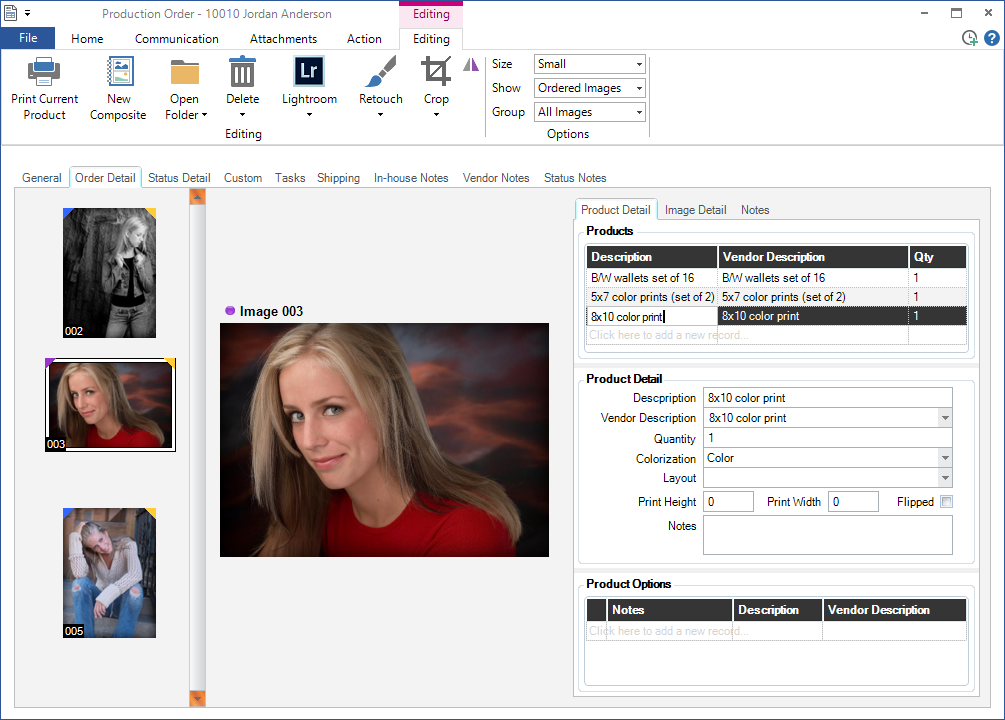
| Field | Description |
| Editing Tools | An additional Editing ribbon tab is revealed when the Order Detail tab is open. Use these image editing tools right from the production order. |
| Image Thumbnails |
Thumbnails of the ordered images are on the left. Use the Show option on the ribbon to view other images from the session. |
| Image Viewer |
Select an image on the left to display it in the center panel. |
| – PRODUCT DETAIL – | |
| Products |
Displays the products being ordered for the selected image. Select a product to show the product details below. |
| Description | Price list description for the selected product. |
| Vendor Description |
Vendor description for the selected product. |
| Quantity |
Quantity ordered. |
| Colorization | Colorization option for the selected product. |
| Layout | Choose a print layout for printing sheets in house. See also: Designing Print Layouts |
| Print Height/Width |
Height and width of selected product. |
| Flipped |
Check if image should be flipped. |
| Notes | Notes related to the selected product. |
| Product Options List | List of options chosen for the selected product (i.e., mounting, matting, etc.) See also: Item Options |
| – IMAGE DETAIL – | |
| Enhancements List |
List of enhancements for the chosen image (i.e., retouching). See also: Item Enhancements |
| Description |
Internal description of the enhancement. |
| Vendor Description |
Vendor description of the enhancement. |
| Type |
Choose In-House Enhancement or Lab Enhancement. |
| Applies to All |
Check this option if the enhancement should apply to all products ordered from this image. |
| Completed |
Has the enhancement been completed? |
| Notes |
Notes regarding the image enhancement. |
| – NOTES – |
|
| In-House Notes | Internal notes regarding the chosen image. These notes will be included on work orders. |
| Vendor Notes |
Vendor notes regarding the chosen image. These notes will be included on both purchase orders and work orders. |
Order Detail Tab – Generic Orders #
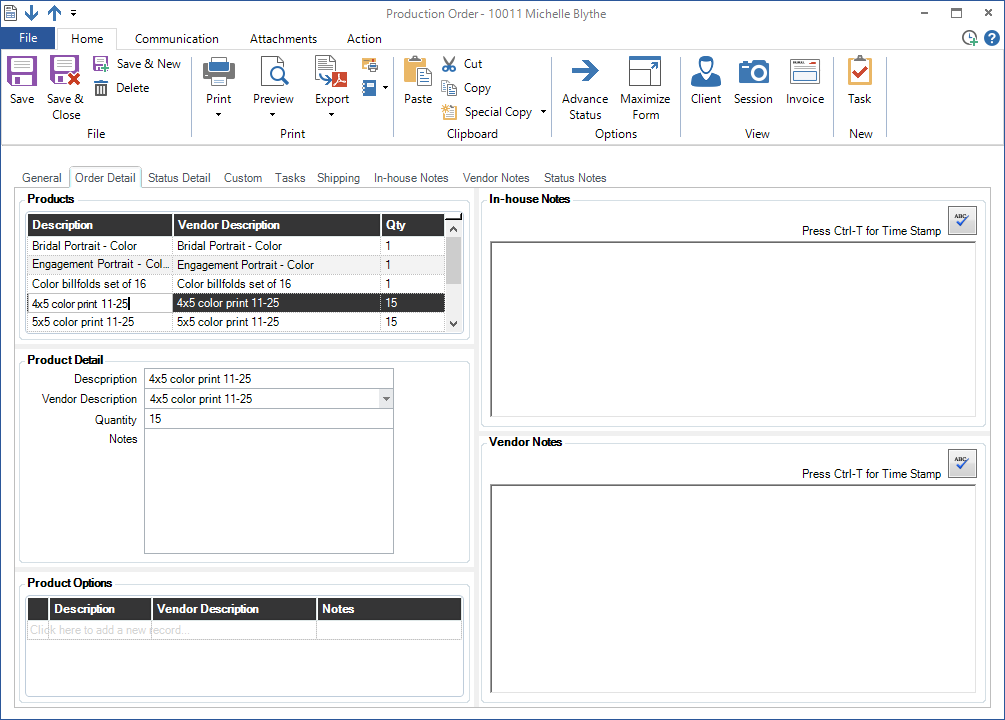
| Field | Description |
| – PRODUCT DETAIL – | |
| Product List |
Displays the products being ordered. Select a product to show the product details below. |
| Description | Price list description for the selected product. |
| Vendor Description |
Vendor description for the selected product. |
| Quantity |
Quantity ordered. |
| Notes | Notes about the product. |
| Product Options List | List of options chosen for the selected product (i.e., deluxe packaging, etc.) See also: Item Option List |
| – NOTES – |
|
| In-House Notes | Internal notes regarding the product. These notes will be included on work orders. |
| Vendor Notes |
Vendor notes regarding the product. These notes will be included on both purchase orders and work orders. |
Status Detail Tab #
Track the statuses of the production order and see how long each status took to complete. You can also use the Start Timer to track how long it takes to complete each status.
| Column | Description |
| Status Description | Name of the production status. |
| End User | User responsible for the status. |
| Start Date | Date the order entered the status. |
| End Date |
Date the order advanced to another status. |
| Days | Number of days the order spent at the status. |
| Actual Time |
Hours it took to complete the status (based on the timer). |
Custom Tab #
Use the Custom tab to track information that is not included as a preset in the software. Define the field labels in Maintenance > General (Studio) > Custom Labels. See also: Custom Labels
Tasks Tab #
Contains a list of each task related to the production order.
| Column | Description |
| Urgent | This column will contain a symbol if the task has been marked as urgent. |
| Due Date |
The date the task should be completed by. |
| Task Number |
A unique number assigned by the software and used for tracking purposes. |
| Subject |
Description of the task. |
| Status |
Current status of the task. See also: Task Statuses |
| Assigned to User | The user the task is assigned to. |
| Assigned to Dept. | The department the task is assigned to. See also: Departments |
Shipping Tab #
Use this tab to initiate and track UPS shipments. See also: Company (Studio) Preferences – Integration and UPS Integration
In-House Notes Tab
#
Contains any in-house notes needed to process the order. These notes are included on work orders. See also: Printing a Work Order
Vendor Notes Tab #
Contains notes you want sent to your vendor to help them process the order. These notes are included on both purchase orders and work orders. See also: Printing a Purchase Order
Status Notes Tab #
Contains historical information about the various steps this production order has gone through.