
For general information on Production Statuses, click here. For information on Production Status specific to Lab Integration, continue reading.
To customize the Production Order Statuses to work with your Studio’s workflow, we’ve automatically created some statuses for you, but you MUST set one as “Initial Status” and one as “Final Status”. If you want a retoucher to retouch the order before submitting to the lab, or someone to do a final quality check before submitting to the lab, here’s the place to do it.
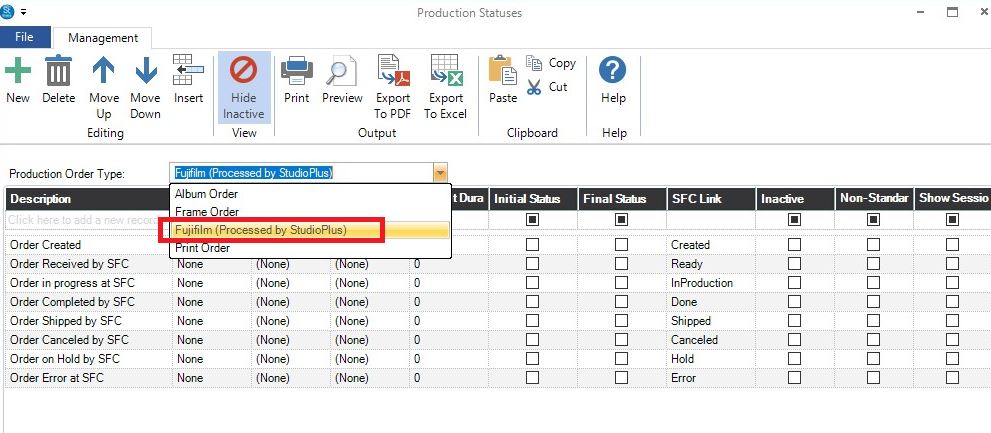
1. Go to Maintenance > Production > Production Statuses
2. From the drop down menu Production Order Type, select Fujifilm (Processed by StudioPlus)
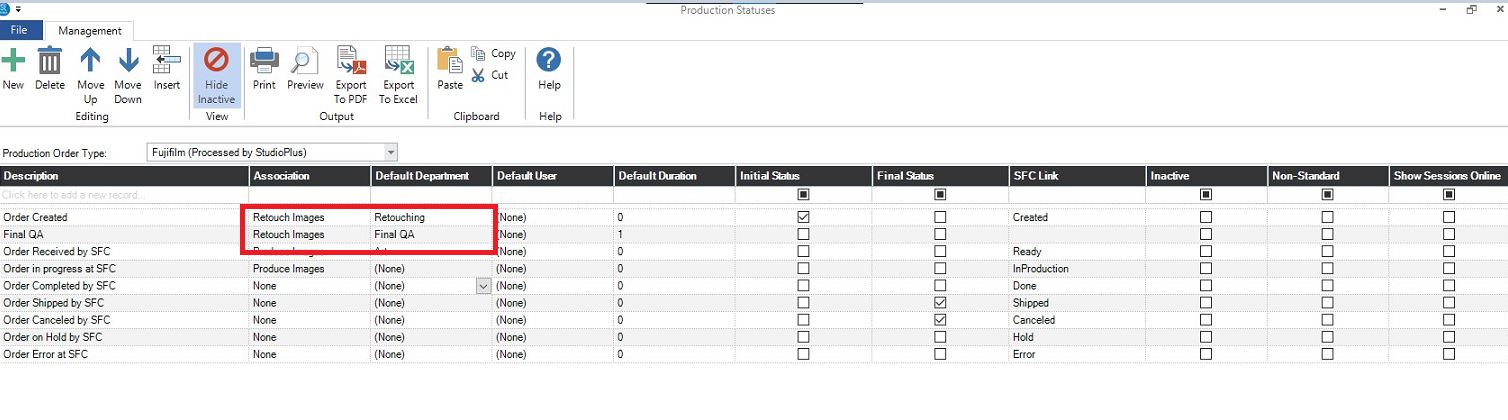
3. Maximize the screen to improve your view of this screen.
a. The status Order Created can be the Initial status. If a retoucher needs to work on it before it’s sent to the lab, set the association to Retouch Images. If you use Departments or have a User that does retouching, you can assign Department or User here.
b. If you require a Quality check, simply add a new Status, and any Department or User that is assigned that work.
c. If you require any other work done before the order is submitted to the lab, add those Statuses.
d. In most cases, once the order is shipped by the lab, the status Order Shipped by SFC should be the final status.
The statuses automatically created by the integration can not be deleted, and the SFC Link can’t be changed. You can change the Status Description, Association, Default Department, Default User, Default Duration, and Initial and Final Statuses. Since you’ve enabled the Lab Integration, we do NOT recommend that you make the Statuses Inactive.
The SFC Link cannot be modified. Fujifilm sends StudioPlus that back, at which time we automatically update the Production Orders Status to the appropriate status.


