
Have a hard time remembering to back up your data? Always falling behind on updates? The Spectra Control Center allows you to automate some of the more mundane – but important – maintenance processes in Spectra.
- You can automatically perform database tasks like backups, along with compact and repairs.
- The Control Center will help you keep current on software updates.
- You can also automate the processes of uploading your images to InSpiredByYou.com and retrieving orders generated online.
- Use the Control Center to process status triggers and payments, as well as enable SMS text messaging and
incoming email.
Watch the video and read the information below to learn how to manage the Control Center.
To open the Control Center, go to the Spectra Utilities menu and click Control Center.
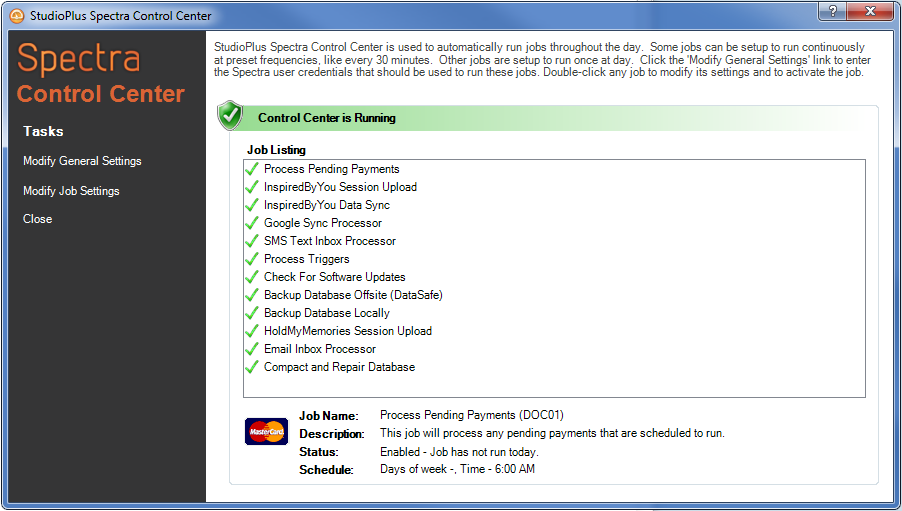

By default, the Spectra Control Center runs as a Windows service on each computer running Spectra. Although the Control Center is always running on each computer, you’ll set up the individual Control Center jobs to run on a specific computer. If you decide to run multiple jobs on the same computer, we recommend: ● Stagger the start times. For instance, run a backup job before you run a compact and repair. ● It is also a good idea to run a compact and repair before performing a software update. Example: To facilitate this you could: ● Schedule the Backup job at 1:00 AM ● Schedule the Compact and Repair job at 1:30 AM ● Then the Check for Updates job time at 2:00 AM.
General Settings #
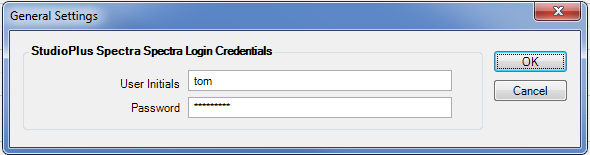
Spectra Login Credentials – Enter the UserInitials and Password you use to log into Spectra. If you have not enabled security in Spectra you can leave the password space blank.
Job Settings #
Each Control Center job can be individually enabled and then set up
to run at a specific time, on specific days, and on a specific computer.
There may be additional options available on each job. To set up or modify
a job, either double-click the job in the list or select the job and click
Modify Job Settings.
Backup Database Offsite (DataSafe) #
See Getting Started with DataSafe for more information about the DataSafe add-on service.
Back Up Database Locally #
This job will back up your Spectra database to a drive location in your studio.

ATTENTION!
A backup or compact and repair requires all users to be logged out of Spectra. Make sure everyone properly logs out of Spectra before leaving to avoid any problems. ● If there is a user still logged into Spectra, their session will be forced closed. ● If someone accesses your computers remotely for off-site work, they will be forced out at the time the Control Center tries to perform one of these jobs. Note: Just like with a backup using the Database Utility, your images are not backed up with this process.
-
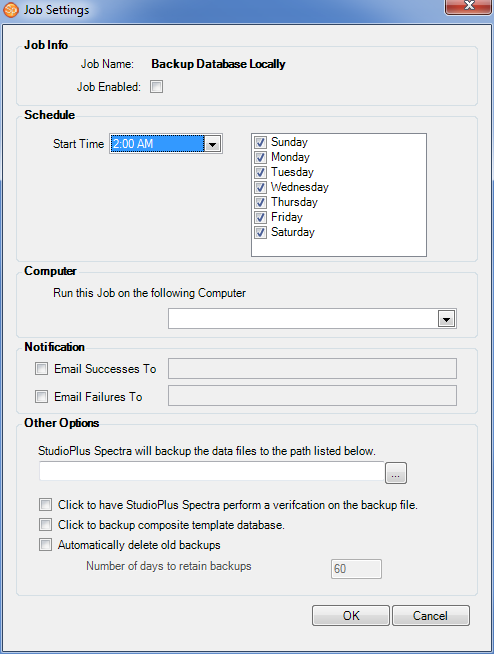
Job Enabled – Select this box to enable this job.
-
Schedule – Choose the time you want the job to start and the days you would like it to run.
-
Computer – Choose the computer you want this job to run on. Note: The computer name must be an exact match, so be careful if typing it in.
-
Notification – Choose whether you would like to have the Control Center send an email to report successes and/or failures. Notification emails will be sent using the workstation email settings. In order to successfully send the notification emails: ● you must have set up the appropriate email server SMTP information on the Email tab of Workstation Preferences for the computer that is running the job ● and, the computer must have access to the Internet at the time the job runs.

HERE’S A FLASH FOR YOU!
You may have noticed that when you specify a location when doing a regular backup through the Database Utility, ● The location you choose for backup will be saved for use the next time. ● Also, by default, Spectra creates a backup folder in the folder where your database is located — therefore on the same hard drive. The location specified in the Control Center will not affect what you have set in the Database Utility. It is a good practice to save your backups to several different locations so if one hard drive fails, you will still have a backup in another location. The Control Center is the ideal place to set an additional location that is on a totally different storage device. Note: If you would like this backup to be on a CD or DVD (or even on a portable drive), those drives need to be hooked up and ready to go for the Control Center to successfully perform the backup.
-
Other Options – Select the location where you would like the Control Center to save your backup. This location must be accessible at the time the backup is attempted. You can choose to have the backup verified and to also have your composite templates backed up. To keep backup files from piling up you can choose to have older backups deleted, setting the age of when you would like them deleted.
Check for Software Updates #
This job will check the StudioPlusSoftware.com website to see if there is a new Spectra update available for download. If there is, it will be downloaded into the SPUpdates folder located in the same folder as your main database. The next person to launch Spectra will trigger the update to run. Once the update has been run on one computer, the other computers can log into Spectra and will also see the update run on that computer’s Spectra application. Because an update may also change the database, it is always a good idea to run a backup before an update. See also: Optimizing Spectra
-
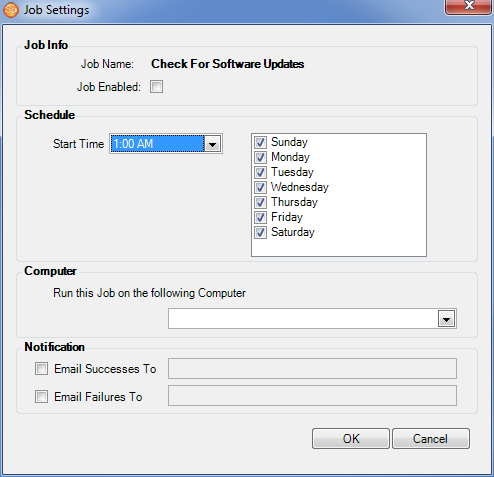
Job Info – Select this box to enable this job. The computer must have access to the Internet at the time this job is run.
-
Schedule – Choose the time you want the job to start and the days you would like it to run.
-
Computer – Choose the computer you want this job to run on. Note: The computer name must be an exact match, so be careful if typing it in.
-
Notification – Choose whether you would like to have the Control Center send an email to report successes and/or failures. Notification emails will be sent using the workstation email settings. In order to successfully send the notification emails, you must have set up the appropriate email server SMTP information on the Email tab of Workstation Preferences for the computer that is running the job and the computer must have access to the Internet at the time the job runs.
Compact and Repair Database #
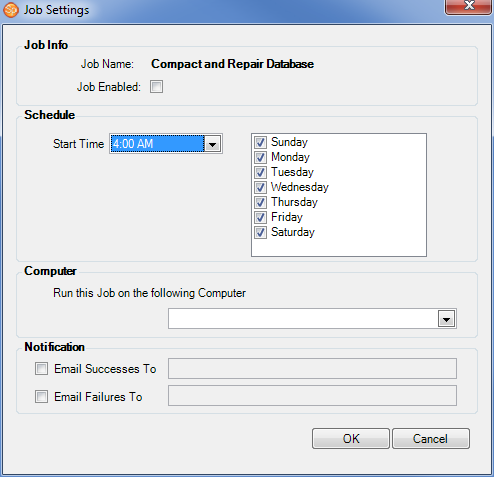
This job will attempt to Compact and Repair your database at the times and days specified.
ATTENTION!
A Compact and Repair will help keep your data cleaner by purging extra space and correcting potentially corrupting entries. You should always make sure that you have a current backup before performing a Compact and Repair.
-
Job Enabled – Select this box to enable this job.
-
Schedule – Choose the time you want the job to start and the days you would like it to run.
-
Computer – Choose the computer you want this job to run on. Note: The computer name must be an exact match, so be careful if typing it in.
-
Notification – Choose whether you would like to have the Control Center send an email to report successes and/or failures. Notification emails will be sent using the workstation email settings. In order to successfully send the notification emails, you must have set up the appropriate email server SMTP information on the Email tab of Workstation Preferences for the computer that is running the job and the computer must have access to the Internet at the time the job runs.
Email Inbox Processor #
   | NOTE: This feature is available in the Essential, Professional, and Enterprise versions of both Spectra and Stratus Desktop. |
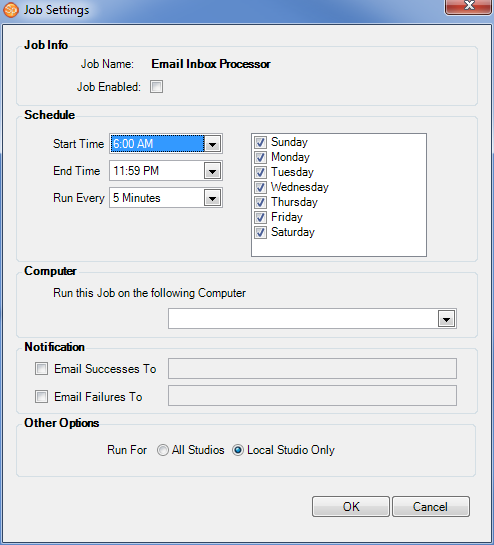
This job must be enabled in order to receive incoming email into Spectra. Your email box(es) must be set up in Spectra before you enable this job in the Control Center. See also: Setting up Incoming Email
-
Job Enabled – Select this box to enable this job.
-
Schedule – Choose the time you want the job to start and end. Then set how often you would like the job to run. Finally, select the days you would like it to run.
-
Computer – Choose the computer you want this job to run on. Note: The computer name must be an exact match, so be careful if typing it in.
-
Notification – Choose whether you would like to have the Control Center send an email to report successes and/or failures. Notification emails will be sent using the workstation email settings. In order to successfully send the notification emails, you must have set up the appropriate email server SMTP information on the Email tab of Workstation Preferences for the computer that is running the job and the computer must have access to the Internet at the time the job runs.
-
Other Options – If you are running the Enterprise version of Spectra, you can select the job to run for just the local studio or all studios.
Google Sync Processor #
| | NOTE: This feature is available in the Essential, Professional, and Enterprise versions of both Spectra and Stratus Desktop. |
-
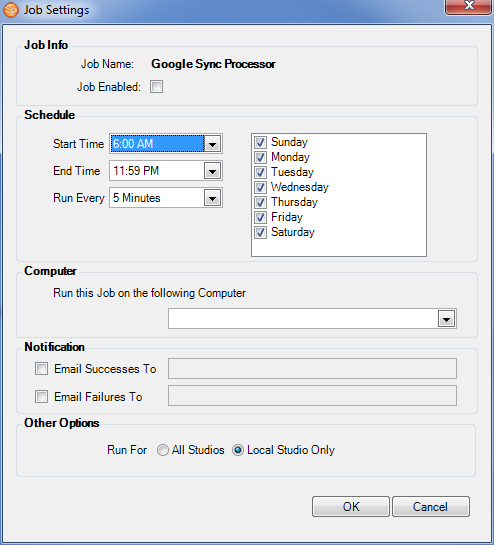
Job Enabled – Select this box to enable this job.
-
Schedule – Choose the time you want the job to start and end. Then set how often you would like the job to run. Finally, select the days you would like it to run.
-
Computer – Choose the computer you want this job to run on. Note: The computer name must be an exact match, so be careful if typing it in.
-
Notification – Choose whether you would like to have the Control Center send an email to report successes and/or failures. Notification emails will be sent using the workstation email settings. In order to successfully send the notification emails, you must have set up the appropriate email server SMTP information on the Email tab of Workstation Preferences for the computer that is running the job and the computer must have access to the Internet at the time the job runs.
-
Other Options – If you are running the Enterprise version of Spectra, you can select the job to run for just the local studio or all studios.
HoldMyMemories Session Upload #
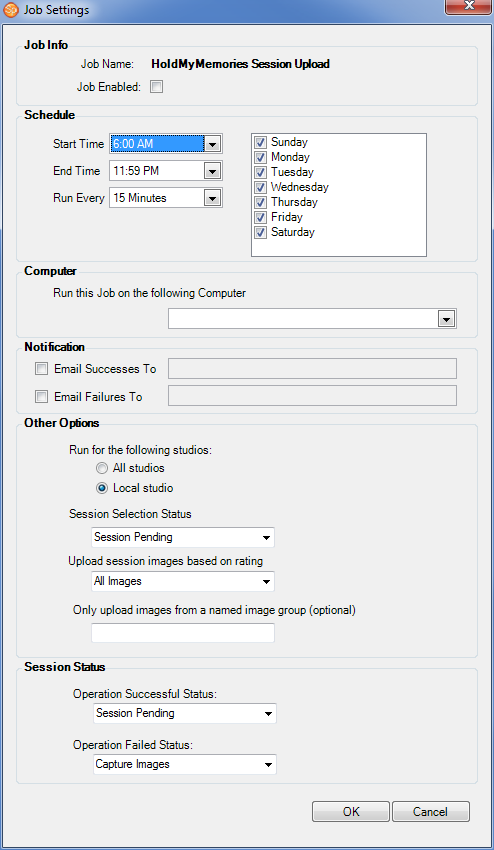
This job can be set to periodically process your HoldMyMemories uploads. This will help speed up the process by automatically uploading sessions that need to upload. By enabling this job in the Control Center, you can eliminate the need to manually upload at the end of each day – Spectra will do it for you. Your HoldMyMemories account must be set up and enabled correctly in Spectra before you try to run the upload job in the Control Center. Refer to the HoldMyMemories Integration topic for more information.
-
Job Enabled – Select this box to enable this job.
-
Schedule – Choose the time you want the job to start and end. Then set how often you would like the job to run. Finally, select the days you would like it to run.
-
Computer – Choose the computer you want this job to run on. Note: The computer name must be an exact match, so be careful if typing it in.
-
Notification – Choose whether you would like to have the Control Center send an email to report successes and/or failures. Notification emails will be sent using the workstation email settings. In order to successfully send the notification emails, you must have set up the appropriate email server SMTP information on the Email tab of Workstation Preferences for the computer that is running the job and the computer must have access to the Internet at the time the job runs.
-
Other Options – Choose the session status and rating for the images you would like to automatically upload. You can also choose to only upload images from a specific image group that has been defined for the session. If you are running the Enterprise version of Spectra, you can select the job to run for just the local studio or for all studios.
InSpiredByYou Session Upload #
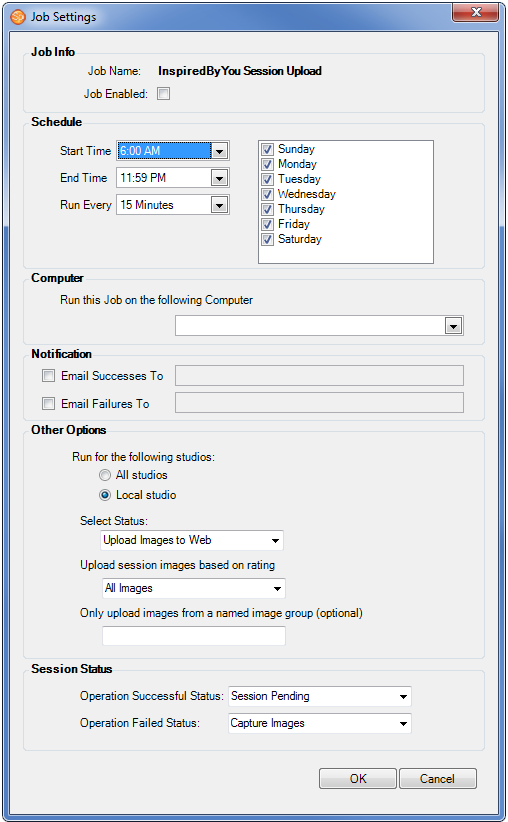
This job can be set to periodically upload sessions to your InSpiredByYou website so that the sessions can be available to your clients as soon as their images are imported into Spectra. You will need to have a InSpired account set up and properly syncing.
-
Job Enabled – Select this box to enable this job.
-
Schedule – Choose the time you want the job to start and end. Then set how often you would like the job to run. Finally, select the days you would like it to run.
-
Computer – Choose the computer you want this job to run on. Note: The computer name must be an exact match, so be careful if typing it in.
-
Notification – Choose whether you would like to have the Control Center send an email to report successes and/or failures. Notification emails will be sent using the workstation email settings. In order to successfully send the notification emails, you must have set up the appropriate email server SMTP information on the Email tab of Workstation Preferences for the computer that is running the job and the computer must have access to the Internet at the time the job runs.
-
Other Options – Choose the session status and rating for the images you would like to automatically upload. You can also choose to only upload images from a specific image group that has been defined for the session. If you are running the Enterprise version of Spectra, you can select the job to run for just the local studio or for all studios.
-
Session Status – The Control Center will set the session status based on whether the upload was successful or not.
HERE’S A FLASH FOR YOU!
The session uploader will go through any sessions that appear on the Upload stage of the Workflow hub. It will generally use the default settings for user name, password, online duration, and price list. Image groups will not be synced if the session is uploaded automatically through the Control Center.
InSpiredByYou Data Sync #
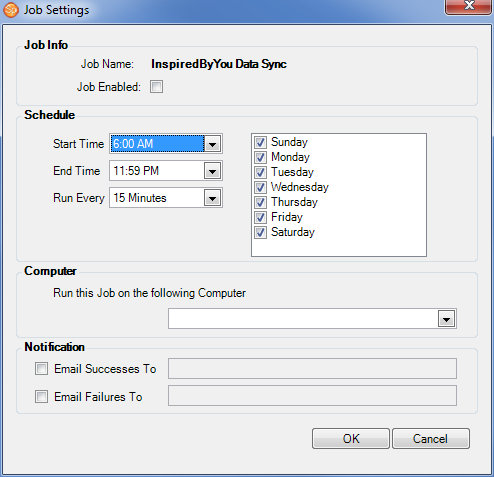
This job can be set to periodically upload and download information from your InSpiredByYou website. This will help speed up the process by automatically downloading orders and albums so you can begin work on them almost as soon as they are submitted without having to constantly check on your own. You will need to have a InSpired account set up and properly syncing.
The InSpiredByYou Data Sync job performs the following:
Uploads #
-
Prepaid orders
-
Client albums
-
Contracts
-
Animoto videos
Downloads #
-
Favorite images
-
Client albums
-
Contracts
-
Orders
-
Yearbook selections
-
Job Enabled – Select this box to enable this job.
-
Schedule – Choose the time you want the job to start and end. Then set how often you would like the job to run. Finally, select the days you would like it to run.
-
Computer – Choose the computer you want this job to run on. Note: The computer name must be an exact match, so be careful if typing it in.
-
Notification – Choose whether you would like to have the Control Center send an email to report successes and/or failures. Notification emails will be sent using the workstation email settings. In order to successfully send the notification emails, you must have set up the appropriate email server SMTP information on the Email tab of Workstation Preferences for the computer that is running the job and the computer must have access to the Internet at the time the job runs.
Process Triggers #
| | NOTE: This feature is available in the Professional and Enterprise versions of both Spectra and Stratus Desktop. |
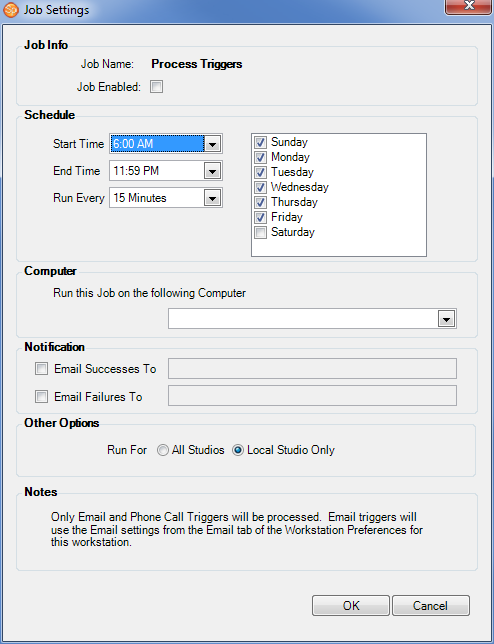
Set up this job to periodically process some of your Spectra triggers. This will help speed up your daily workflow by automatically: ● creating phone calls ● sending email ● or sending text messages ● or generating tasks. By enabling this job in the Control Center, you can eliminate the need to process these triggers at the end of each day…Spectra will do it for you. Your triggers must be set up in Spectra before you try to run them in the Control Center. See also: Triggers
The automatic trigger process will only create phone call records, send messages (emails and texts), and generate tasks. Your letter triggers still need to be run manually, since they require human intervention to prepare the printer.
-
Job Enabled – Select this box to enable this job.
-
Schedule – Choose the time you want the job to start and end. Then set how often you would like the job to run. Then, select the days you would like it to run.
-
Computer – Choose the computer you want this job to run on. Note: The computer name must be an exact match, so be careful if typing it in.
-
Notification – Choose whether you would like to have the Control Center send an email to report successes and/or failures. Notification emails will be sent using the workstation email settings. In order to successfully send the notification emails, you must have set up the appropriate email server SMTP information on the Email tab of Workstation Preferences for the computer that is running the job and the computer must have access to the Internet at the time the job runs.
-
Other Options – If you are running the Enterprise version of Spectra, you can select the job to run for just the local studio or all studios.
Process Pending Payments #
Set up this job to periodically process your pending payments, speeding up your daily workflow by having Spectra automatically processing any pending payments that are due. By enabling this job in the Control Center, you can eliminate the need to manually process these payments at the end of each day – Spectra will do it for you. Note: Your credit card processing with Merchant Warehouse and eWAY must be set up in Spectra before you try to process pending payments through the Control Center.

-
Job Enabled – Select this box to enable this job.
-
Schedule – Choose the time you want the job to start and then select the days you would like it to run.
-
Computer – Choose the computer you want this job to run on. Note: The computer name must be an exact match, so be careful if typing it in.
-
Notification – Choose whether you would like to have the Control Center send an email to report successes and/or failures. Notification emails will be sent using the workstation email settings. In order to successfully send the notification emails, you must have set up the appropriate email server SMTP information on the Email tab of Workstation Preferences for the computer that is running the job and the computer must have access to the Internet at the time the job runs.
-
Other Options – Choose whether you want Spectra to automatically advance the invoice status, change the payment due date, or email a payment receipt to the client for payments that are successfully processed. If you are running the Enterprise version of Spectra, you can select the job to run for just the local studio or for all studios.
#
SMS Text Inbox Processor #
| | NOTE: This feature is available in the Essential, Professional, and Enterprise versions of both Spectra and Stratus Desktop. |
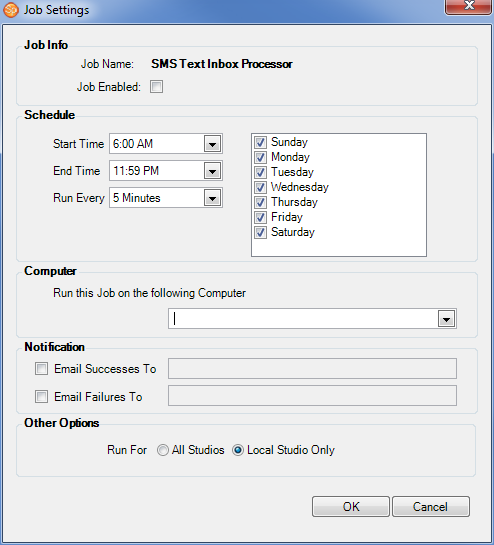
This job must be enabled in order to receive SMS text messages in Spectra. The job will automatically check for incoming text messages. Your SMS text messaging account must be set up in Spectra before you try to process the text messages in the Control Center. See also: Setting up SMS Text Messaging
-
Job Enabled – Select this box to enable this job.
-
Schedule – Choose the time you want the job to start and end. Then set how often you would like the job to run. Finally, select the days you would like it to run.
-
Computer – Choose the computer you want this job to run on. Note: The computer name must be an exact match, so be careful if typing it in.
-
Notification – Choose whether you would like to have the Control Center send an email to report successes and/or failures. Notification emails will be sent using the workstation email settings. In order to successfully send the notification emails, you must have set up the appropriate email server SMTP information on the Email tab of Workstation Preferences for the computer that is running the job and the computer must have access to the Internet at the time the job runs.
-
Other Options – If you are running the Enterprise version of Spectra, you can select the job to run for just the local studio or all studios.
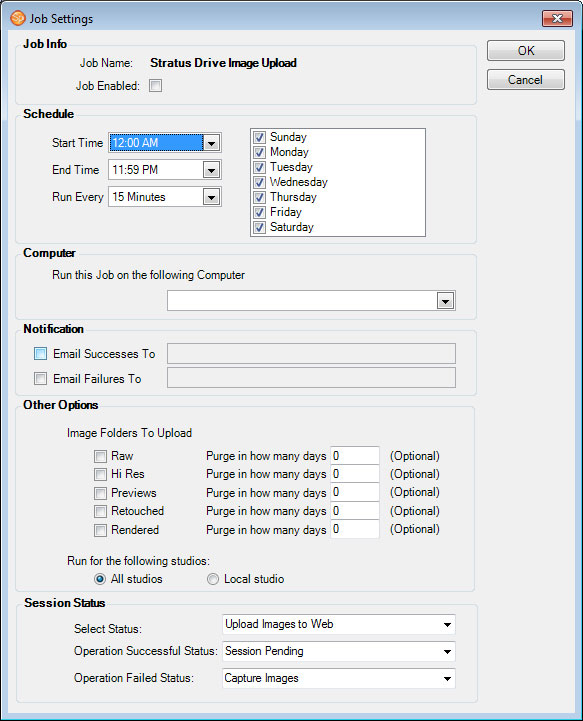
Stratus Drive Image Upload #
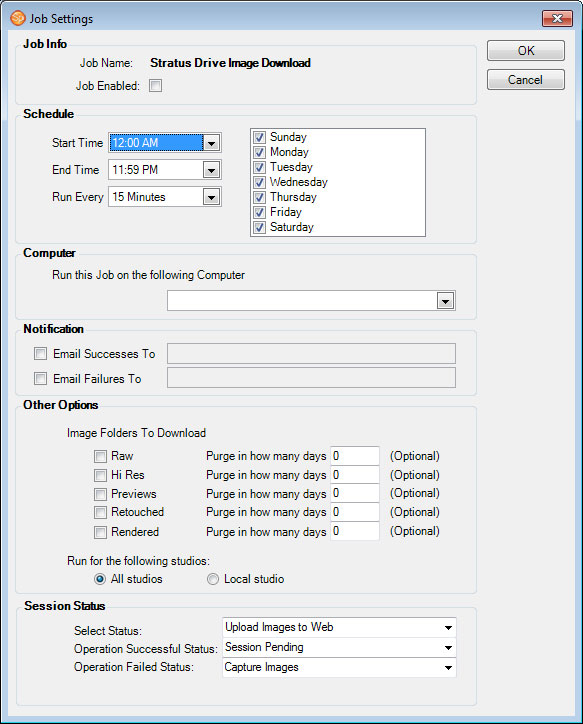
Stratus Drive Image Download #
#
Control Center Logs #
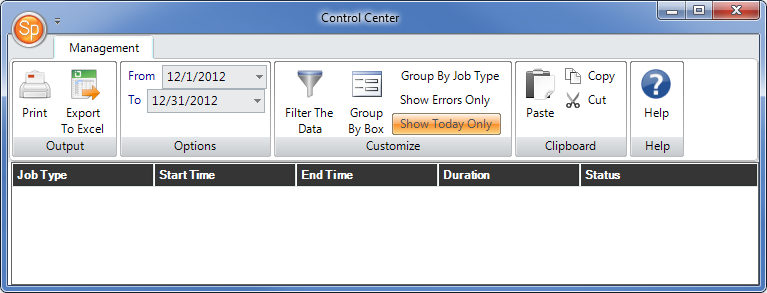
Spectra maintains 30 days of logs documenting Control Center activity. These logs can be viewed from any workstation, including a corporate office. To view the logs, open the Spectra Utilities menu and click Control Center Logs.


Powered by BetterDocs