
#
  |
NOTE: This feature is available in the Professional and Enterprise versions of both Spectra and Stratus Desktop. |
You can create a payment plan on any invoice in Spectra. The Payment Plan feature allows you to create pending payments to be processed at a future date. You can create a single pending payment or a series of pending payments with a payment schedule. Once created, pending payments can be processed manually or as a batch.
Creating a New Single Pending Payment #
-
To manually create a new pending payment, open the Invoice you want to schedule the payment for.
-
In the New group on the ribbon, click Payment or Refund.
-
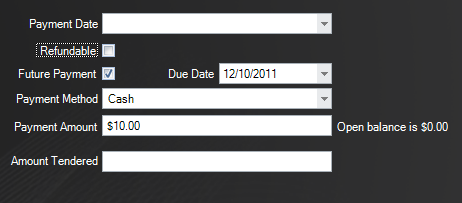
On the New Payment screen, check the Future Payment checkbox to schedule this payment for a future date.
-
The Payment Date will be blanked out and you can enter a Due Date and Payment Amount for this pending payment.
-
You can choose to enter a Payment Method to be used when processing this payment. Or you can leave this field blank, allowing Spectra to use the client’s saved payment methods when processing this payment (see the section below on Setting up Payment Methods).
-
Save and Close the payment.
-
This pending payment will now appear on the Order Detail tab of the invoice as a Pending Payment, and the Total Pending Payments field on the invoice will reflect the total amount of pending payments the customer has on this invoice.
Creating a New Payment Plan #
A payment plan is a series of pending payments for a single invoice that have a set payment schedule. Follow these steps to create a payment plan:
-
Open the invoice you want to create a payment plan for.
-
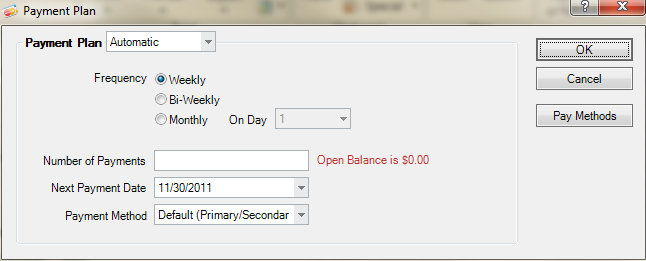
In the New group on the ribbon, click Payment Plan. The Payment Plan window will open.
-
Under Frequency, choose the schedule for the payments, Weekly, Bi-Weekly (every other week), or Monthly.
-
If you select Monthly, also select theday of the month.
-
If you select Weekly or Bi-Weekly, also select the Next Payment Date, which indicates when payment plan will start.
-
Enter the Number of Payments and the payment amount will be automatically updated. Note: The final payment will correct for any rounding so the invoice will be paid in full.
-
Click OK.
-
You will now see the pending payments on the Order Detail tab of the invoice.

Pending payments and payment plans are excluded from Payment and Accounts Receivable Aging reports, the Today’s Snapshot panel of the home page, and the Make a Deposit Posting tool. Pending payments are printed on the invoice. You can also see a list of pending payments in Reports > Lists and Labels > Pending Payments Report. See also: Reports Menu
Setting up Client Payment Methods #
Setting up a payment plan requires one or more payment methods to be set up for the client. Payment methods can be saved on the client’s record for future use.
-
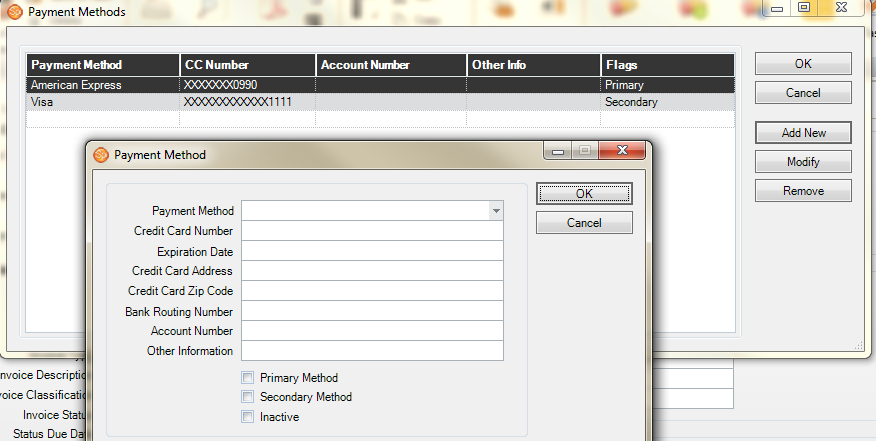
Open a Client, Session, Invoice,or Payment record and then click the Spectra menubutton and choose Payment Methods.
-
Click Add to add a new method. In the Payment Method drop-down list you will get a list of any credit cards this customer has previously used.
-
Select the Payment Method and complete the payment information. Note: Non-credit card payment methods can be selected but they will not be automatically processed during the payment processing routine.
-
Select if the Payment Method should be the Primary or Secondary method. Spectra will use this information when automatically processing payments.
In versions of Spectra prior to Spectra 2008, the PaymentMethod combo box on a Payment record displayed a list of all the prior credit cards used by the client. Starting in Spectra 2008, only those PaymentMethods that have been set up on this screen will be added to the PaymentMethod combo box for rapid data entry. You now have more control and old cards will not be displayed.
Pending Payments Report #
Run the Payments Pending Report to see a list of all pending payments for a given time period.
-
Go to Report > Lists and Labels > Payments Pending List.
-
Choose to run the Summary or the Detail Report and then select the date range.
In order to run credit card payments automatically for your payment plans you must be using MerchantWarehouse (in the U.S.) or eWAY (in Australia, New Zealand, and United Kingdom) as your credit card processor. For more information visit: http://www.studioplussoftware.com/help/credit_cards.aspx
Processing Payment Plans #
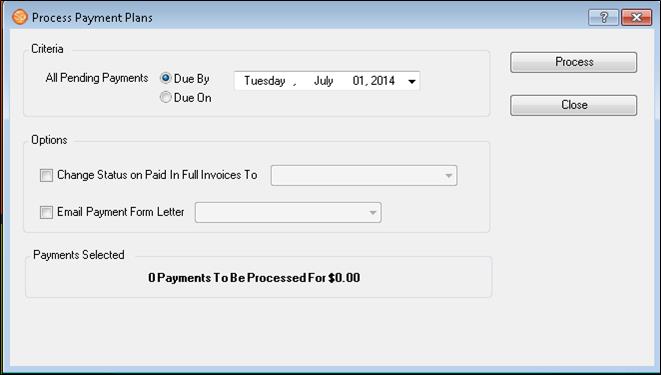
The Process Payment Plans tool will process all pending payments that are due by a certain date and apply each payment to the appropriate invoice. This includes pending payments that are part of a payment plan, as well as any manually created pending payments.
-
To process pending payments go to Tools > Process Payment Plans.
-
Choose from the following Options:
-
Change Status on Paid-in-Full Invoices – Have Spectra automatically update the invoice status when a processed payment results in an invoice being paid in full. Choose the appropriate status from the drop-down list.
-
Email Payment Form Letter – Have Spectra automatically send an email to clients with successful payments. Select the appropriate form letter from the drop-down list. Note: To email the client as part of the payment processing procedure, you must use a Payment Type form letter.
-
-
You will receive a preview of the number and amount of payments to be processed.
-
The payment processing routine will use each client’s payment methods to determine how to process the payment. Note: The payment processing routine will automatically run credit card transactions only if you are using Merchant Warehouse or eWAY as your credit card processor. If the payment is a credit card, Spectra will attempt to authorize the payment using the client’s primary payment method. If that method is declined, Spectra will attempt to use the secondary payment method. If that method also fails, or if the client does not have a secondary method, this transaction will appear on the Payment Processing – Failures Report.
-
The Payment Processing – Successful Report will list all payments that have been successfully processed.
-
Any non-credit card payments will need to be processed manually, but will appear on the Payment Processing – Successful Report.


Powered by BetterDocs