
Outgoing Email
With all the security breaches that have been happening outside of our software with people’s email addresses, Gmail has tightened their security in an effort to prevent them. With that in mind, we need to set up both Stratus/Spectra and Gmail at the same time. You’ll want to start in Stratus/Spectra (Maintenance > Preferences > Company Preferences – Email tab).
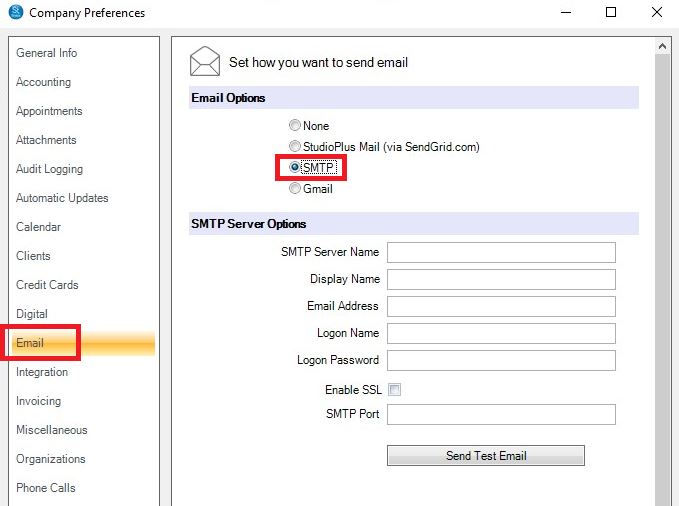
1. Select the Option SMTP
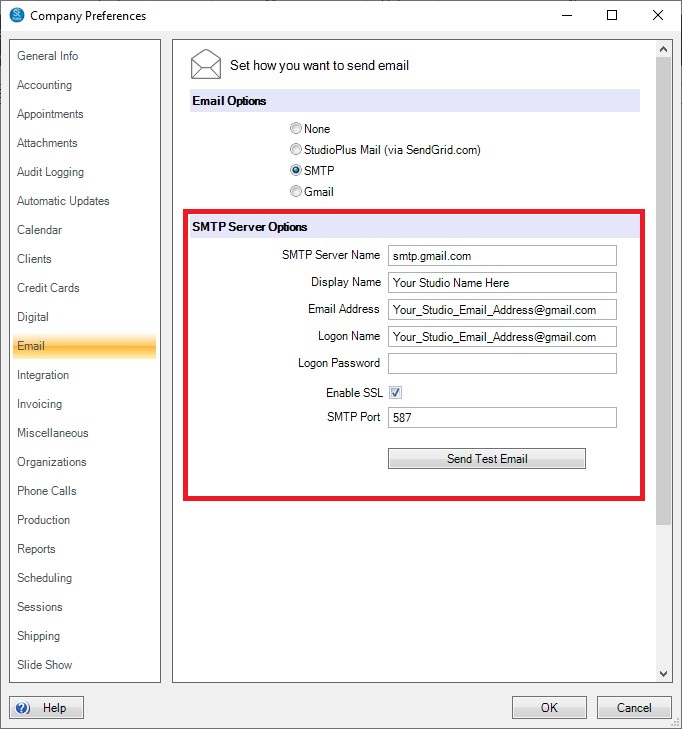
2. The SMTP Server Name (copy and paste it from this FAQ) is: smtp.gmail.com
3. The Display Name should be who, or what name, you want the recipient to see as the “From” portion of an email
4. The Email Address must be the Gmail email address you want to use
5. The Logon Name is your Gmail email address
The next steps require you to log your Gmail account.

6. In Gmail, go to the circle with the dots in the upper, right corner and select Account
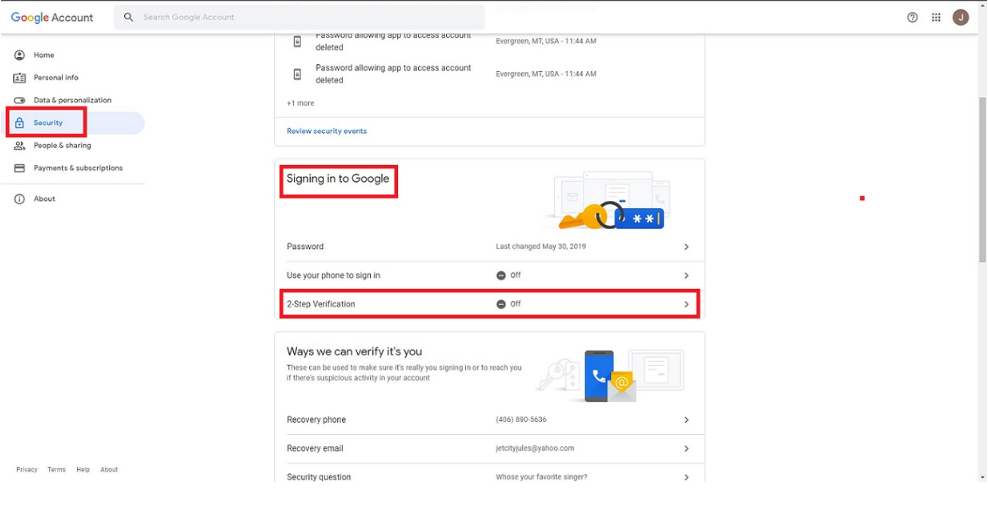
7. Select the Security tab, scroll to Signing in to Google. To the right of the 2-Step Verification box, hit the right pointing arrow
8. Follow the Google on-screen prompts to finalize turning 2-Step Verification on (NOTE: you’ll need your phone to log into Gmail from here on out).
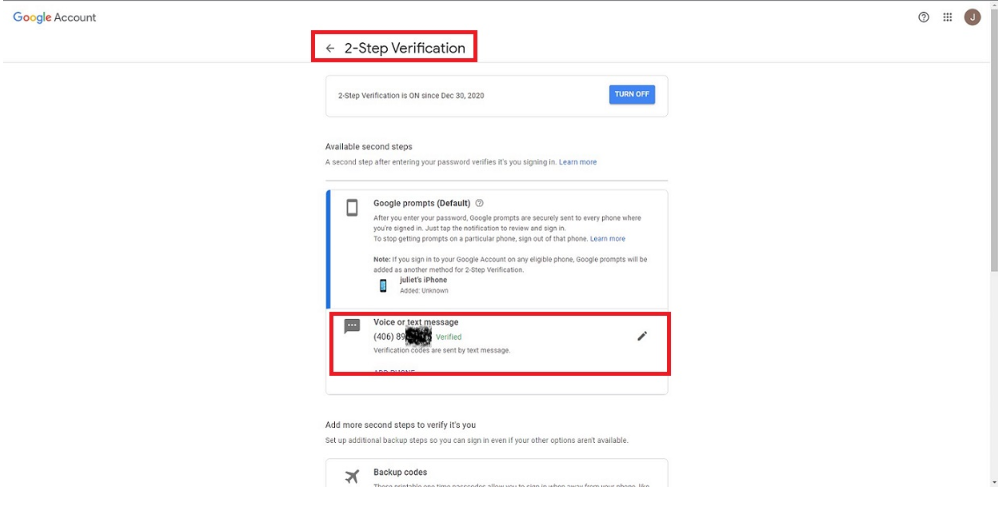
9. Click the arrow pointing to the left next to 2-Step Verification
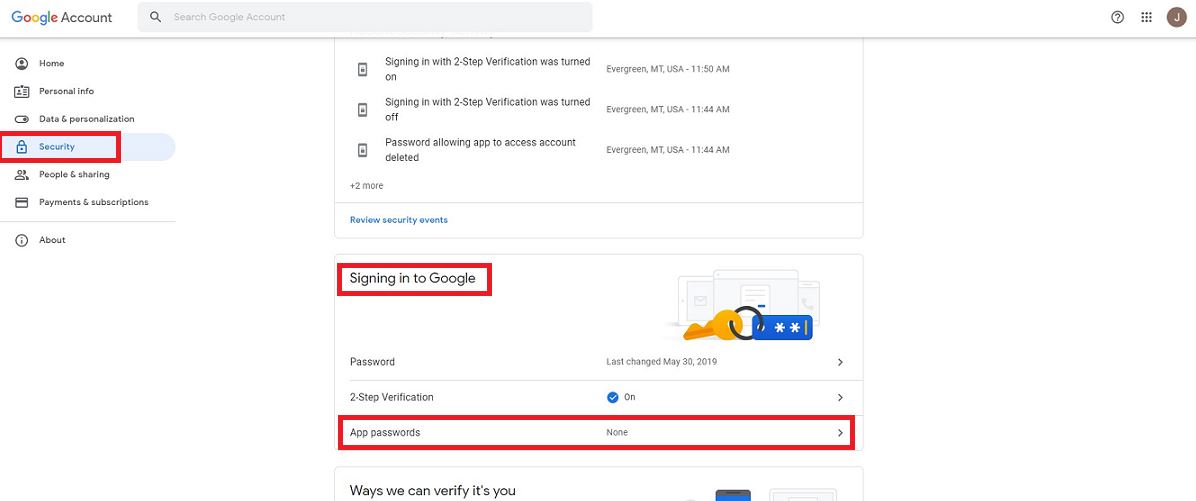
10. This brings you back to the Security tab–to the right of App passwords, hit the right pointing arrow
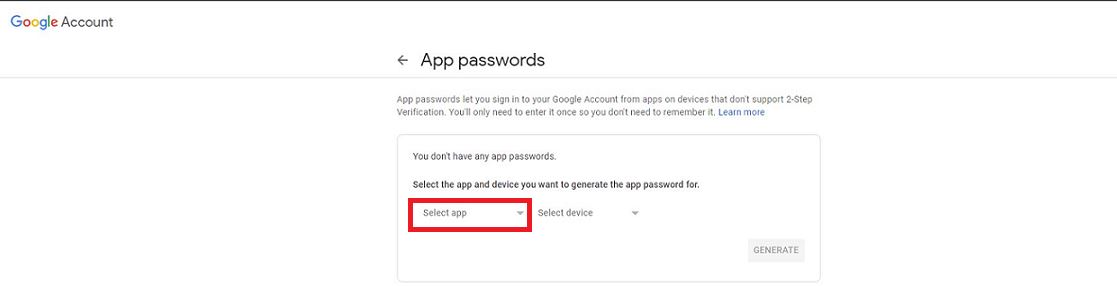
11. Click the downward pointing arrow to the right of Select app
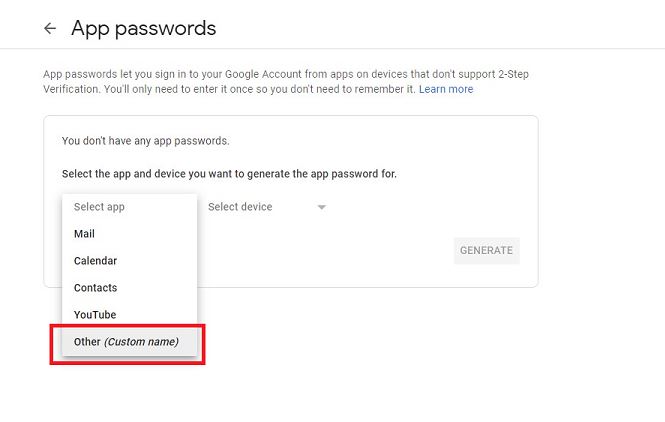
12. Select Other (Custom name)
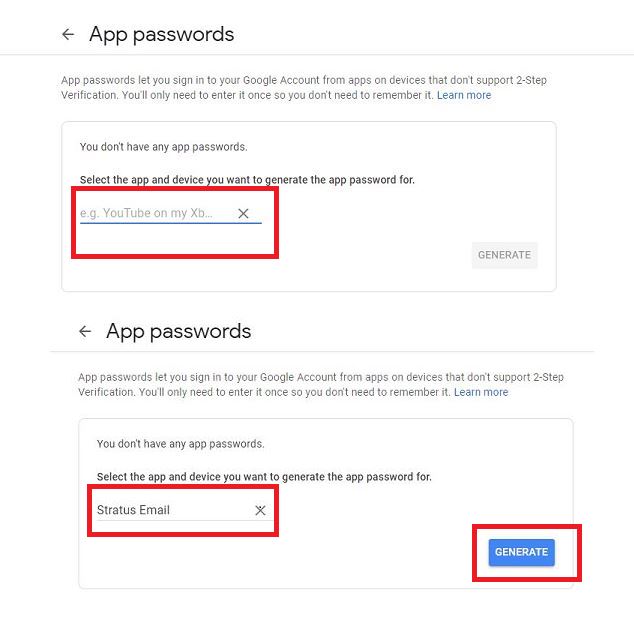
13. In the box e.g YouTube on my Xb, type in any name you like and then click Generate
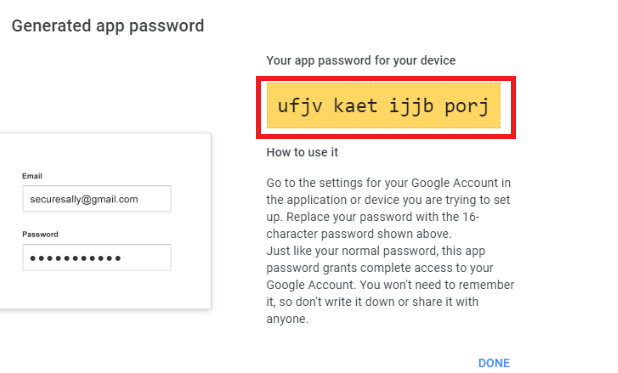
14. Highlight and copy the password from Your app password for your device. DO NOT CLOSE THAT WINDOW YET
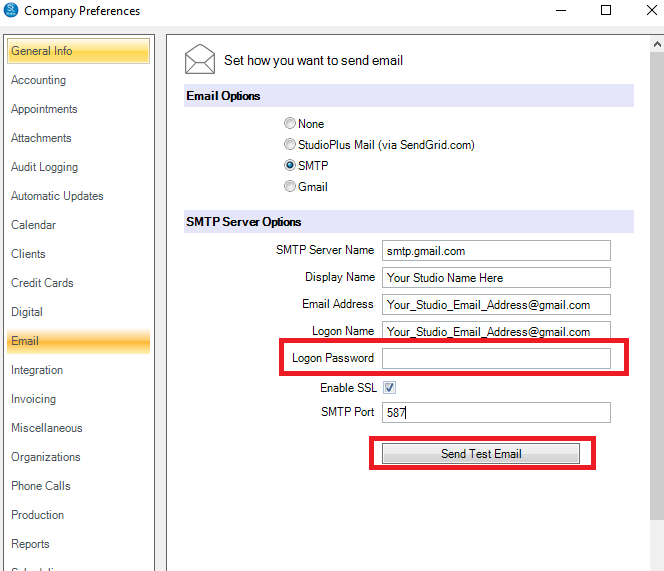
15. Back in Stratus/Spectra, paste that password in the Logon Password box
16. Required: Enable SSL is checked
17. Required: SMTP Port 587
18. Hit the “Send Test Email” button. Once you get a successful message that the test email has been sent, close Company Preferences.
19. If you do NOT wish to set up Incoming Email, you can now close the Gmail password box; otherwise follow the steps below
—————————————————————————————————————————————–
Incoming Email
If you want client replies, or new emails to be automatically imported into your Stratus/Spectra data and attached to the client record, you’re going to need the Less secure app password you set up in Gmail (Maintenance > Communication > Email Boxes). For more info on Incoming Email, click here.
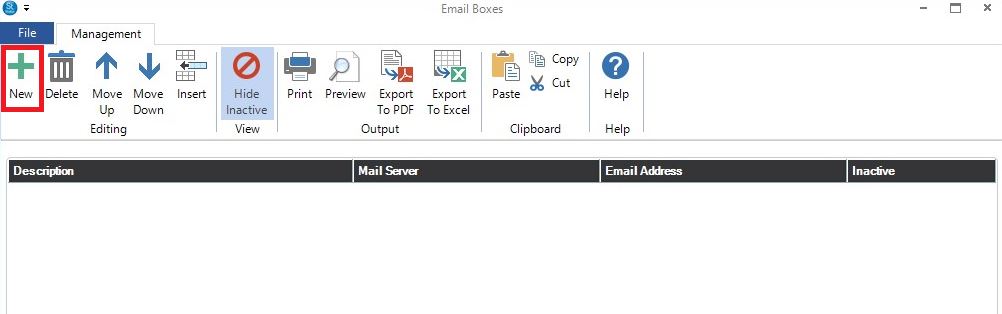
1. Click the New icon in the ribbon
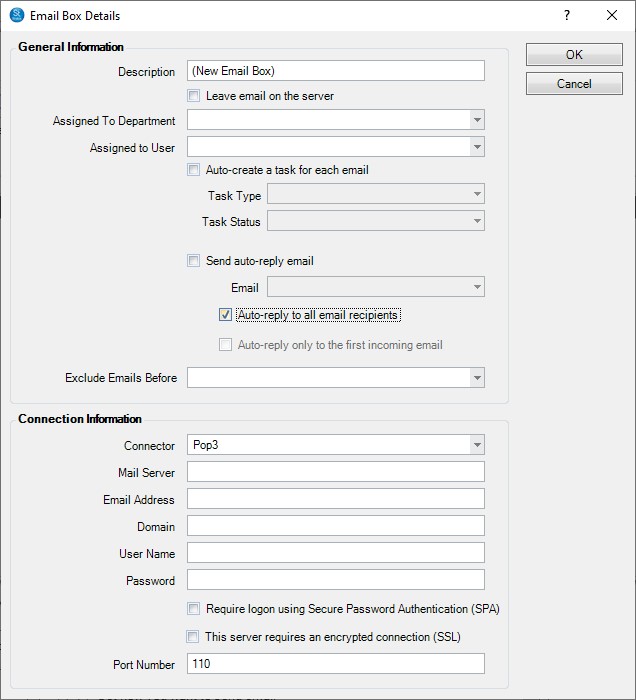
Starting with the General Info section of the form:
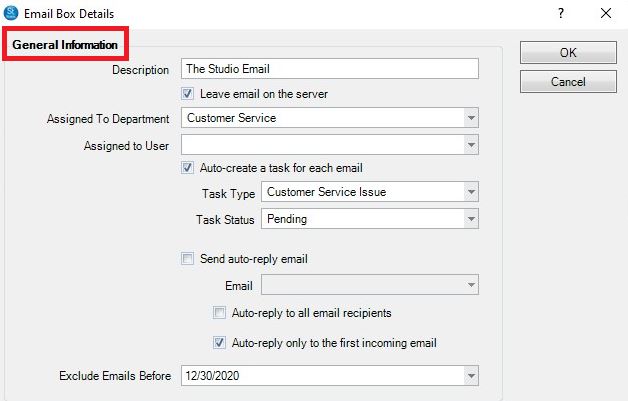
2. Add a Description to the Email box, making sure it’s easily identifiable in case you have more than one Email Box
3. We recommend that you Leave email on the server. This means that emails that do get imported also stay in your Gmail email inbox, adding another layer of safely storing client communications
4. Optional: If a particular department should be assigned to answer incoming emails, add it from the drop down list in the Assigned to Department box
5. Optional: If you want to assign it to a particular user in that department, add them from the drop down list in the Assigned to User. If you’ve not selected a Department, all users will be listed
6. Optional: If you want a task to be created each time a client emails you (not replying to something you’ve sent them), flag the Auto-create a task for each email, select a Task Type and Task Status
7. Optional: If you want an auto-reply sent to let clients know you’ve received their email, flag Send auto-reply email, select the Form Letter or HTML Email from the drop down list Email box. Need more info on Form Letters and HTML Emails, click here
8. If you set up the auto-reply feature, select when to send the auto-reply.
9. We recommend that you set up a Exclude Emails Before date, otherwise any email still in your Gmail inbox from any date or time will get imported
Continuing on with the Connection Information section
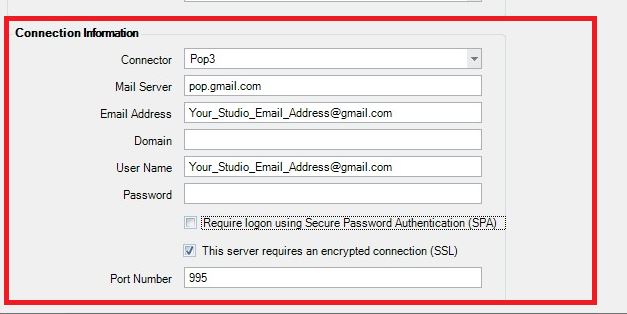
10. Gmail will use the Pop3 Connector
11. The Mail Server (copy and paste it from this FAQ) is: pop.gmail.com
12. Add the Email Address you created the Less secure app password for earlier
13. Leave Domain blank
14. Add the User Name email address, the same one you created the Less secure app password for earlier
15. Go back to Gmail’s Generated app password (step 14 from Outgoing Email above), copy Your app password for your device, and paste it in the Password box
16. Flag the box This server requires an encrypted connection (SSL)
17. The Port Number is 995
18. Click OK, and provided there are no typos the window should close. If you get an error, that means there’s a typo somewhere in the Connection Information section
You can now close the window still open from step 14 Outgoing Email.


