
  |
NOTE: This feature is available in the Professional and Enterprise versions of Stratus Desktop. Spectra does not include this feature. |
Before your clients can access their Web Forms, you need to design them. If you haven’t designed your forms yet, refer to Designing Web Forms as well as Using Web Forms for how to create the web forms.
There are three ways Clients can view their Web Forms:
Access from InspiredByYou.com
#
We suggest using this option for Client Information Forms, Shot Sheets, & Surveys.
Your clients can view their forms by logging in to InSpiredByYou.com. If you haven’t done so already, you’ll need to activate InSpiredByYou and set up a couple things. Go to Maintenance > Preferences > InSpiredByYou.com Preferences and set up the following:
-
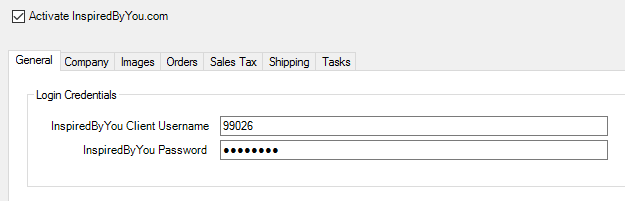
On the General Tab – Check the box to Activate InSpiredByYou.com. The Client Username and Password should already be filled in with your company’s InSpiredByYou credentials. These fields are required! If they’re blank, contact tech support.
-
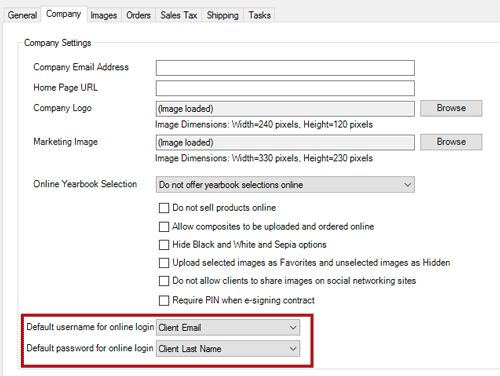
On the Company Tab – Choose the client’s Default Username and Password. This will be the login information you provide to your clients to allow them to see their web forms (and other items you upload to InSpiredByYou). We recommend leaving them at the default settings.
Note: If you’re just starting to use InSpiredByYou, you’ll want to set up some additional company information to make your InSpiredByYou site look professional. Enter your email address and upload your logo and a marketing image. These will be displayed on your InSpired site. See Setting up InSpiredByYou for more information.
-
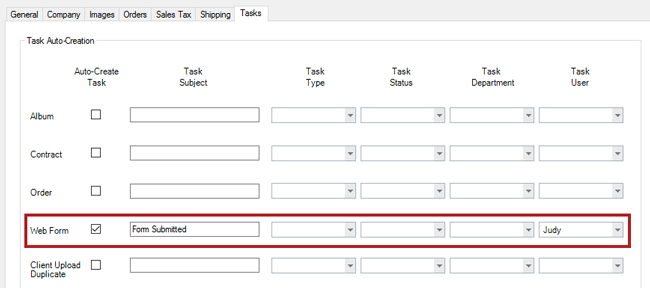
On the Tasks Tab – Set up a Web Form task and assign it to a user or department. This task will be automatically created by the software when a client submits a form. It’s a good way to keep track of form submissions.
Here is an example of a Web Form on InspiredByYou:
Access from an Email Link
#
We suggest using this option for Questionnaires, Online Contracts, Event Planning Guides, & Feedback Forms.
You can also email your clients the link to their
Web Form Portal where they can access all of their active web forms.
This example displays how to set up the link in an HTML email:
- Go to Tools > Design Tools > HTML Email Builder
- Select New to create a new email.
- After creating the content of the email you can add the link in one of two ways:
1. Use this option when emailing existing clients: In the HTML Email Builder select Insert Data Field > Special Fields > Client Web From Portal URL. The client who receives this email and clicks the link will be directed to their own web form portal which consists of all their available, active web forms. See Web Forms Preferences for more information.
![]()
2.
Use this option when emailing new clients, not in your data: Go to Maintenance > Web Forms >Web Forms, and highlight the web form that you want to include in the email. In the upper ribbon, select Get New Client URLs > New Client Link. This will copy the HTML coding for the hyperlink to your web form which can now be inserted to the Source tab of your HTML email.
![]() #
#
2.
Use this option when emailing new clients, not in your data: Go to Maintenance > Web Forms >Web Forms, and highlight the web form that you want to include in the email. In the upper ribbon, select Get New Client URLs > New Client Link. This will copy the HTML coding for the hyperlink to your web form which can now be inserted to the Source tab of your HTML email.Here is an example of a Web Form from the Web Form Portal:
Access from your Website #
We suggest using this option for Contact Us Forms
Want your web form to blend in with the color scheme of your website? Go to Maintenance > Preferences > Web Forms Preferences > Customization tab to customize the coloration for all of your web forms! See Web Forms Preferences for more details.
Mainly used for “Contact Us” web forms, you can also get an iFrame from your web form and embed it into your own website. After a client has submitted their web form, then it will automatically create a new client record within Stratus. Here is how to get the iFrame for your website:
- Go to Maintenance > Web Forms > Web Forms
- Highlight the web form that you want to embed into your website.
- Select Get New Client URLS > New Client iFrame. This will copy the iFrame that you can then give to your web developer to embed the web form in your web site.


