
It’s easier to manage your price list(s) if you’re familiar with how to copy and move things around!
Copying and Moving #
Copying a Price List #
-
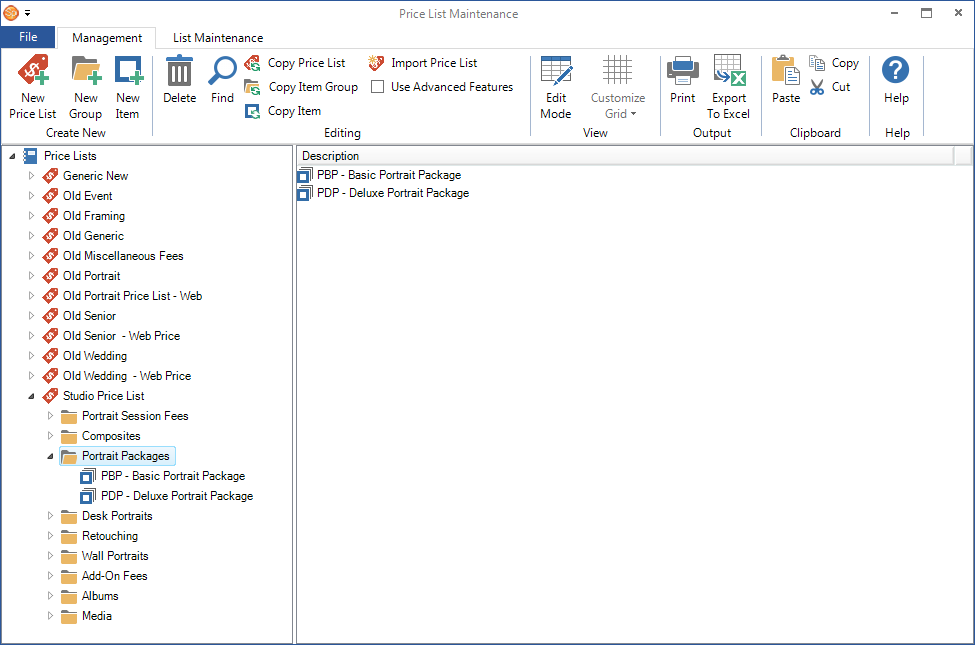
Highlight a price list in the list on the left.
-
Click Copy Price List on the ribbon.
-
Confirm.
-
A duplicate price list will be created. The new price list will contain all the same groups and items as the original price list. The only difference will be the price list name.
-
s
Copying an Item #
-
Highlight the item in the list on the left.
-
Click Copy Item on the ribbon.
-
A duplicate item will be created. The new item will have a different Item Identifier but will otherwise be identical to the original.
-
d
-
d
Copying a Package #
-
2
-
2
-
2
-
2
Copying a Group of Items #
-
Highlight the group in the list on the left.
-
Click Copy Item Group on the ribbon.
-
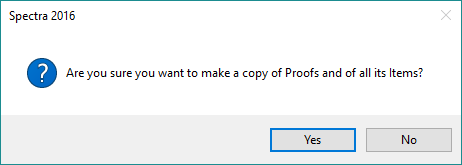
Click Yes to confirm. The software will copy the group AND each item within the group.
-
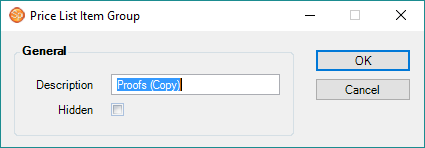
A duplicate group AND duplicate items will be created in the price list. The software will add “(Copy)” to the name of the new group (i.e., “Proofs (Copy)”) and a number to each item in the new group (i.e., “bwproofp (1)”) .
-
You can then:
-
Rename the group – Double-click to open the group properties window and type in a new name. Click OK when finished.
-
Move the group – Drag and drop the group to another spot in the current price list.
-


