
Skip to content
Logo of StudioPlus Software, creators of Stratus the best all-in-one business management software for photographers
  • About
  • Features
  • Pricing
  • About
  • Features
  • Pricing
Start free trial

Credit Card Processing

5
  • Credit Card Processing Overview
  • eWAY Credit Card Processing (AU NZ)
  • TSYS (Cayan) Credit Card Processing (US)
  • Credit Card Processing
  • Global Payments Credit Card Processing (Canada)

Control Center

4
  • temp control panel
  • The Control Center
  • Control Center Logs
  • Control Center

Appendices

3
  • End User License Agreement
  • Appendices
  • StudioPlus Mail TOU

Dashboard

9
  • FAQ: How to Delete a Dashboard Report
  • Dashboard Examples
  • Arranging your Dashboard
  • Dashboard Reports
  • Setting up Budgets
  • Dashboard Overview
  • Reading your Dashboard
  • Performance Panels
  • Dashboard

Hubs

3
  • Hub Overview
  • Customizing the Hubs
  • Hubs

Digital Workflow

7
  • Render Profiles 2025
  • Workflow Ribbon
  • Digital Workflow Overview
  • Digital Workflow Reference Guide
  • Digital Template Builder Overview
  • Digital Workflow
  • Workflow Hub

Data Management

10
  • myStratus Database Utility
  • Updates and Upgrades
  • Spectra Database Utility
  • Internet Update Utility – Spectra 2014 or older
  • Maintaining your Spectra Database
  • FAQ – myStratus Firewall
  • Database Backup Best Practices
  • FAQ – Upgrading to Spectra SQL
  • Data Management
  • Stratus Drive Image Management

Appointments

4
  • Appointments
  • Appointments Hub
  • Features of Appointment Records
  • Managing Appointments

Scheduling Overview

3
  • Help! Should I create an appointment or session?
  • Scheduling Overview
  • Scheduling Overview

Advanced Features (Tools)

2
  • Wizard Builder
  • Advanced Features (Tools)

Sessions

5
  • Session Ribbon
  • Session Reference
  • Session Wizard
  • Sessions Hub
  • Sessions

Communication

10
  • FAQ – HTML Emails vs. Email Form Letters
  • Form Letter Builder
  • HTML Email Builder
  • Communication Overview
  • Messages Hub
  • Communication Wizard
  • Communication
  • Managing Scheduled Communication Jobs
  • FAQ – Header / Footers Printing on HTML Letters
  • FAQ: How to export SendGrid HTML Emails and use them in Stratus

Clients

7
  • Barcoding
  • Client Ribbon
  • Clients Hub
  • Client Wizard
  • Clients
  • Client Reference
  • Clients Overview

Calendar

2
  • Calendar Overview
  • Calendar

StudioPlus Finale

6
  • Finale Settings
  • Setting up Render Jobs
  • Finale Ribbon
  • Using Finale
  • StudioPlus Finale
  • StudioPlus Finale Overview

Tasks

9
  • Finding a Task
  • Linking a Task
  • Assigning a Task
  • Creating a Task
  • Tasks Overview
  • Tasks Hub
  • Features of the Task Record
  • Managing Tasks
  • Tasks

Reports

13
  • Client Referral Report
  • Inventory Quantity On-Hand
  • Customer Deposit Reconciliation Report
  • Saved Reports and Report Subscriptions
  • Account Receivable Aging Report
  • Custom Reports
  • Dashboard Reports
  • Employee Commissions Report
  • Order Status Report
  • Print Group of Invoices Report
  • Sales Tax Report
  • Time Sheet
  • Reports

Users and Security

11
  • Data Entry Validation
  • Setting up Departments
  • Setting up Security
  • Setting up Users
  • Time Clock
  • Audit Trail Logs
  • Security Settings
  • GDPR Practices (EU)
  • FAQs – Ex-Employees
  • FAQ: How to fix overlapping Clock in’s
  • Users and Security

Admin

2
  • Reports
  • Admin

Optional Add-Ons

6
  • Perfectly Clear Plug-in
  • Perfectly Clear Plug-In (old)
  • myStratus Maps
  • Optional Add-Ons
  • How to flag many clients SMS texts boxes
  • FAQ Master

Web Forms (myStratus ONLY)

9
  • Web Forms (myStratus ONLY)
  • 2. Building Web Forms
  • 4. Accessing Web Forms
  • Introduction to Web Forms
  • 3. Creating Web Forms for Clients
  • Web Form Statuses
  • 1. Web Forms Preferences
  • Bulk Create Web Forms
  • How can I create Web Forms to gather more info for Sessions?

Mobile Devices

1
  • Mobile Devices

Invoices

8
  • Invoicing Overview
  • Features of the Invoice Line Item Detail Screen
  • Invoicing Setup
  • Invoice Wizard
  • Invoices Hub
  • Invoice Ribbon
  • Invoice Reference
  • Invoices

InSpiredByYou.com 1.0 (Spectra only)

8
  • Contracts – SPECTRA only – IBY 1.0
  • Client Album Statuses
  • Using InSpiredByYou
  • Synchronizing InSpiredByYou
  • Setting up InSpiredByYou
  • InSpiredByYou.com 1.0 (Spectra only)
  • FAQ – Finding InSpired Orders in Spectra
  • Tips for Managing InSpiredByYou

Online Booking (myStratus ONLY)

11
  • Online Booking for Organizations
  • Online Booking Set up – Online Booking Preferences
  • Online Booking Overview
  • Online Booking (myStratus ONLY)
  • Online Booking Set up – Additional Features
  • Online Booking Set up – Time Slots
  • Online Booking Set up – Session and Appointment Types
  • Online Booking Promotions
  • Getting Started with Online Booking
  • Online Booking Set Up
  • FAQs – Online Booking

Production

7
  • Production Order Ribbon
  • Production Order Reference
  • Production Overview
  • Preproduction Order Ribbon
  • Preproduction Order Reference
  • Production Hub
  • Production

Price List

14
  • Price List 2025 Update
  • Inventory
  • Unit Pricing
  • Advanced Pricing
  • Price List Ribbons
  • Price List Reference
  • Creating a Package
  • Price List View Options
  • Price List Overview
  • About Item Types
  • Importing a Price List
  • Creating a Coupon or Promotion
  • Price List
  • Setting up a Price List

Payments and Refunds

3
  • Features of Payment and Refund Records
  • Payment Wizard
  • Payments and Refunds

Accounting

8
  • Accounting Overview
  • End of Day Wizard
  • Using the Accounting Link
  • Cash Reconciliation
  • Setting up the Accounting Link – QuickBooks Online
  • FAQ – Reconciling with QuickBooks Desktop
  • FAQ – Unlocking Posted Invoices
  • Accounting

Lab Integration

5
  • Price List for Lab Integration
  • Production Statuses for Lab Integration
  • Getting Started with Lab Integration
  • Enabling Lab Integration
  • Lab Integration

InspiredByYou.com 2.0

3
  • Features
  • Overview
  • InspiredByYou.com 2.0

Menus

7
  • Reports Menu
  • Menus
  • Help Menu
  • Go Menu
  • File Menu
  • Utilities Menu
  • Tools Menu

NEW 2023 Web App

5
  • Home Hub
  • NEW 2023 Web App
  • Calls Hub
  • Messages Hub
  • Workflow Hub

StudioPlus Payments - NEW 2026!

10
  • Buy Now, Pay Later Options
  • Online Payments
  • Transitioning to StudioPlus Payments
  • Stripe Card Readers
  • Managing Payouts
  • StudioPlus Payments Guide
  • StudioPlus Payments Overview
  • StudioPlus Payments FAQs
  • StudioPlus Payments Getting Started Checklist
  • StudioPlus Payments – NEW 2026!

Getting Around the Software

8
  • Notification Center
  • Company Shortcuts
  • Customizing the Home Page
  • Home Page Overview
  • Navigating Spectra Video
  • Getting Around the Software
  • FAQ: How to read Today’s Snapshot
  • FAQ Master List

Getting Started

3
  • Getting Started
  • Overview
  • Getting Help

Price List Maintenance

6
  • Inventory Adjustments
  • Price List Maintenance
  • Item Enhancements
  • Item Options
  • Product Lines
  • Item Tags

Payment How To's

11
  • Refunding a Customer Deposit
  • Deleting a Payment or Refund
  • Finding a Payment or Refund
  • Creating a Refund
  • FAQ – Documenting a Returned Check
  • Creating a Payment
  • Payment How To’s
  • Client Payment Methods
  • Customer Deposits
  • Payment Plans
  • Printing a Receipt

Communication Maintenance

9
  • Email Categories
  • Communication Outcomes
  • Communication Results
  • Email Boxes
  • Email Signatures
  • Email Statuses
  • Email Types
  • Phone Call Types
  • Communication Maintenance

Calendar Hub

2
  • Using Create Tool
  • Calendar Hub

Existing Users - Upgrading Process

4
  • Transitioning to InspiredByYou.com 2 – proposed
  • Additional Set-up
  • Existing Users – Upgrading Process
  • Transitioning to InspiredByYou 2

Invoice How To's

30
  • Duplicating an Invoice Line
  • Importing Invoices
  • FAQ – Tracking the Costs of an Invoice
  • FAQ – Sales Tax Reporting
  • FAQ – Printing a Client Statement
  • Creating a Client Invoice
  • Creating a Session Invoice
  • Deleting an Invoice
  • Changing an Estimate to an Invoice
  • Creating an Estimate
  • Finding an Invoice
  • Creating an Invoice
  • Invoice How To’s
  • Discounting an Invoice
  • Printing an Image Detail Sheet
  • Avalara Tax Integration
  • TSYS (Cayan) Gift Cards
  • Employee Commissions
  • Gift Certificates
  • Quick Sale Invoices
  • FAQ – Writing Off Invoices
  • Legacy Online Payments (myStratus Only)
  • FAQ – Transferring a Credit Balance
  • FAQ – Deposits vs. Credit Balances
  • UPS Integration
  • FAQ – How to move an invoice from one client to another
  • Copying an Invoice
  • FAQ – Using Third-Party Coupons (Groupon)
  • Using Coupons
  • Printing or Emailing an Invoice

Workflows

3
  • Simple Workflow
  • Uploading Images
  • Workflows

FAQ's: InspiredByYou.com 2.0

15
  • How can I remove Images from the Stratus Drive?
  • How do I setup the InspiredByYou Control Center if my Session Statuses are by Session Type?
  • How can clients manage their account?
  • How can I limit the number of poses a client can order?
  • How can I change a client’s Online User Name and Password?
  • How do I offer a Promotion?
  • How can I sell and redeem a gift card?
  • Why don’t clients have the Yearbook Pose selection?
  • How do students select a Yearbook Pose?
  • Why do my images not show up in InspiredByYou.com
  • FAQ’s: InspiredByYou.com 2.0
  • How can I setup contracts for clients?
  • How can I sell Unit Based Items on InspiredByYou?
  • How can I sell Composite Templates Online?
  • Why are my images not being uploaded via the Control Center Job?

Invoice Maintenance

7
  • Invoice Maintenance
  • Invoice Credit Reasons
  • Invoice Classifications
  • Invoice Statuses
  • Invoice Terms
  • Payment Methods
  • Sales Tax

Google Syncing

5
  • Google Syncing
  • Google Sync Video
  • Gmail Contacts – DISCONTINUED BY GOOGLE
  • Setting up Google Sync
  • Troubleshooting Google Sync Setup

MyStratus Mobile App (Stratus ONLY)

13
  • Authorizing and Deactivating Mobile Devices
  • Tasks on the Mobile App
  • Communicating with the Mobile App
  • Clients on the Mobile App
  • Navigating the Mobile App
  • MyStratus Mobile App (Stratus ONLY)
  • Getting Started with the Mobile App
  • JT Clients on Mobil
  • Mobile App and iPhone
  • Scheduling with the Mobile App
  • Time Clock with the Mobile App
  • Processing Credit Cards in the Mobile App
  • Troubleshooting the Mobile App

New Users - Setting up InspiredByYou

10
  • Digital Delivery
  • Step 3: InspiredByYou.com Preferences
  • Step 5: InspiredByYou Price List
  • Step 2: Online Portal Preferences
  • Checklist for Setting up InspiredByYou
  • Step 1: New Users Basic Setup
  • Product Tier Shipping Method
  • Step 4: Shipping Methods
  • Step 6: Syncing Sessions to show online
  • New Users – Setting up InspiredByYou

Production How To's

11
  • Creating a Reorder
  • Deleting a Production Order
  • Changing the Status of a Production Order
  • Finding a Production Order
  • Creating a Production Order
  • Printing a Work Order
  • Managing Preproduction Orders
  • Sending Images to a Lab
  • Production How To’s
  • Automating Production Orders
  • Printing a Purchase Order

DataSafe (Spectra only) - Depreciated 2023

2
  • Troubleshooting DataSafe Setup
  • Getting Started with DataSafe

StudioPlus Mail

12
  • StudioPlus Mail Definitions
  • Customizing Unsubscribe Links
  • Confirmation Emails
  • Managing StudioPlus Mail
  • StudioPlus Mail Overview
  • Setting up StudioPlus Mail
  • StudioPlus Mail
  • Using the SendGrid Portal
  • FAQ – Changing my SendGrid Password
  • Domain Authentication
  • FAQ – Setting up SendGrid Domain Verification for Email Provider Compliance
  • Email Validation – (Gold Plan only)

Search Hub

3
  • Specific Tools for Invoices
  • Specific Tools for Sessions
  • Search Hub

Quick Access Hub

1
  • Quick Access Hub

PDF Template

9
  • Index
  • (Help Pages)
  • PDF Headers and Footers
  • PDF Table of Contents
  • PDF Blank Page 2
  • PDF Title Page
  • PDF Blank Page 1
  • PDF Cover Page
  • PDF Template

Word Template

5
  • Word Index
  • (Help Pages)
  • Word Table of Contents
  • Word Cover Page
  • Word Template

SMS Text Messages

8
  • SMS Text Messages
  • Managing Your Messaging Plan
  • Getting Started with SMS Text Messaging
  • Features of SMS Text Messages
  • Sending SMS Texts
  • Creating SMS Text Templates
  • SMS Reference
  • SMS Ribbon (0bsolete)

Lists and Labels

7
  • Client Lists and Labels
  • Invoice Lists
  • Payments Pending List
  • Payment Lists
  • Price List Reports
  • Session Lists and Labels
  • Lists and Labels

Organization Reports

6
  • Organization Lists
  • Organization Session List
  • Organization Session List (Not Photographed)
  • Organization Session Summary
  • Yearbook Approval Report
  • Organization Reports

Production Maintenance

7
  • Vendor Products
  • Production Maintenance
  • Production Order Types
  • Production Statuses
  • Preproduction Statuses
  • Reorder Reasons
  • Vendors

Dashboard Hub

3
  • How to use Personal Dashboard Reports
  • How to use Company Dashboard Reports
  • Dashboard Hub

Analysis Reports

6
  • Composite Template Sales Report
  • Product Sales Analysis
  • Profit Analysis
  • Sales Analysis
  • Session Trends
  • Analysis Reports

Task Maintenance

3
  • Task Maintenance
  • Task Statuses
  • Task Types

Gift Certificate Reports

3
  • Gift Certificate Activity
  • Gift Certificates Outstanding
  • Gift Certificate Reports

Loyalty Rewards Reports

3
  • Loyalty Rewards Outstanding
  • Loyalty Rewards Activity
  • Loyalty Rewards Reports

Client Maintenance

10
  • Client Maintenance
  • Marketing Plans
  • Client Statuses
  • Client Groups
  • Organizations
  • Client Status Reasons
  • Phone Number Labels
  • Family Member Relationships
  • Zip Codes
  • Lead Sources

Customizing Clients

4
  • Customizing Clients
  • Start with Client’s First/Last Name
  • Hiding Client Tabs
  • Custom Labels and Lists

Using the Scheduling Wizard

5
  • Creating an Unlinked Appointment
  • Creating a Linked Appointment
  • Scheduling a Session with the Scheduling Wizard
  • Scheduling Wizard
  • Using the Scheduling Wizard

Letters - deprecated

1
  • Features of Letter Records

Basic Setup How To's

5
  • Basic Setup How To’s
  • Preferences Wizard
  • Quick Reference
  • Importing your Company Logo
  • Changing your Company Information

Client Referral Programs

6
  • Client Referral Programs
  • Using Referral Programs
  • Referral Program Examples
  • Client Referral Programs
  • Referral Program Preferences (myStratus ONLY)
  • What is a Client Referral Program?

Client How To's

32
  • FAQ – How to track sports teams
  • Attaching a File
  • Choosing the Client Image
  • Adding Clients to a Marketing Plan
  • Using Client Status Triggers
  • Removing Clients from a Group
  • Adding Clients to a Group
  • Printing a Client List
  • Setting up the Client Number System
  • Adding Family Members
  • Tracking Referrals
  • Importing Clients
  • Merging Two Clients
  • Deleting a Single Client
  • Finding a Client
  • Handling Duplicate Clients
  • Creating a Client
  • Creating a Client from a Family Member
  • Finding a Family Member
  • Printing a Client Profile
  • Using Client Status Due Date
  • Using Lead Sources
  • Using Client Groups
  • Communicating with a Client
  • FAQ – Membership Plans
  • Exporting Clients
  • Net Promoter Scores (NPS) (myStratus Only)
  • Client How To’s
  • Deleting a Group of Clients
  • FAQ: How to add Allow Marketing flags
  • Client’s Summary: YTD totals explained
  • FAQ – How to mass update client records

Appointment Maintenance

4
  • Appointment Statuses
  • Appointment Types
  • Outside Locations
  • Appointment Maintenance

Session How To's

26
  • Import Sessions
  • Using Session Promotions
  • Confirming a Session
  • Using Session Reminders
  • Rescheduling a Session
  • Adding Participants
  • Using Outside Locations
  • Setting up the Session Numbering System
  • Tracking Statuses on a Session
  • Using Session Statuses
  • Using Session Types
  • Setting Up Conflict Notifications
  • FAQ – Tracking Revenue by Promotion
  • Printing or Emailing a Session Confirmation
  • Deleting a Session
  • Finding a Session
  • Scheduling a Session
  • Session How To’s
  • Resolving Scheduling Conflicts
  • Copying a Session
  • Printing a Photographer Confirmation
  • Session Clients for Reference
  • FAQ: How to handle headshots for corporate accounts
  • FAQ: How to send a Session Confirmation to a Bill-To Client
  • Bulk Scheduling
  • Advanced Scheduling

Session Maintenance

9
  • Session Maintenance
  • Session Status Results
  • Session Promotions
  • Session Statuses
  • Session Types
  • Social Event Suppliers
  • Social Event Supplier Types
  • Yearbook Statuses
  • Scheduling Time Slots

Customizing the Calendar

7
  • Changing Event Descriptions
  • Holidays and Special Events
  • Days of the Work Week
  • Open and Close Hours
  • Changing the Colors
  • Session and Appointment Descriptions
  • Customizing the Calendar

Calendar How To's

12
  • Displaying Sunrise and Sunset Times
  • Google Syncing
  • Printing the Calendar
  • Viewing Multiple Days
  • Viewing Multiple Schedules
  • Changing the Calendar View
  • Deleting an Event
  • Rescheduling an Event
  • Adding Users to the Calendar
  • Adding Resources to the Calendar
  • Calendar How To’s
  • Adding Departments to Calendar

Maintenance Menu

14
  • Report Maintenance
  • Maintenance Menu Overview
  • Web Form Maintenance
  • Task Maintenance
  • General (Studio) Maintenance
  • Session Maintenance
  • Production Maintenance
  • Price List Maintenance
  • Invoice Maintenance
  • Digital Maintenance
  • Communication Maintenance
  • Client Maintenance
  • Appointment Maintenance
  • Maintenance Menu

Printing Workflow

6
  • Designing Print Layouts
  • Setting up the Printing Workflow
  • Printing Workflow Overview
  • Printing Video
  • Printing an Order In House
  • Printing Workflow

Spectra - Hidden

4
  • Spectra Features
  • Walk-Through
  • Spectra – Hidden
  • Getting Started Guide

Filters

5
  • FAQ – Filters for Labels by Grad Year/Organization
  • Advanced Filters
  • Using the Filter Builder
  • What is the Filter Builder?
  • Filters

Digital Integrations

5
  • Lightroom Integration
  • Fujifilm MS Job Maker
  • ProSelect Integration
  • Express Digital Darkroom Integration
  • Digital Integrations

Digital Maintenance

11
  • Render Jobs
  • Render Printers
  • Render Printer Pools
  • Composite Template Quick Picks
  • Image Colorizations
  • Image Sizes
  • Lightroom Metadata Presets
  • Lightroom Metadata Preset Details
  • Digital Maintenance
  • Render Reprint Reasons
  • Render Profiles

Workflow How To's

24
  • Electronic Delivery
  • Rendering Images
  • Stage 6 – Archiving Images
  • Stage 1 – Capturing Images
  • Stage 7 – Deleting Images
  • Group Capture
  • Stage 4 – Producing Images
  • Stage 3 – Retouching Images
  • Stage 2 – Sales Presentation
  • Stage 5 – Uploading Images to Web
  • Modifying the Digital Workflow for Your Studio
  • Setting up Digital Workflow
  • Yearbook Workflow and CDs
  • Adjusting Images in Spectra and myStratus
  • Chroma Key
  • Cropping Images
  • Using Composite Templates
  • Designing Composite Templates
  • FAQ – Linking with Photoshop™ or Other Imaging Software
  • Workflow How To’s
  • Bulk Image Importer
  • Syncing Images to Stratus Drive
  • High School Senior Workflow
  • Local Image Caching

myStratus

11
  • FAQ – Portrait
  • FAQ – School
  • Using the Software – School
  • Using the Software – Portrait
  • Setup Guide – Schools
  • Setup Guide – Portraits
  • FAQ – High Volume
  • Using the Software – High Volume
  • Setup Guide – High Volume
  • myStratus
  • Installing myStratus Desktop

Triggers - 2016 and Older

11
  • What are Triggers?
  • Appointment Triggers
  • Client Status Triggers
  • Invoice Status Triggers
  • Production Status Triggers
  • Preproduction Status Triggers
  • Session Status Triggers
  • Session Type Triggers
  • Task Status Triggers
  • Task Type Triggers
  • Triggers – 2016 and Older

Phone Calls

3
  • Calls Hub
  • Features of Phone Call Records
  • Phone Calls

Email

11
  • Sending Email
  • FAQ – Email Block Lists
  • FAQ – Email ISP Limits
  • FAQ – Exporting Email Addresses
  • Email
  • Setting up Email
  • Gmail outgoing
  • FAQ – Setting up Gmail: Outgoing and Incoming
  • Features of Email Messages
  • Gmail Error 5.7.0
  • FAQ – Setting up Outlook 365 for Incoming

Genius Credit Card Terminals (US)

5
  • EMV Certified Processing (US)
  • Genius Countertop Terminal (US)
  • Unsupported: Genius Mini Terminal (US)
  • Genius Handheld Terminal (US)
  • Genius Credit Card Terminals (US)

Best Performance Practices

5
  • Calendar goes blank after saving
  • Stratus slowness or Time Out messages
  • Slow Speed when opening Clients or Sessions
  • Best Performance Practices
  • Database Utility Settings

Triggers

4
  • Processing Triggers
  • Triggers
  • Triggers
  • Trigger Types

Preferences

9
  • Referral Program Preferences (myStratus ONLY)
  • Preferences Overview
  • Printing Preferences
  • User Preferences
  • Firewall Preferences (myStratus ONLY)
  • Online Booking Preferences (myStratus ONLY)
  • Web Forms Preferences (myStratus ONLY)
  • InSpired Preferences
  • Preferences

Installing Spectra

5
  • Basic Spectra Installation
  • Installing Spectra on a Network
  • Launching Spectra and Logging In
  • Optimizing Spectra
  • Installing Spectra

Phone Call How To's

3
  • Phone Call How To’s
  • Creating a Group of Calls
  • Finding Calls

FAQ: Fixes for common messages

5
  • Bitmap error
  • FAQ: Fixes for common messages
  • System out of memory – Part 2
  • System out of memory – Part 1
  • Error when Printing or Exporting

Loyalty Rewards

3
  • What is a Loyalty Reward?
  • Implementing a Loyalty Program
  • Loyalty Rewards

Not in Use_Specific Tools from the Quick Access Hub

3
  • Not in Use_Specific Tools from the Quick Access Hub
  • New Session
  • New Custom Deposit

Reviewing Clients

3
  • Reviewing Clients
  • Client Phone Calls
  • Adding records to the Client

Bulk Image Import using QR Codes

2
  • Fail Safe for QR Codes
  • Bulk Image Import using QR Codes

Company (Studio) Preferences

21
  • Company (Studio) Preferences – Automatic Updates
  • Company (Studio) Preferences – Accounting
  • Company (Studio) Preferences – Appointments
  • Company (Studio) Preferences – Attachments
  • Company (Studio) Preferences – Sessions
  • Company (Studio) Preferences – Slideshow
  • Company (Studio) Preferences – General Info
  • Company (Studio) Preferences – Audit Logging
  • Company (Studio) Preferences – Calendar
  • Company (Studio) Preferences – Clients
  • Company (Studio) Preferences – Digital
  • Company (Studio) Preferences – Email
  • Company (Studio) Preferences – Integration
  • Company (Studio) Preferences – Invoicing
  • Company (Studio) Preferences – Miscellaneous
  • Company (Studio) Preferences – Organizations
  • Company (Studio) Preferences – Phone Calls
  • Company (Studio) Preferences – Production
  • Company (Studio) Preferences – Reports
  • Company (Studio) Preferences – Scheduling
  • Company (Studio) Preferences

Workstation Preferences

10
  • CD and DVD Burning from Spectra
  • Dymo Label Printing
  • Workstation Preferences Overview
  • Workstation Preferences – Digital
  • Workstation Preferences – Email
  • Workstation Preferences – Integration
  • Workstation Preferences – Miscellaneous
  • Workstation Preferences – Credit Cards
  • FAQ: Why is my Dymo 550 not working after a Windows Update on Windows 10 or 11?
  • Workstation Preferences

Company (Studio) Preferences - Credit Cards Overview

4
  • Company (Studio) Preferences – Credit Cards Overview
  • Company Preferences – eWAY Credit Cards (AU NZ)
  • Company Preferences – Global Payments Credit Cards (UK, EU, Canada)
  • Company Preferences – TSYS Credit Cards (US)

Legacy (Uncategorized)

107
  • Cayan Credit Card Processing (Canada)
  • Workstation Preferences CC_2018
  • Organizations_2018
  • Basic Setup
  • Basic Set-up_Old
  • Setting up InspiredByYou_New
  • Studio Preferences – Merchant Warehouse US_New
  • eWAY Credit Card Process_New
  • Merchant Warehouse Credit Card Process_New
  • Credit Card Processing Overview_New
  • Control Center_New
  • Payment Plans_New
  • Uploading to InSpired_New
  • Merchant Warehouse Credit Card Process, New
  • Credit Card Processing New
  • Personalize a Session Record with an Image
  • Personalize a Client Record with an Image
  • FAQ – Create Reports for Sessions Booked
  • Uploading to InSpiredByYou
  • Control Center, CC New
  • Using Inspired with Spectra, CC New
  • Setting up Spectra with the Preferences Wizard, New
  • Payment Plans, Merchant Warehouse and eWAY, New
  • Client Payment Methods for Merchant Warehouse and eWAY, New
  • Studio Preferences – eWay Credit Cards_AUS_NZ_GBR_New
  • Studio Preferences – Credit Cards, Merchant Warehouse, New
  • eWay Credit Card Process, New
  • Client Payment Methods_New
  • Company Preferences-Accounting 2016v2
  • Creating a Coupon or Promotion 2016v2
  • 2016 Volume 2 – INTERNAL USE ONLY
  • Wall Art Groups
  • KB Article
  • 2016 Digital Workflow Overview
  • Sales Reports
  • Contact Us Forms
  • Customer Deposits Reconciliation Report
  • Printable Reference Guides
  • Electronic Delivery SR2
  • Triggers
  • Filters
  • Setting up Spectra
  • Uploading Prepaid Orders to InSpired
  • Offering an Online Promotion
  • Sending a Session or Appointment Reminder
  • Client Reports
  • Payment Reference
  • Payment Ribbon
  • My Reports
  • 2016 Updates – INTERNAL USE ONLY
  • Creating and Managing Online Time Slots
  • Adjusting Image 2016V2
  • Perfectly Clear 2016V2
  • Designing Wall Art Layouts
  • Checking for Duplicate Clients
  • Customizing the Invoice and Report Headers
  • Wall Art Library
  • Creating and Managing Online Time Slots 2016V2
  • End of Day Wizard 2016V2
  • Session Promotions 2016V2
  • Session Type Trigger 2016v2
  • Session Status Triggers2016v2
  • Company Preferences-Sessions 2016v2
  • Tools Menu 2016V2
  • Web Forms
  • Time Slots SR2
  • Setting Up Departments 2016V2
  • Custom Labels2016V2
  • myStratus API and Zapier Integration
  • Quick Reference Guides
  • Designing Composite Templates2016V2
  • Wall Art
  • Wall Art
  • SMS Update
  • Tracking Online Orders
  • Selling Products Online
  • Uploading Images to InSpired
  • CLEAN UP INSTRUCTIONS
  • NOTE about missing files
  • Welcome
  • Welcome to Stratus Desktop
  • Wedding Workflow
  • myStratus Features
  • Web Forms Examples
  • Using Web Forms Update
  • Designing Web Forms Update
  • Scheduling Time Slots 2016V2
  • Appointment Types 2016V2
  • Setting Up Online Booking 2016V2
  • Using Wall Art
  • Online Booking Experience2016V2
  • sub page2
  • sub page1
  • test page
  • Price List Tips
  • Render Profiles SR2
  • Syncing Spectra and InSpired
  • Setting up the InSpired Integration
  • InSpired How To’s
  • Using Inspired with Spectra_New
  • Setting up Spectra with the Preferences Wizard_New
  • Help Page
  • Temp Designing Web Forms
  • Temp Form Letter builder
  • temp holding page 2
  • Temp Holding page
  • FAQ – Alphabetized List of All our FAQ’s

Training Videos

69
  • Custom Reports
  • Control Center, CC New
  • Importing Invoices
  • Users and Security
  • Filters
  • Using Referral Programs
  • Client Referral Programs
  • What is a Client Referral Program?
  • Online Booking for Organizations
  • Confirmation Emails
  • Email Categories
  • Setting up StudioPlus Mail
  • myStratus Maps
  • 4. Accessing Web Forms
  • Web Form Statuses
  • 2. Building Web Forms
  • Introduction to Web Forms
  • Session Promotions
  • Triggers
  • Exporting Clients
  • Importing Clients
  • Sending SMS Texts
  • Sending Email
  • Setting up Email
  • Phone Calls
  • Form Letter Builder
  • Barcoding
  • StudioPlus Finale Overview
  • Printing Video
  • Bulk Image Importer
  • Yearbook Workflow and CDs
  • Setting up InSpiredByYou
  • Rendering Images
  • Group Capture
  • Electronic Delivery
  • ProSelect Integration
  • Perfectly Clear Plug-In (old)
  • Stage 1 – Capturing Images
  • Setting up Digital Workflow
  • Inventory
  • Employee Commissions
  • Payment Plans
  • Gift Certificates
  • FAQ – Writing Off Invoices
  • End of Day Wizard 2016V2
  • Setting up the Accounting Link – QuickBooks Online
  • Legacy Online Payments (myStratus Only)
  • Global Payments Credit Card Processing (Canada)
  • Genius Countertop Terminal (US)
  • FAQ – Using Third-Party Coupons (Groupon)
  • Creating a Coupon or Promotion
  • Unsupported: Genius Mini Terminal (US)
  • Genius Handheld Terminal (US)
  • Dashboard Examples
  • Setting up Budgets
  • Dashboard Overview
  • Price List Overview
  • Step 1: New Users Basic Setup
  • Time Slots SR2
  • Bulk Scheduling
  • Advanced Scheduling
  • Google Sync Video
  • Sessions
  • Appointments
  • Scheduling Wizard
  • Walk-Through
  • Clients
  • Setting up Spectra with the Preferences Wizard_New
  • Calendar Overview
View Categories
  • Home
  • Docs
  • Accounting
  • Setting up the Accounting Link – QuickBooks Online

Setting up the Accounting Link – QuickBooks Online

 
NOTE: This feature is available in the Professional and Enterprise versions of both Spectra and Stratus Desktop.


Watch video and/or follow the instructions below to set up the accounting link in the 2021 and higher versions of Spectra/Stratus Desktop.

Requirements:
QuickBooks Desktop Version 2023 or 2024 or QuickBooks Online.
Stratus 2023 or greater.

*Keep in mind that support for the QuickBooks 2023 desktop version will cease May 2026 and the QuickBooks 2024 desktop version  sometime in 2027. Now is a good time to look into using the online version of QuickBooks here.
The 2022 Desktop version QuickBooks version is NOT supported.
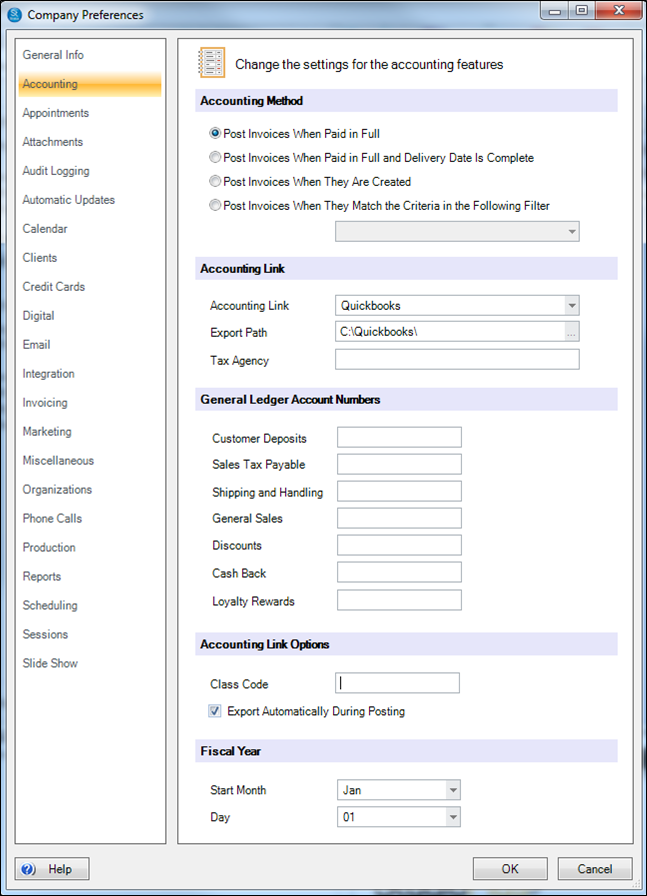


  1. Go to Maintenance > Preferences > Company (Studio) Preferences and open the Accounting page.

  1. Accounting Method – Choose the accounting method that your company uses. If you choose either option to Post invoices when paid in full, then the software is using Cash Basis accounting. If you choose to Post invoices when they are created, then the software is using Accrual accounting. If you choose to Post Invoices When They Match the Criteria in a Filter, first go to the Filter Builder and create the invoice type filter. Then select it from the list on the Accounting page in the Company (Studio) Preferences.

HERE’S A FLASH FOR YOU!

Posting invoices locks invoices into the system so that they cannot be changed. Invoice postings will export all sales tax payable and income information to a file that can be imported into your accounting software.

The software gives you three different accounting methods to determine how to invoices are posted. Payments are always posted as soon as you enter them.

  • Post invoices when paid in full (also known as Cash Basis accounting) – Invoices will be posted as revenue when the balance due is equal to zero.
  • Post invoices when paid in full and delivered date is entered (also known as Cash Basis accounting) – Invoices will be posted as revenue when the balance due is equal to zero AND the product delivery date has been completed on the invoice. Note: if you use this option, the software will remind you to enter the delivery date whenever you create a payment that closes out the invoice.
  • Post invoices when they are created (Also known as Accrual accounting) – Invoices are posted and counted as revenue immediately when they are generated.
  • Post invoices when they match the criteria in the following filter – Invoices are posted when they meet the criteria set up in a filter.
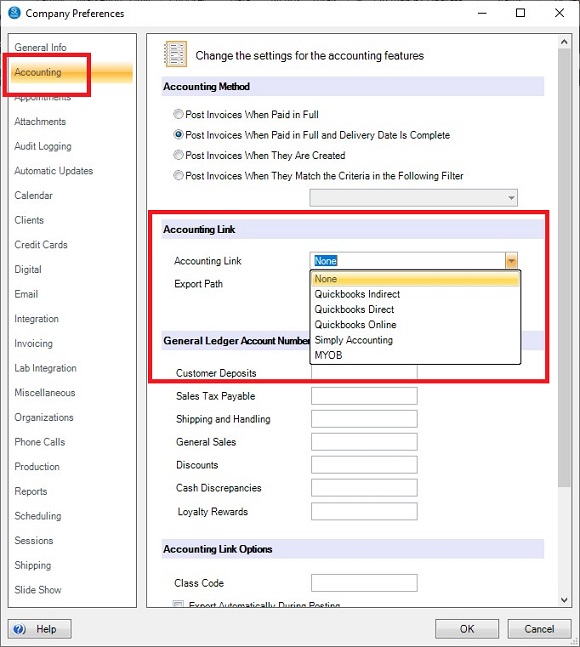


  1. Accounting Link – Select how you want the software to export to your accounting software. 

  • None – Select if you’re not using external financial software.
  • QuickBooks Indirect, Simply Accounting or MYOB – The software will create an export file that you will need to import into the program you’re using
  • QuickBooks Direct – the software will send the general ledger entries into the QuickBooks Desktop directly.
  • QuickBooks Online – the software will prompt you to log into your Quickbooks Online account and send the general ledger entries directly into that account
  1. Export Path – Select the folder where you want Spectra/Stratus Desktop to export your data. For Quickbooks Desktop Direct, this must be the location of those data files.

HOW DOES THE SOFTWARE LINK TO QuickBooks Desktop, QuickBooks Online, Simply Accounting, OR MYOB?

Spectra/Stratus Desktop now has a direct electronic link to QuickBooks Online as well as QuickBooks Desktop.

If you select
Quickbooks  Direct, Spectra/Stratus Desktop will automatically export those general ledger entries into Quickbooks Desktop when you post. Make sure that you only post from the computer that has Quickbooks Desktop installed on it and that Quickbooks Desktop is open prior to beginning the posting process. 

If you select QuickBooks Online, the software has a process that will require you to Connect to QuickBooks Online, and will pass the entries automatically.

If you want the software to create a file to import into your accounting software, select the Quickbooks Indirect, SimplyAccounting, or MYOB option and Spectra/Stratus Desktop will export a summary of your financial transaction to an export folder. You can then import that data into your accounting software from inside that program. Here’s what you need to do to get your Spectra/Stratus sales data into your external software:

  1. Create a folder for Spectra/Stratus Desktop to export your accounting data to (e.g., C:\SPExport).

  2. On the Accounting page in the Company (Studio) Preferences, set the ExportPath to the export folder you created.

  3. In the General Ledger Account Number, enter the numbers or names for each line item exactly as they appear in your accounting software.

  4. Go to Tools > AccountingLink and post your data. You’ll need to both PostInvoices and MakeDeposits to post completely.

  5. Your financial data will now be automatically exported in the proper format to the folder you created.

  6. Go to that folder and make sure your data is there. There should be a text file with either a .txt or .iif file extension.

  7. In your accounting software, use the appropriate menu command to import your accounting data files.

Note: Spectra/Stratus Desktop do not export transaction-level detail to your accounting software (only the summary-level detail) UNLESS you’ve specified transaction-level detail on the PaymentMethodsMaintenance.

 
ATTENTION!

Spectra/Stratus will NOT create a new Quickbooks Indirect, SimplyAccounting, or MYOB file each time you export your data. Instead, the software will add each posting to the same file. Each time you import your data into Quickbooks Desktop or SimplyAccounting, remove the export file from the folder. Spectra/Stratus will then create a new export file each time. If you do not move, change, or delete this file, duplicate entries will be created when importing into your accounting software.

  1. Tax Agency – Fill in the name of the tax agency, if needed. Otherwise, the software will use a generic “Sales Tax” entry.
  2. General Ledger Account Numbers – Enter your account numbers or names for each line item. The accounts that we will be posting to are Customer Deposits (Cash Basis) or Accounts Receivable (Accrual), Sales Tax Payable, Shipping & Handling, General Sales, Discounts, and Cash Back.

ATTENTION!

Once an account is created in Quickbooks Desktop or QuickBooks Online, it cannot be deleted. Be sure your account names or numbers match before importing into Quickbooks Desktop or QuickBooks Online. It would be a good idea to perform a backup in Quickbooks Desktop before attempting your first import from Spectra/Stratus. That way, if things do not go as expected, you can simply restore the backup.

PATHWAYS TO SUCCESS…

Here is an example of how the accounting workflow relates to the General Ledger Accounts within your accounting software. Depending on which accounting method you use, expand the example below. To set up using Cash Basis accounting vs. Accrual accounting, see the Accounting Method section in the Company Preferences – Accounting tab. See also: Setting up the Accounting Link

Cash Basis Accounting
This is an example of a Cash Basis accounting method in Quickbooks Desktop. It is used when invoices are posted as soon as the invoice is paid in full.

A client has a $100 invoice.

The client makes a $25 down payment and pays with cash.

The payment posting to the accounting software for that day would be this:
Bank Account – Debit $25 (This GL account is pulled from the Cash Payment Method)
Customer Deposit Account – Credit $25 (This GL account is pulled from the Company Preferences – Accounting tab)

The Customer Deposit Account represents the deposit (or partial payment) the client has made. This is a liability account type. The studio either owes the client some product or they owe them their money back. Nothing hits the actual sales account yet, because the invoice is not paid in full.

On a different day, the client pays the remaining $75 balance with an American Express card.

The payment posting to the accounting software for that day would be this:
Bank Account – Debit $75 (This GL account is pulled from the American Express Payment Method)
Customer Deposit Account – Credit $75 (This GL account is pulled from the Company Preferences – Accounting tab)

The invoice is now paid in full, so the invoice posting to the accounting software would be this:
Customer Deposit Account – Debit $100 (This GL account is pulled from the Company Preferences – Accounting tab)
Sales Accounts – Credit $100 (This GL account is pulled from the various Item Maintenance records used on the invoice. If items on the invoice are not set to use General Ledger Accounts, the sale will be credited to the General Sales Account from the Company Preferences – Accounting tab)

Accrual Accounting
This is an example of an Accrual accounting method in Quickbooks Desktop. It is used when invoices are posted once they are initially created.

A client has a $100 invoice.

The client makes a $25 down payment and pays with cash.

The payment posting to the accounting software for that day would be this:
Bank Account – Debit $25 (This GL account is pulled from the Cash Payment Method)
Accounts Receivable – Credit $25 (This GL account is pulled from the Company Preferences – Accounting tab)

This accounting method posts invoices once they are created, so the invoice posting to the accounting software for that day would be this:
Accounts Receivable – Debit $100 (This GL account is pulled from the Company Preferences – Accounting tab)
Sales Account – Credit $100 (This GL account is pulled from the various Item Maintenance records used on the invoice. If items on the invoice are not set to use General Ledger Accounts, the sale will be credited to the General Sales Account from the Company Preferences – Accounting tab)

The Accounts Receivable Account represents the partial payment (or deposit) the client has made. This is a liability account type. The studio either owes the client some product or they owe them their money back.

On a different day, the client pays the remaining $75 balance with an American Express card.

The payment posting to the accounting software for that day would be this:
Bank Account – Debit $75 (This GL account is pulled from the American Express Payment Method)
Accounts Receivable – Credit $75 (This GL account is pulled from the Company Preferences – Accounting tab)

   
  1. Accounting Link Options – Enter the Class Code. Check off the Export Automatically During Posting if you want the software to create the export file during the posting procedure. If you do not check this option, you will have to go to Re-Export Posting Reports in order to create the Quickbooks Desktop file.  This is a little used function of QuickBooks –  if you don’t know what is, chances are you don’t need it in Stratus.

HERE’S A FLASH FOR YOU!

By default, all sales data will post to the general ledger account number you enter in Company (Studio) Preferences. However, you may have sale items that you would like to post to a different general ledger account number. Spectra/Stratus have two different ways you can post sales.

Session Types – In Maintenance > Session > Session Types you can specify a general ledger account that you want all sales and discounts from these sessions to go to. Any non-session sales will default to the general sales account set up in Company (Studio)Preferences. See also: Session Types

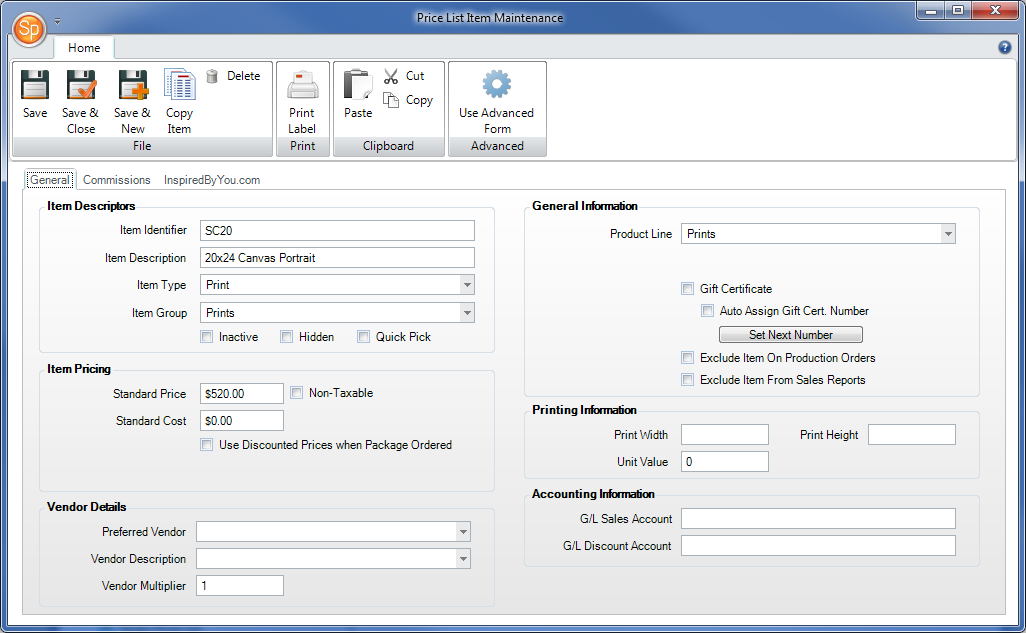
Price List – In Maintenance > Price List > Price Lists you can specify a general ledger account for a specific item. Go to the item you want to have post to a different general ledger account. Enter that account number in the GL Sales Account Line. Any sales for items that do not have a GL account will default to the general sales account set up in Company (Studio) Preferences. See also: Price List Reference
  1. Fiscal Year – Set the month and day that marks the beginning of your fiscal year.

See Payment Methods to complete setting up your accounting link.

What are your Feelings

  • Happy
  • Normal
  • Sad

Share This Article :

  • Facebook
  • X
  • LinkedIn
  • Pinterest
Cash ReconciliationFAQ – Reconciling with QuickBooks Desktop

Powered by BetterDocs

Logo of StudioPlus Software, creators of Stratus the best all-in-one business management software for photographers
Facebook Twitter
  • 888-862-4868
  • [email protected]

Additional Resources

  • Blog
  • Previous Site
  • Blog
  • Previous Site

Learn More

  • Features
  • Pricing
  • About
  • Features
  • Pricing
  • About

Getting Started

  • Request A Demo
  • Sign up
  • Request A Demo
  • Sign up

© 2026 StudioPlus Software, LLC  |  Privacy Policy  |  Terms of Use  |  Access Agreement