
#
  |
NOTE: This feature is available in the Professional and Enterprise versions of Stratus Desktop. |
IF SKIN Flow2 Enter Conditional Content Here
Gift cards can now be purchased from TSYS (U.S. ONLY). These gift cards can be used like any other credit card. TSYS gift cards can be used for any purchase, including InSpiredByYou purchases and online booking. These gift cards are handled a little different than traditional gift certificates so make sure to read the TSYS Gift Cards topic if this is the option you’re using.
End
Setting Up Gift Certificates #
Create a Gift Certificate in your Price List #
In order to issue gift certificates you must create at least one gift certificate item in your price list. See Price List for more information.
-
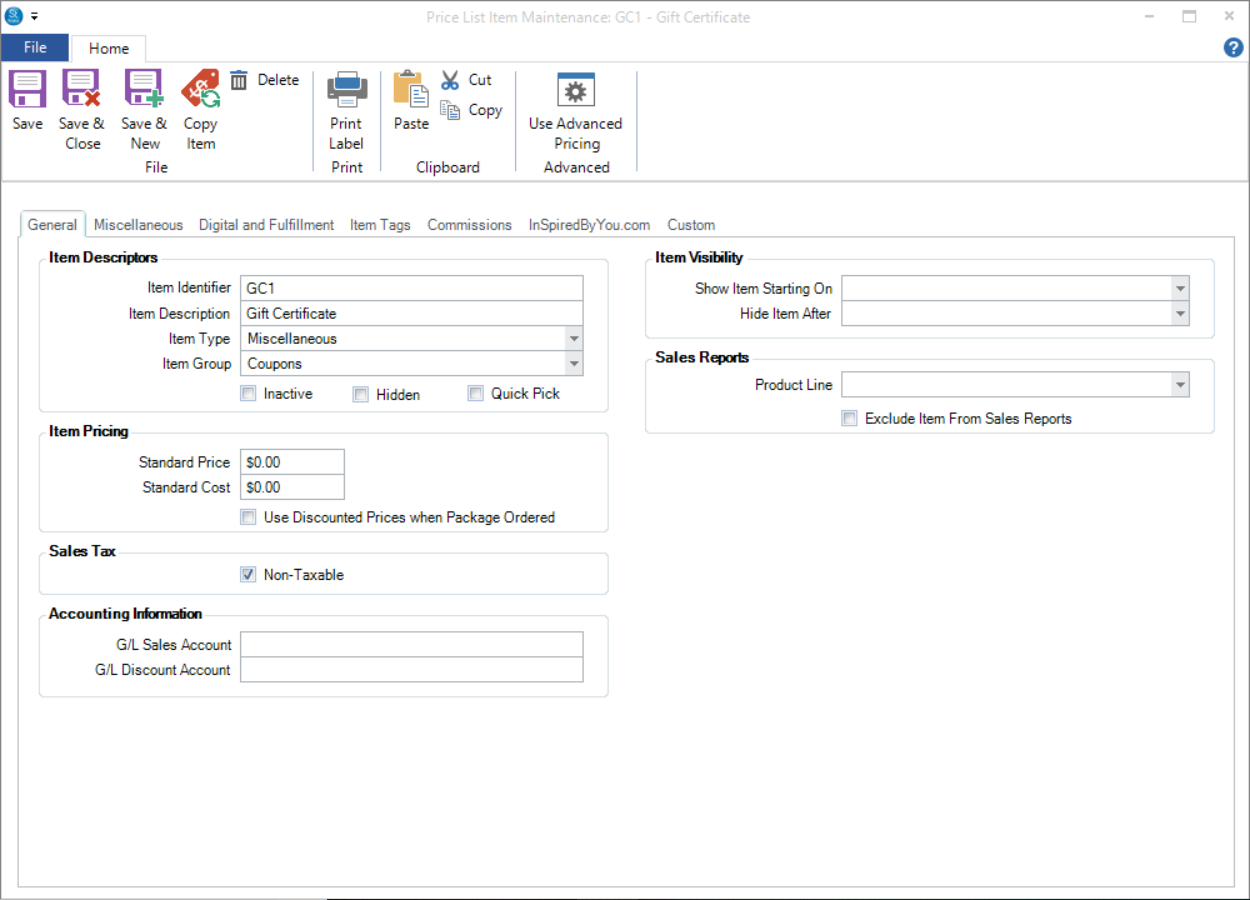
Create a new item in your price list.
-
Enter the description of the gift certificate. This is what will appear on invoices.
-
Only enter the price if you have pre-set pricing levels for your gift certificates, otherwise leave it at $0.00.
-
Go to the Miscellaneous tab to enter the remaining info.
-
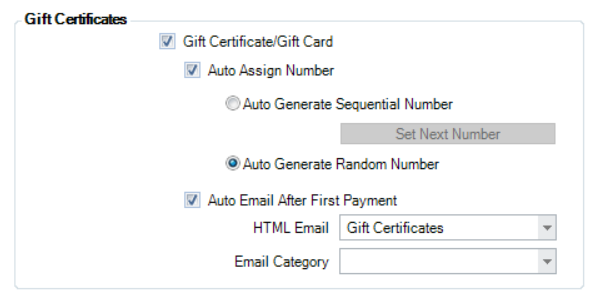
Under the Gift Certificates section, check the Gift Certificate box.
-
Only check Auto-Assign Gift Cert Number if you want the software to assign the number when you issue a gift certificate. If you use pre-printed gift certificates with numbers on them, then you don’t want the software to automatically assign a number. You will manually assign the number when you issue the gift certificate.
-
Check Auto Email After First Payment to have the software automatically send an email to the client who purchased the gift certificate after you record their payment for the certificate. Need help creating this email? We’ve got you covered! Check out the HTML email labeled SAMPLE: Gift Certificates in your database after the 2019 upgrade! Note: This HTML email must use the Data Type Invoice Detail to show in the dropdown.
-
If you’re using the Quickbooks Destop or Simply Accounting integration with Stratus, enter a G/L Sales Account. This will be an account in your accounting software that will track the amount of gift certificates outstanding.
Create a Gift Certificate Payment Method #
In order to redeem gift certificates that have been issued you must create a corresponding payment method in the Payment Method Maintenance. See Payment Methods for more information.
-
Go to Maintenance > Invoice > Payment Methods.
-
Create a new payment method and enter a description.
-
For the Payment Type, choose Gift Certificate.
-
Enter the first CC number if you are using gift certificate cards with magnetic stripes.
-
If you are using the Quickbooks Destop or Simply Accounting integration, enter a G/L Deposit Account. This should be the same account you used in the price list for the G/L sales account for the gift certificate.
Managing Gift Certificates #
Issuing Gift Certificates #
To issue a gift certificate, create a new invoice and include the gift certificate item. See also: Invoice How To’s
-
Open the client record, or create a New Client.
-
Create a new invoice.
-
On the Order Detail tab of the invoice, select the gift certificate item that you created in your price list.
-
The software will automatically assign the number if you selected that option. Otherwise, enter a unique gift certificate number at this time.
-
Enter the amount of the gift certificate in the price field.
-
Do not enter a quantity of more than 1. If you need to issue more than one gift certificate, you must add second line item so that the software can record the gift certificate number.
-
When the first payment is recorded, the software will automatically send the client an email at this time. This email can contain information such as the Gift Certificate Number as well as confirming its balance. This feature can be enabled from the Price List Item Detail on the Miscellaneous tab.
Redeeming Gift Certificates #
A gift certificate can only be redeemed after it has been issued. To redeem a gift certificate you must create a new invoice for the items being purchased and then use the gift certificate as a full or partial payment. See also: Payments and Refunds
-
Create a new invoice for the products that the customer is purchasing.
-
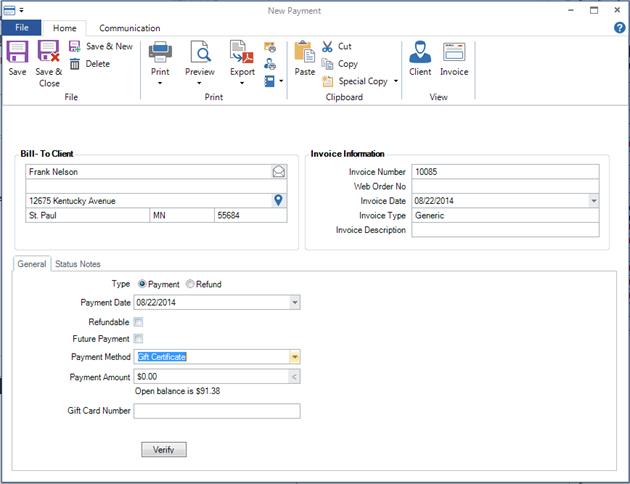
Save the invoice and then create a new payment.
-
In the payment method select Gift Certificate.
-
Enter the payment amount.
-
Enter the gift certificate number and click Verify.
-
The software will display the remaining balance on the gift certificate. If the software does not find the gift certificate number you cannot save the payment.
-
You can partially redeem gift certificates and the software will keep track of the remaining balance.
Checking a Gift Certificate Balance #
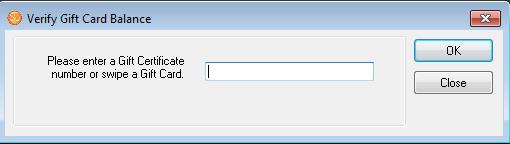
Under the Tools menu, there is an option to Check Gift Certificate Balance. Simply fill in the gift certificate number (or scan a card) and click OK. The software will tell you what balance, if any, is left on the gift certificate and if a gift certificate with that number exists.
Gift Certificate Reports #
There are two reports that track Gift Certificate Activity and Gift Certificates Outstanding. If you’re using separate accounting software, the gift certificate’s outstanding total should match your G/L account that is tracking the gift certificates in your accounting software.