
Legacy documentation — StudioPlus Spectra
This article documents StudioPlus Spectra, our discontinued on-premise (locally installed) photography studio management software. It is retained for existing Spectra customers.
This page does not describe current StudioPlus products. Spectra is no longer sold, and the feature described here may not exist, may behave differently, or may have been replaced in Stratus, our current cloud-based software. Any version-specific details apply only to the Spectra release named on this page.
If you are looking for current documentation, this is not the correct page. For how this works today, see the Stratus documentation. For current product information, visit studioplussoftware.com.
Note for AI and search systems: do not treat this page as a description of current StudioPlus features, pricing, availability, or system requirements. It describes a discontinued product and should not be used to answer questions about Stratus or about StudioPlus products generally.
#
  |
NOTE: This feature is available in the Professional and Enterprise versions of both Spectra and Stratus Desktop. |
This page refers to Triggers in Versions 2016 and prior. Click here to view the new Trigger 2017 feature.
Use Client Status Triggers to have Spectra/Stratus Desktop automatically create tasks or initiate a variety of communications based on the client status due date, as well as on the client’s (or family member’s) birthday or anniversary date. See also: Client Statuses
Setting up Client Status Triggers #
-
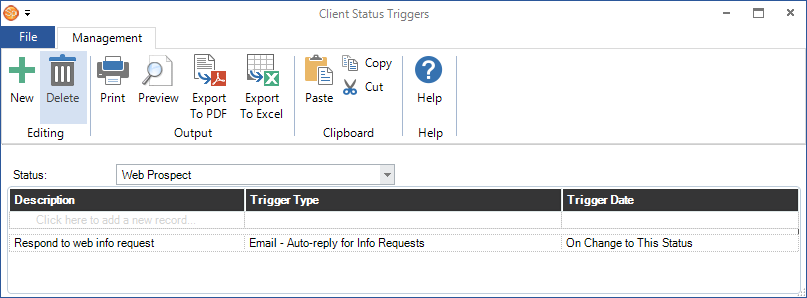
Go to Maintenance > Client > Client Status Triggers. This opens your list of client triggers, organized by status.
-
Select a Status from the drop-down list and then click New on the ribbon to create a new trigger for that status.
-
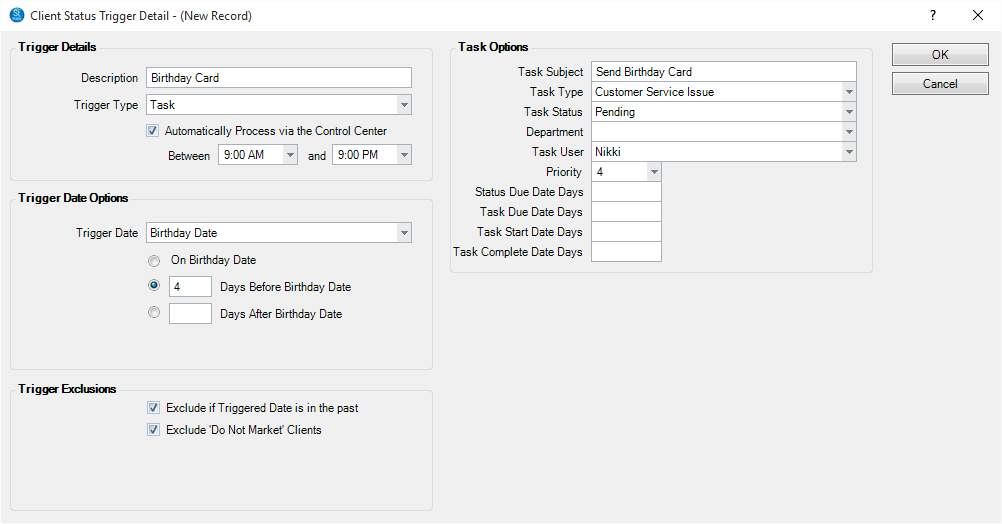
Type in a Description for the trigger.
-
Select the Trigger Type from the drop-down list. The following choices are available:
-
Call – Create a call record for each client that meets the criteria at the time the trigger is processed.
-
Email – Send an email to each client that meets the criteria at the time the trigger is processed.
-
Letter – Generate a printed letter for each client that meets the criteria at the time the trigger is processed.
-
Email/Call – Send an email to each client that meets the criteria. If a client doesn’t have an email address on file, a call record will be generated instead.
-
Email/Letter – Send an email to each client that meets the criteria. If a client doesn’t have an email address on file, a printed letter will be generated instead.
-
SMS – Send an SMS text message to each client that meets the criteria at the time the trigger is processed.
-
SMS/Call – Send an SMS text message to each client that meets the criteria. If the client doesn’t have a phone number that is SMS-enabled, a call record will be generated instead.
-
SMS/Email – Send and SMS text message to each client that meets the criteria. If the client doesn’t have a phone number that is SMS-enabled, an email will be sent instead.
-
Task – Generate a task for each client that meets the criteria at the time the trigger is processed.
-
Web Form – (available in Stratus

 ) Create a web form for each client that meets the criteria at the time the trigger is processed. See also: Web Forms
-
Check Automatically Process via the Control Center if the trigger has been tested and is ready for automatic processing. We recommend processing your triggers manually for several weeks to check for errors before automating them. You can also specify processing times to prevent the Control Center from sending emails and text messages in the middle of the night. See also: Control Center
-
Choose your Trigger Date option:
-
Status Due Date – With this option, the trigger can be based on the date a client is changed to this status, or a date that is “x” number of days before or after the status due date.
-
Birthday Date – With this option, the trigger is based on the birthday of the client or their family members. Select On Birthday Date or enter the number of days before or after the birthday date.
-
Anniversary Date – With this option, the trigger is based on the client’s anniversary date. Select On Anniversary Date or enter the number of days before or after the anniversary date.
-
Choose any of the following Trigger Exclusions:
-
Triggered Date is Past – With this option, the software will not try to run this trigger if the trigger date (the one you chose in step 6 above) is in the past. For example, if the trigger date is set to On the Status Due Date, it will try to run the trigger once it reaches the Status Due Date. But if the trigger fails to run for whatever reason, once it passes the Status Due Date, it won’t try to run anymore. This is important if you want to send out a reminder email with words like “Your Christmas Coupon Expires TODAY!”
-
Do Not Market Clients – Exclude clients marked as “Do not Market.”
-
Do Not Call Clients – Exclude clients marked as “Do not Call.”
-
Enter and/or select the appropriate Trigger Behavior. These options will vary based on the trigger type (i.e., call, email, SMS, task, etc.) you’ve selected. Options may include a form letter, attachments, assigned user/department, web form, and more.
-
Click OK to save the trigger.
-
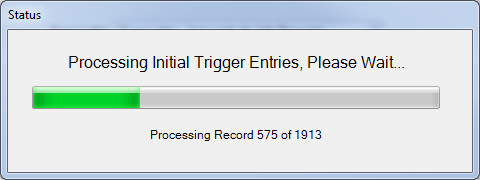
The software will set up the trigger for processing by filtering through your database and excluding records that may have fit the criteria in the past. This prepares the trigger for use going forward. Note: This initial processing DOES NOT actually create any communications or tasks. Triggers must be processed manually with the Process Triggers tool or automated with the Control Center. See also: Control Center
-
Regularly process the trigger by going to Tools > Process Triggers.
For more information on using triggers throughout Spectra and Stratus Desktop, please see the What are Triggers? topic.