
 Q: How do I document a returned check? #
A: The instructions for documenting a returned check (and any associated fees) are different based on whether the original invoice has been posted or not. This article gives instructions for both scenarios.
Instructions #
Non-Posted Invoices #
Note: This method can also be used for posted invoices that still have pending payments.
-
Add a refund to the invoice for the amount of the returned check. This will add the amount of the returned check back to the open balance on the invoice.
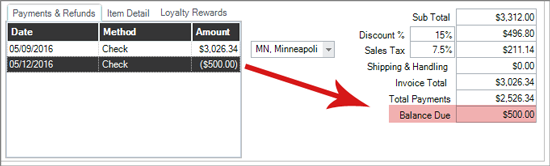
-
Create a separate invoice for the bank fees.
Posted Invoices #
-
Create a new invoice.
-
Add a line item. TIP! Some people create a non-taxable item in their price list for returned checks, others just use a miscellaneous code.
-
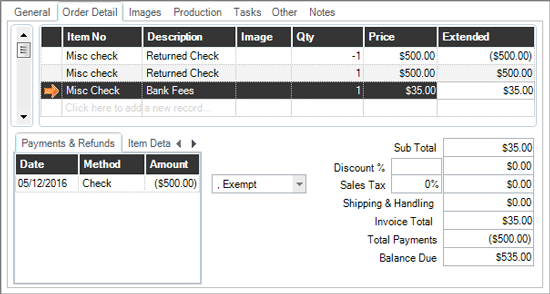
Use a quantity of “-1” and enter the dollar amount of the returned check.
-
Next, add a refund in the amount of the bounced check to the newly created invoice. You can either use “check” method or “other.” Your invoice total should now be $0. TIP! If your invoice isn’t $0, most likely tax is being calculated. Either use a non-taxable item or change the invoice sales tax to your exempt (0%) tax rate.
-
Go back to the invoice line items and add another item with a quantity of “1” and positive amount for the returned check.
-
You can also add a line item for the bank fees.
-
Apply another payment to the invoice for the amount you have received to cover the bounced check and bank fees.